Blog

  • PlayStation’s Biggest In-House Single-Player Games Are Reportedly Staying Console-Exclusive

    PlayStation’s Biggest In-House Single-Player Games Are Reportedly Staying Console-Exclusive

    Sony has not issued a public blog post or press release on this. What exists is Bloomberg’s Jason Schreier reporting earlier this year that Sony was pulling back from PC ports for major first-party games, then later reporting that PlayStation Studios CEO Hermen Hulst reportedly confirmed the shift during an internal town hall, telling staff the company’s major narrative single-player games will now remain PlayStation console-exclusive. That is the level of confirmation available — strong reporting from credible sources, not a public product announcement.

    What it means in practice: the years-long pattern of bringing major PlayStation single-player franchises to PC — God of War, Spider-Man, The Last of Us, Horizon, Uncharted — appears to be ending for future major first-party narrative single-player titles.

    What Sony Is Reportedly Changing

    According to Bloomberg’s Jason Schreier, Sony reportedly no longer plans routine PC ports for its major internally developed narrative single-player PlayStation games. The report cites people familiar with the plans. Schreier subsequently reported that Hulst communicated the shift directly to PlayStation staff, telling them that narrative single-player PlayStation games would now be treated as PlayStation-exclusive.

    The titles named as examples of games expected to remain on console — Ghost of Yōtei, Saros, and Marvel’s Wolverine — have not had their PC status publicly confirmed or denied by Sony on any product page. The framing comes from Schreier’s reporting, not from official cancellation announcements.

    The previous approach, as Hulst described it publicly in 2024, was a dual strategy: live-service and online multiplayer games could launch day-and-date on PlayStation and PC, while major single-player narrative titles were handled more selectively and typically arrived on PC later as a way to pull new players into the PlayStation ecosystem. The reported shift is more decisive — not just delayed PC ports, but no routine PC ports for the biggest first-party narrative games going forward.

    This Does Not Mean Every PlayStation Game Is Leaving PC

    This Does Not Mean Every PlayStation Game Is Leaving PC

    Several things remain unchanged or have been specifically carved out:

    Live-service and online games can still come to PC. Sony’s FY25 Gaming and Network Services presentation still describes live-service releases as day-and-date on PlayStation and PC. Games like Marathon fall into this category.

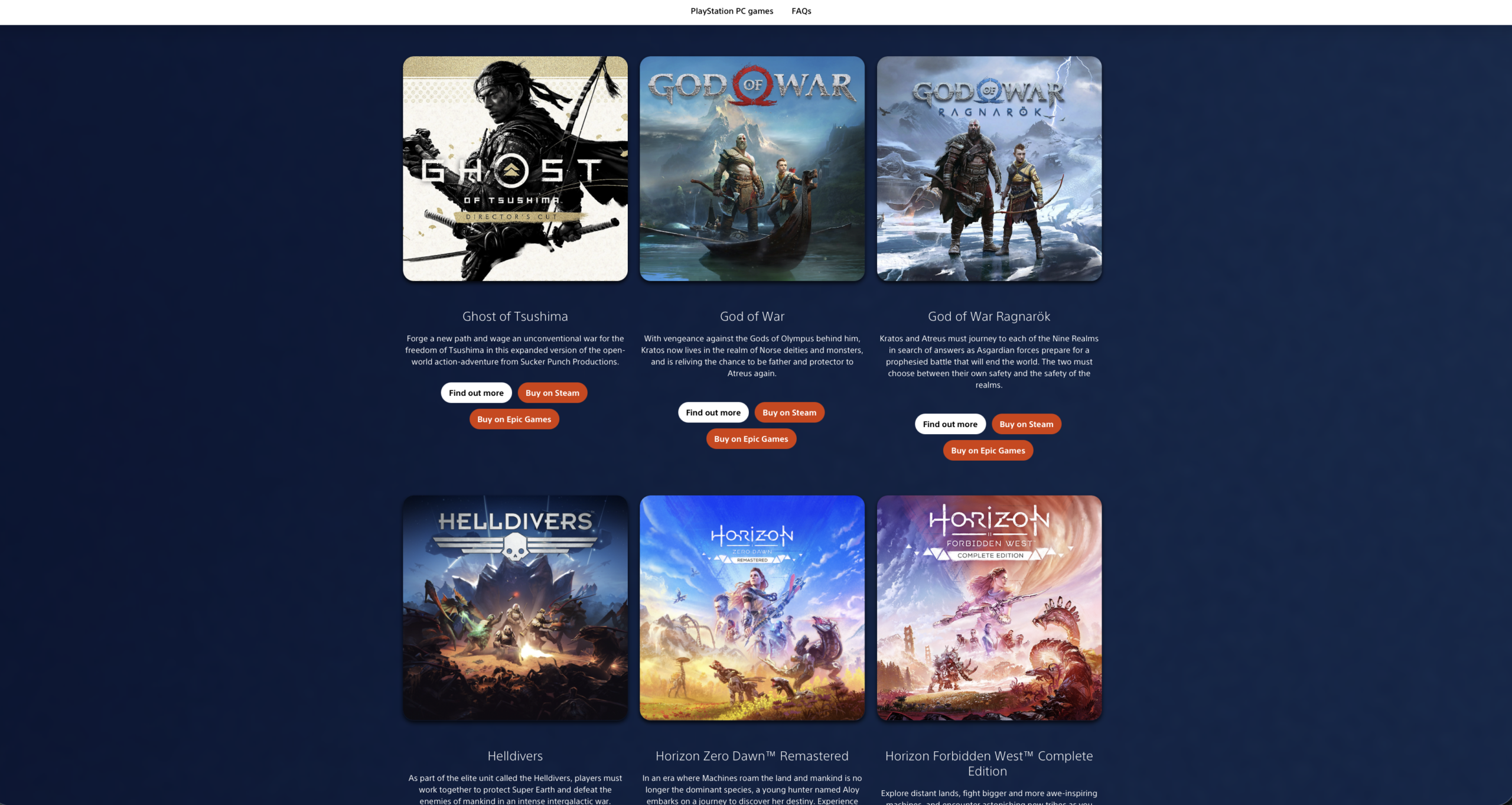
    Existing PlayStation PC games are not being removed. PlayStation’s official PC page still lists titles including The Last of Us Part II Remastered, God of War, Returnal, Horizon Zero Dawn Remastered, and Uncharted: Legacy of Thieves Collection. None of those are going anywhere.

    Already-announced PC releases are not affected. Kena: Scars of Kosmora, published by PlayStation Publishing LLC, is officially announced for both PS5 and PC with a Steam page already live. Calling this policy a blanket ban on every PlayStation single-player game reaching PC would be factually wrong.

    The accurate framing is narrower: major internally developed PlayStation Studios narrative single-player games are the titles reportedly being pulled back from routine PC ports.

    Why PlayStation May Be Rebuilding Console Exclusivity

    The business logic is straightforward even if Sony has not stated it publicly. PlayStation’s position in the console market depends substantially on the perception that owning a PS5 gives you access to experiences you cannot get elsewhere. Every major single-player game that comes to PC within one to two years of its console release weakens that argument.

    Some PlayStation PC ports, including major franchises like God of War and Spider-Man, found large audiences on Steam, but the broader PC strategy has had mixed results. But success on individual ports does not automatically mean the overall approach helped PlayStation’s broader business — if a portion of those PC buyers would have purchased a PS5 to play those games otherwise, the ports may have substituted console sales rather than supplemented them.

    Sony may also be watching Xbox’s PC-first strategy closely — Xbox has brought all its first-party games to PC day-and-date — though drawing a direct causal line between that approach and Xbox’s console hardware performance would require more evidence than is publicly available. The reporting suggests at least some inside PlayStation believe exclusivity for its biggest titles may be worth more than the additional revenue from PC ports.

    Which Games Are Most Likely Affected

    Based on Schreier’s reporting, the titles most directly affected by the reported policy shift are:

    Ghost of Yōtei — the follow-up to Ghost of Tsushima, one of PlayStation’s major modern single-player franchises. Ghost of Tsushima did come to PC in 2024. Ghost of Yōtei is reported to be staying on PlayStation.

    Saros — the new game from Housemarque, the studio behind Returnal (which did come to PC). Saros is reported as a console exclusive under the new approach.

    Marvel’s Wolverine — Insomniac’s next major title after the Spider-Man series. The Spider-Man games came to PC. Wolverine is reported to be staying on console.

    None of these has a public statement from Sony specifically cancelling a PC version — because none of them had a PC version announced in the first place. The significance of the reporting is that under the previous strategy, games like these would likely have eventually come to PC. The reported policy change suggests they will not.

    What PC Players Should Expect Now

    The practical picture for PC players breaks down clearly:

    What stays available on PC: All existing PlayStation PC releases remain. Live-service PlayStation games, including future titles in that category, can still come to PC. Externally developed or PlayStation-published exceptions may still reach PC on a case-by-case basis.

    What is no longer a safe assumption: That major PlayStation Studios single-player narrative games — the ones that drive PS5 hardware sales — will follow the pattern set by God of War, Spider-Man, and The Last of Us and eventually arrive on Steam.

    What has not changed: Sony has not publicly confirmed any of this. The reporting is credible and sourced, but it describes an internal strategy communicated to staff, not a public product policy. Things can change, strategies can shift, and individual exceptions can still happen. What has changed is that PC ports of PlayStation’s biggest games can no longer be assumed.

  • What Is Xbox Play Anywhere? How It Works on Xbox, PC, and Handhelds

    What Is Xbox Play Anywhere? How It Works on Xbox, PC, and Handhelds

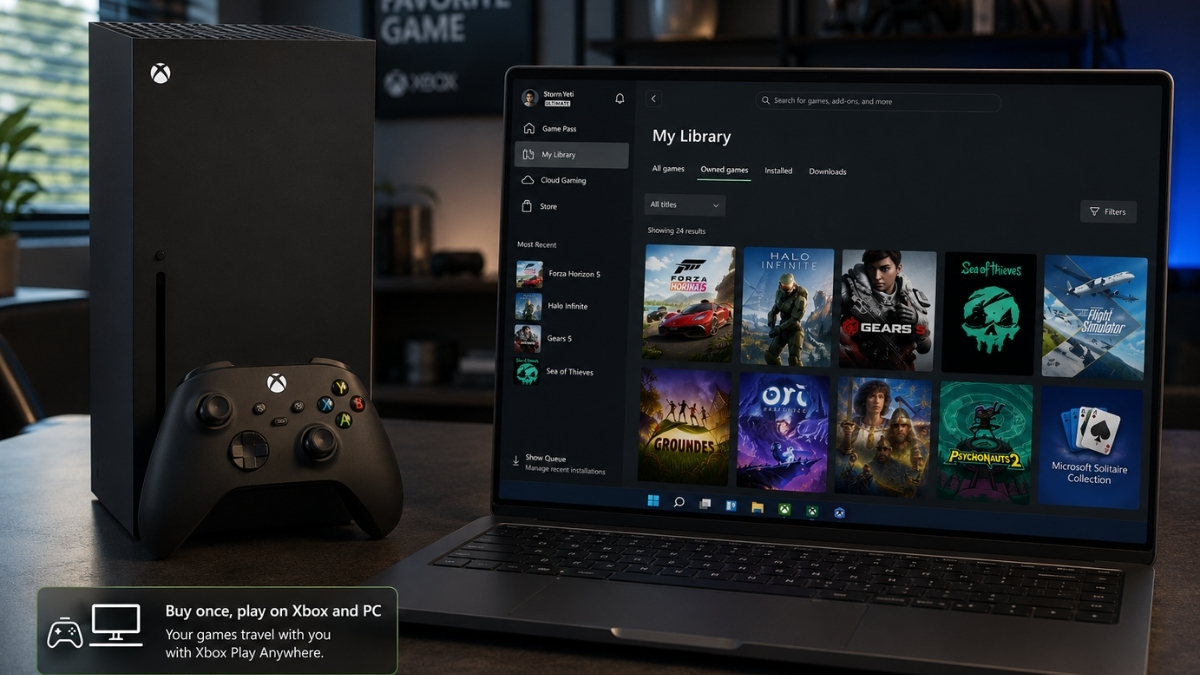
    Xbox Play Anywhere is Microsoft’s cross-buy and cross-progression program. Buy a supported digital game once, and you can install and play it on Xbox console, Windows PC, and supported Windows 11 gaming handhelds, all under the same Microsoft account, with no additional purchase required. For supported Xbox Play Anywhere games, saves, add-ons, achievements, and progress carry across eligible devices.

    This article explains exactly how it works, what it doesn’t cover, and how it differs from Game Pass, Cloud Gaming, and Remote Play, the three programs most commonly confused with it.

    What Xbox Play Anywhere Actually Means

    Xbox Play Anywhere delivers three things in one eligible digital purchase:

    Cross-buy — One purchase gives you both the Xbox console version and the Windows PC version of a supported game. You don’t pay separately for each platform.

    Cross-save — Your progress syncs across devices through Xbox cloud saves. Start a campaign on Xbox, continue it on a Windows laptop, pick it up again on a handheld.

    Shared Xbox ecosystem — Achievements, add-ons, season passes, consumables, and in-game unlocks follow your Microsoft account across the supported Play Anywhere versions of a game.

    As of April 2026, Microsoft has confirmed over 1,500 games support Xbox Play Anywhere.

    How Xbox Play Anywhere Works

    The process is straightforward once you know what to do:

    1. Buy a supported digital game from the Xbox Store, Microsoft Store, or via an eligible digital code from a participating retailer.
    2. Sign in with your Microsoft/Xbox account on any supported device.
    3. On Xbox console, the game appears under My Games & Apps → Ready to Install.
    4. On Windows PC, it appears in My Library inside the Xbox app.
    5. Progress syncs automatically through Xbox cloud saves whenever you’re connected.

    There is no manual transfer, no re-purchasing, and no linking process. The account is the key, the same library and saves are waiting wherever you sign in.

    Does Xbox Play Anywhere Cost Extra?

    No. Microsoft is explicit on this: there is no additional cost when you already own an eligible digital Xbox Play Anywhere game. The program is built into the purchase itself, not a separate subscription or add-on.

    Is Xbox Play Anywhere Digital Only?

    Yes, and this matters. Xbox Play Anywhere applies only to digital copies of supported games. If you buy a disc version of the same title, the Play Anywhere benefit does not apply, you own a physical Xbox copy, not a cross-platform digital entitlement.

    Eligible purchases must be made through:

    • Xbox Store
    • Microsoft Store (on Windows)
    • Digital codes from participating retailers

    Purchases made on Steam, Epic Games Store, or other third-party storefronts do not qualify, even if the game itself supports Play Anywhere on the Xbox/Microsoft side.

    Buying a game on Steam or Epic may still give you the PC version from that storefront, but it does not create an Xbox Play Anywhere entitlement unless the purchase is tied to the Xbox/Microsoft Store ecosystem. The game being available on both platforms is not the same as the purchase being cross-platform.

    Xbox Play Anywhere vs. Game Pass

    Xbox Play Anywhere vs Game Pass

    This comparison trips up a lot of players. They are fundamentally different programs:

    Feature Xbox Play Anywhere Xbox Game Pass
    Type Cross-buy/cross-save feature Subscription service
    Ownership You keep access to the purchased digital game through your account, separate from any subscription You access games while subscribed and while the title remains in the library
    Extra cost None after eligible digital purchase Paid monthly subscription
    Main benefit Buy once, play across Xbox, PC, and supported handhelds Access a large rotating game library
    What happens if you stop paying Nothing changes for games you purchased digitally; Game Pass access ends for subscription-only titles You lose access to the Game Pass library

    Some Game Pass games are also Play Anywhere titles. But accessing a game through Game Pass does not give you Play Anywhere ownership. To get the cross-buy benefit, you must make an eligible digital purchase, not just stream or download it as part of a subscription.

    Xbox Play Anywhere vs. Cloud Gaming vs. Remote Play

    Xbox Play Anywhere vs. Cloud Gaming vs. Remote Play

    These three are the most frequently confused features in the Xbox ecosystem. Here is what each one actually does:

    Feature What it does Requires
    Xbox Play Anywhere Download and play a supported game natively on Xbox, PC, or a supported handheld Eligible digital purchase
    Xbox Cloud Gaming Stream games from Microsoft’s cloud servers to a device Usually an active Game Pass plan, though select free-to-play games and select owned cloud-playable games may also be available.
    Xbox Remote Play Stream games from your own Xbox console to another device Your own Xbox console with remote features enabled, turned on or in Sleep mode

    The key distinction: Play Anywhere is native installation on multiple devices. Cloud Gaming is remote streaming from Microsoft’s infrastructure. Remote Play is remote streaming from your personal console. None of them are interchangeable.

    How to Know If a Game Supports Xbox Play Anywhere

    How to Know If a Game Supports Xbox Play Anywhere

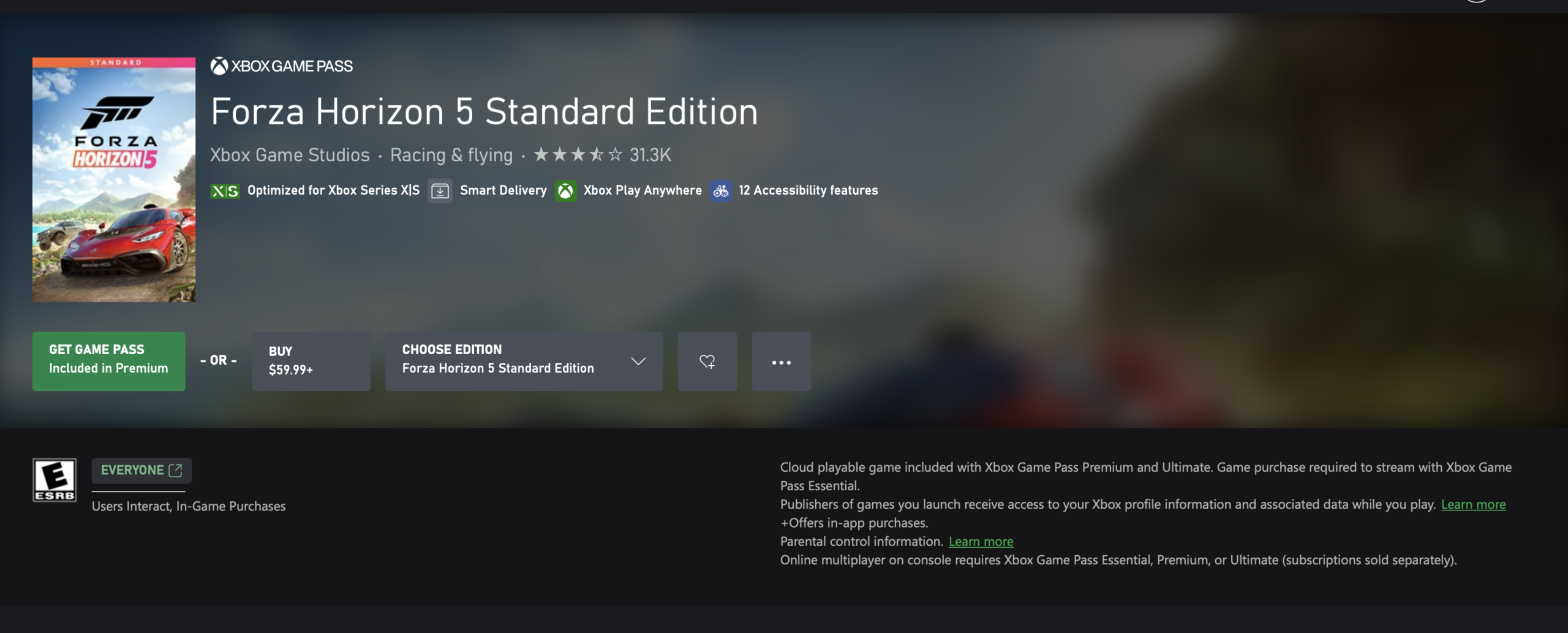
    Supported games are marked with the Xbox Play Anywhere badge in the Xbox Store and Microsoft Store. The badge appears on the game’s store page. Titles like Hades II and Gotham Knights are among the games that support the program, and Microsoft maintains a full Play Anywhere games list on Xbox.com where you can browse or search the entire catalog.

    If a game does not show the badge, do not assume it supports Play Anywhere, store metadata can lag or vary by region, but the badge is the most reliable indicator available.

    Do Saves, DLC, and Achievements Carry Over?

    For supported Play Anywhere games, yes. Microsoft confirms that the following travel across supported console, PC, and handheld versions:

    • Save games (via Xbox cloud saves)
    • Game add-ons and DLC
    • Season passes
    • Consumables
    • In-game unlocks
    • Achievements

    This applies to supported Play Anywhere titles specifically. Cross-save behavior on non-Play Anywhere games varies by developer and is not part of this program.

    Can You Play the Same Game on Multiple Devices at Once?

    No. Xbox explicitly states you cannot be signed into the same Play Anywhere game on an Xbox console, Windows PC, and supported handheld simultaneously using the same account. You can switch between devices freely, but not run concurrent sessions.

    Does Xbox Play Anywhere Work on Gaming Handhelds?

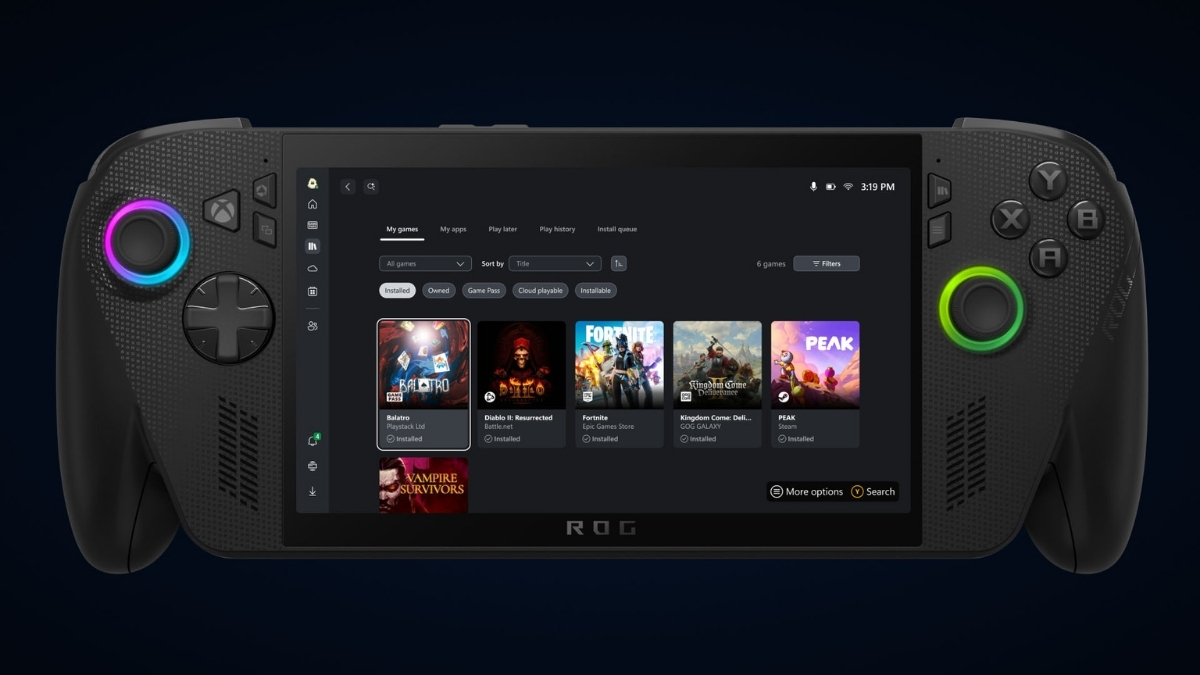
    Microsoft has expanded the Play Anywhere positioning to include supported Windows 11 gaming handhelds, including the ROG Xbox Ally and ROG Xbox Ally X. A game marked as Xbox Play Anywhere that you own digitally can be installed and played on these devices under the same account, with the same save sync and DLC access.

    Xbox Play Anywhere Work on Gaming Handhelds?

    This makes Play Anywhere one of the more practical programs for handheld PC gaming, since you’re not limited to streaming, the game runs natively on the device.

    Common Xbox Play Anywhere Problems

    Xbox Play Anywhere Work on Gaming Handhelds?

    Game isn’t showing up in PC library Check that you’re signed into the correct Microsoft account, the one you used to purchase the game. The Xbox app on Windows must be installed and signed in.

    Bought the disc version Disc copies do not carry Play Anywhere entitlement. You’ll need a digital purchase to access the cross-platform benefit.

    Bought on Steam or Epic Third-party storefronts are not part of the program. The purchase needs to have been made through Xbox Store or Microsoft Store.

    The game supports Xbox and PC but not Play Anywhere Some multiplatform games sell Xbox and PC versions separately without being Play Anywhere titles. Check for the badge specifically, “available on Xbox and PC” does not automatically mean Play Anywhere.

    Wrong Microsoft account Your library and saves are tied to your account. Signing in with a different account gives you access to that account’s purchases only.

    Save isn’t syncing Make sure both devices are connected to the internet and signed into the same Microsoft account. Fully quit the game on the first device before opening it on another, then allow time for Xbox cloud saves to sync. If the latest save still doesn’t appear, restart the Xbox app or console. If syncing continues to fail, check Xbox network status at support.xbox.com, as cloud save issues are sometimes service-side.

    DLC appears missing on one device DLC should transfer automatically on supported Play Anywhere titles. If it doesn’t appear, restart the Xbox app or console, confirm you’re on the correct account, and check the store page for the DLC to see if it’s already listed as owned.

    Confusing a Game Pass download with an owned game If you downloaded a game through Game Pass and your subscription lapses, you lose access. Access to games you purchased digitally through Xbox/Microsoft Store is tied to your account, not your subscription status.

    FAQ

    Is Xbox Play Anywhere free? There is no extra charge. The benefit is included when you make an eligible digital purchase of a supported game.

    Do I need Xbox Game Pass for Xbox Play Anywhere? No. Game Pass and Play Anywhere are separate programs. You do not need a Game Pass subscription to use Play Anywhere.

    Does Xbox Play Anywhere work with disc games? No. Only digital purchases qualify.

    Can I use Xbox Play Anywhere on Steam? No. Steam purchases do not activate Play Anywhere on the Xbox/Microsoft side.

    Do saves transfer between Xbox and PC? Yes, for supported Play Anywhere titles, saves sync automatically through Xbox cloud saves.

    Does DLC transfer between Xbox and PC? Yes, for supported Play Anywhere games, add-ons and DLC are shared across supported versions.

    Can two people play the same Xbox Play Anywhere game at the same time on one account? No. Concurrent sessions on the same account are not permitted.

    How do I find Xbox Play Anywhere games? Look for the Xbox Play Anywhere badge in the Xbox Store or Microsoft Store, or browse the full list at xbox.com/games/xbox-play-anywhere.

    Does Xbox Play Anywhere work on ROG Xbox Ally? Yes. The ROG Xbox Ally and ROG Xbox Ally X are among the supported Windows 11 handhelds for the program.

    What is the difference between Xbox Play Anywhere and Cloud Gaming? Play Anywhere is native installation across supported devices with a digital purchase. Cloud Gaming streams titles from Microsoft’s servers and requires Game Pass for most use cases.

    What is the difference between Xbox Play Anywhere and Remote Play? Remote Play streams from your own Xbox console to another device. Play Anywhere lets you download and run the game natively on a second device without needing your console online or nearby.

  • PlayStation State of Play 2026 Confirmed for June 2 With Marvel’s Wolverine Opening the Show

    PlayStation State of Play 2026 Confirmed for June 2 With Marvel’s Wolverine Opening the Show

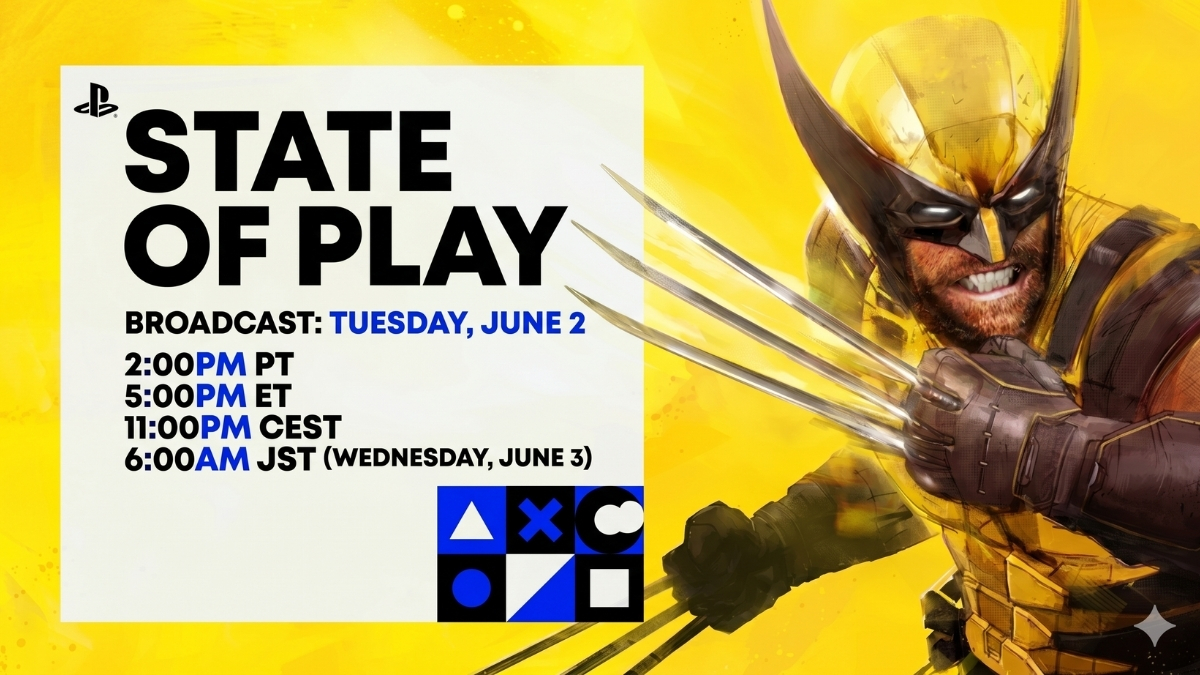
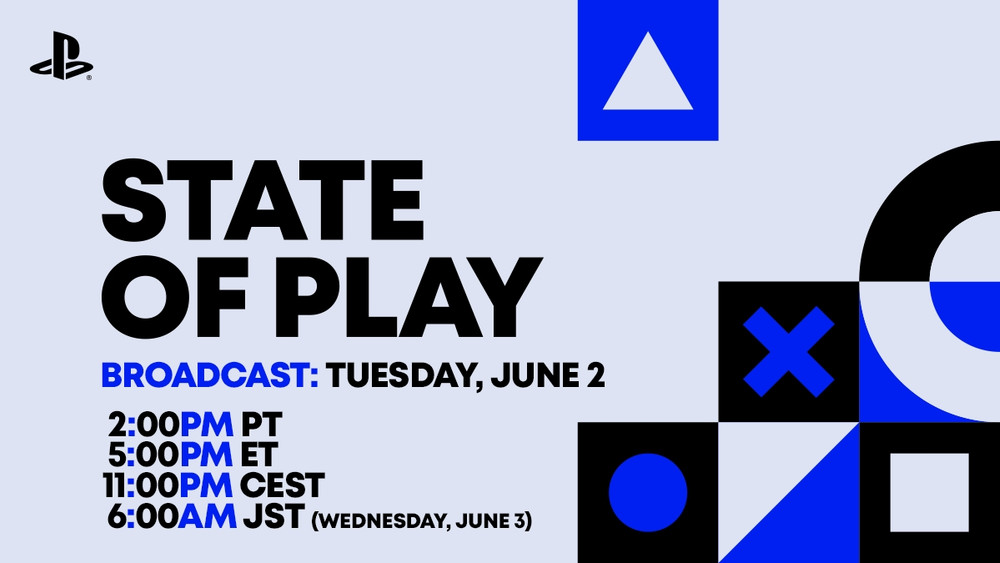
    Sony confirmed through the PlayStation Blog that the next PlayStation State of Play 2026 will air on Tuesday, June 2, 2026, at 2 PM PT / 5 PM ET / 11 PM CEST. The broadcast will stream live on PlayStation’s official YouTube and Twitch channels. If you are in Japan, the broadcast is scheduled for June 3 at 6 AM JST.

    The show runs for more than 60 minutes and will include updates, announcements, and gameplay reveals for PS5 games. Sony has confirmed one game so far: Marvel’s Wolverine from Insomniac Games will open the show.

    Marvel’s Wolverine Is Leading the Show

    Sony says Insomniac Games will kick things off with a closer look at Marvel’s Wolverine, including what PlayStation describes as “brutal and relentless combat” alongside new details about the game. Marvel’s Wolverine is currently set to launch on PS5 on September 15, 2026.

    That is the only game Sony has officially named for this State of Play. Everything else is speculation until PlayStation says otherwise.

    When and Where to Watch PlayStation State of Play 2026

    When is the next state of play

    Date: Tuesday, June 2, 2026 Time: 2 PM PT / 5 PM ET / 11 PM CEST Japan: June 3 at 6 AM JST Runtime: More than 60 minutes Where: PlayStation’s official YouTube and Twitch channels

    The broadcast will be in English with Japanese subtitles available.

    Sony is also partnering with Alamo Drafthouse for free live watch parties in select US cities including Los Angeles, New York City, Chicago, Dallas/Fort Worth, the San Francisco Bay Area, and Raleigh. Tickets are free but limited, so check your local Alamo Drafthouse for availability.

    What Has Not Been Confirmed Yet

    Fans are already speculating about other PlayStation Studios and third-party titles, but Sony has not confirmed anything beyond Marvel’s Wolverine for the June 2 show.

    The only things confirmed right now are the date, the runtime, where to watch, and that Marvel’s Wolverine is opening the show. Treat anything beyond that as fan speculation until PlayStation makes an official announcement.

    What to Expect From a 60-Minute State of Play

    Sony says the broadcast will include updates, announcements, and gameplay reveals from studios around the world, so Marvel’s Wolverine will not be the only segment in the show. However, Sony has not confirmed whether the remaining reveals will come from PlayStation Studios, third-party partners, or both.

    Sony also warned creators that the broadcast may include copyrighted content, including licensed music, which could affect co-streams, VOD archives, recap videos, or reposted clips.

  • Subnautica 2 Crashing on Startup Fix: AMD Driver Rollback, DX12 Error, and Steam Fixes

    Subnautica 2 Crashing on Startup Fix: AMD Driver Rollback, DX12 Error, and Steam Fixes

    If Subnautica 2 crashing on startup or before it even opens, you are not alone. This has been one of the biggest issues since Subnautica 2 launched in Early Access this May. The good news is that most startup crashes come down to one of a few known causes, and the fixes are straightforward.

    Start with Fix 1 if you have an AMD graphics card. If you see a DirectX 12 error, go to Fix 3. Everyone else, work through the list in order.

    What Is Causing the Crash

    why Subnautica 2 Crashing on Startup

    There are five main reasons Subnautica 2 crashes on startup:

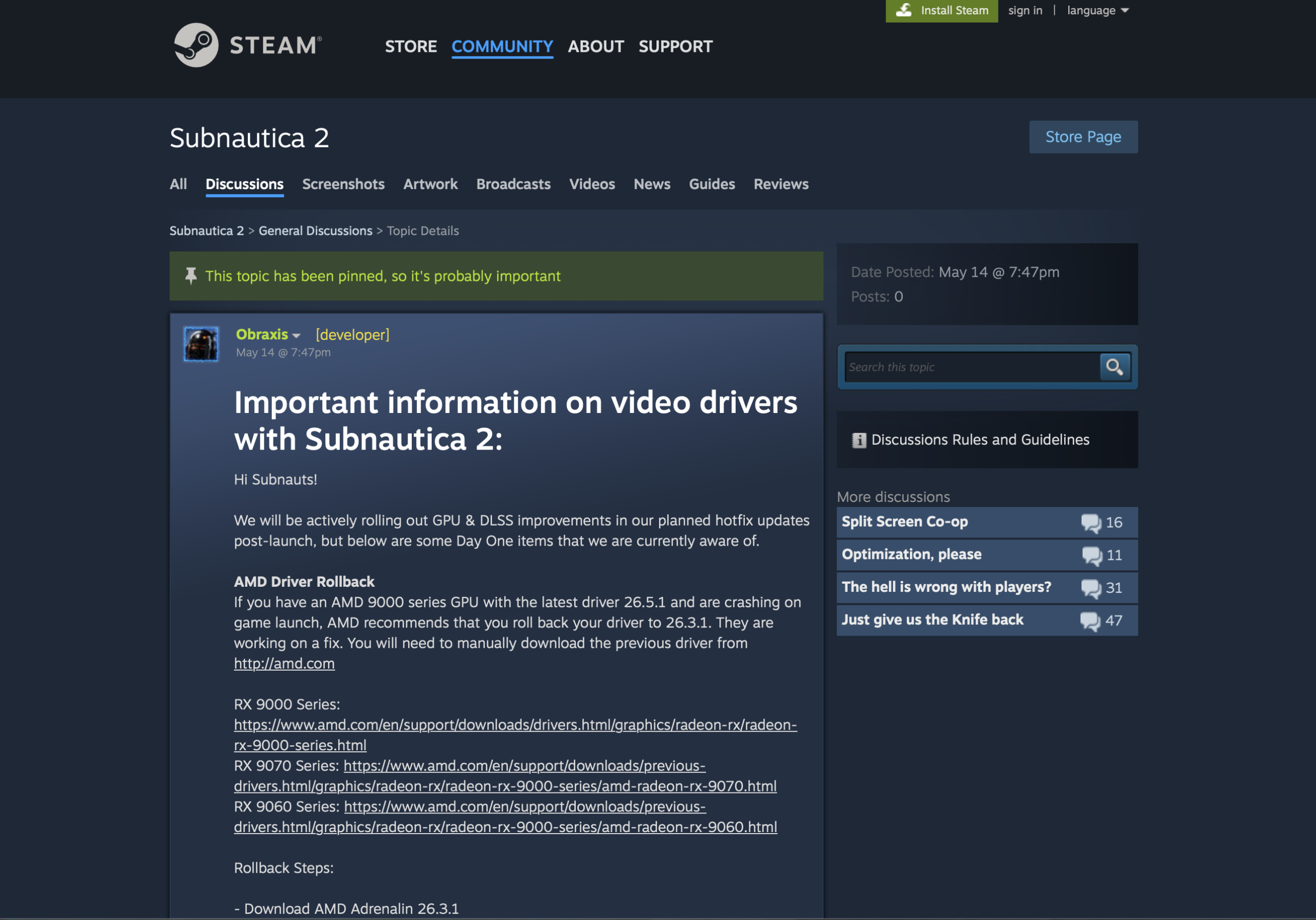
    Your AMD driver is the wrong version. If you recently updated to AMD Adrenalin 26.5.1, that driver has a known conflict with Subnautica 2. Unknown Worlds has officially confirmed this and says rolling back to version 26.3.1 is the fix. This is the most clearly documented startup crash right now.

    The game is running on the wrong GPU. Subnautica 2 needs DirectX 12, which your integrated graphics chip cannot handle properly. If the game launches on that instead of your dedicated graphics card, it will crash.

    Your game files are damaged. A bad download or interrupted update can leave broken files that stop the game from starting.

    An overlay is blocking the game. Apps like Discord, MSI Afterburner, and RivaTuner run in the background and can interfere with Subnautica 2 when it starts up.

    A shader crash is happening during load. A smaller group of players, mostly on Intel 13th and 14th gen CPUs, are seeing a crash related to shader files loading. This is covered at the end.

    Fix 1: Roll Back Your AMD Driver to 26.3.1

    If you have an AMD graphics card and updated to Adrenalin 26.5.1 recently, this is almost certainly your problem. Unknown Worlds says rolling back to 26.3.1 has been confirmed to fix the crash.

    Do not skip this and jump to the other fixes first. Verifying files or turning off Discord will not solve a driver conflict.

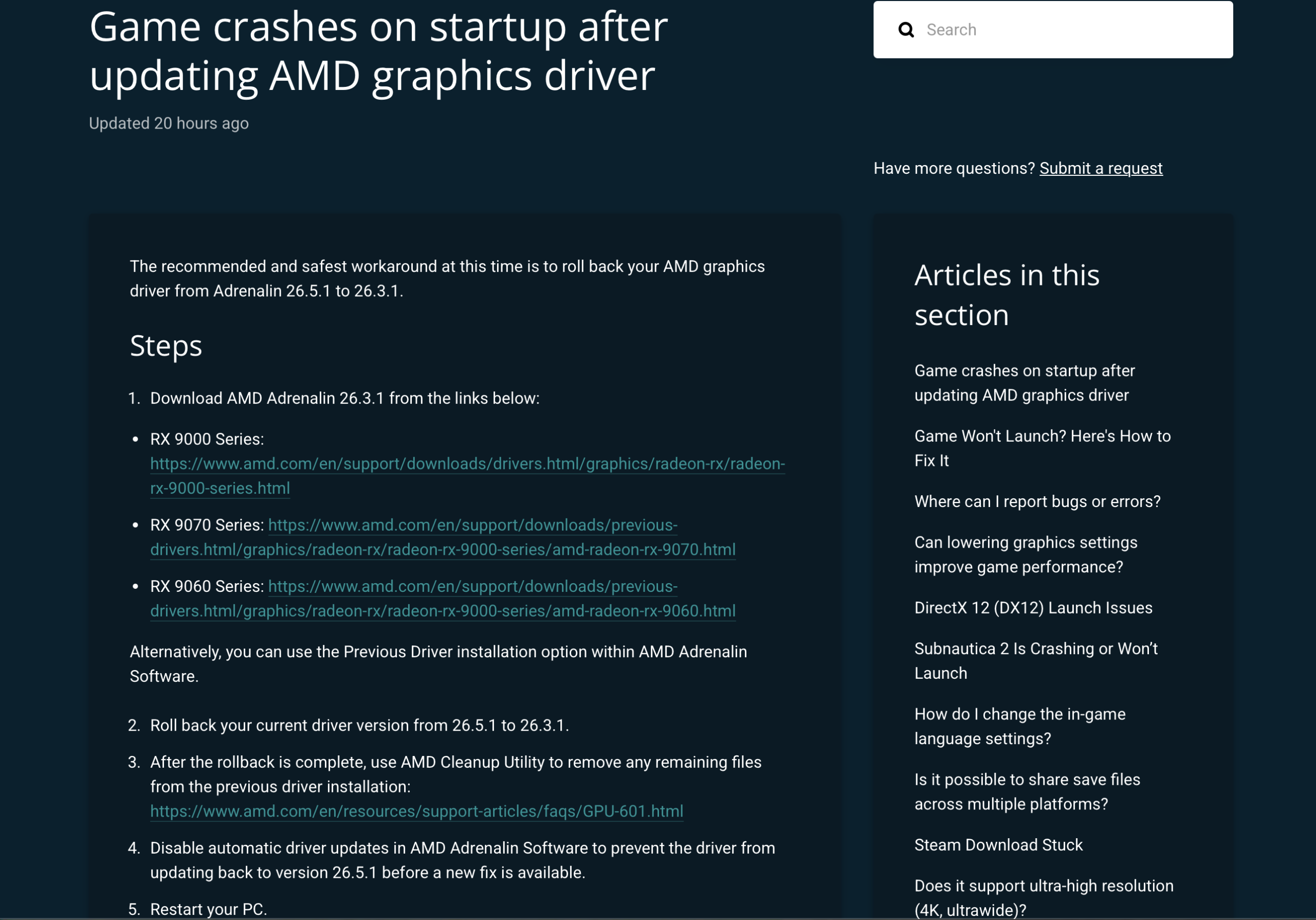
    This is the official workaround documented by Unknown Worlds

    Here is what to do:

    1. Open AMD Software: Adrenalin Edition on your PC.
    2. Go to Settings → System → Driver & Software.
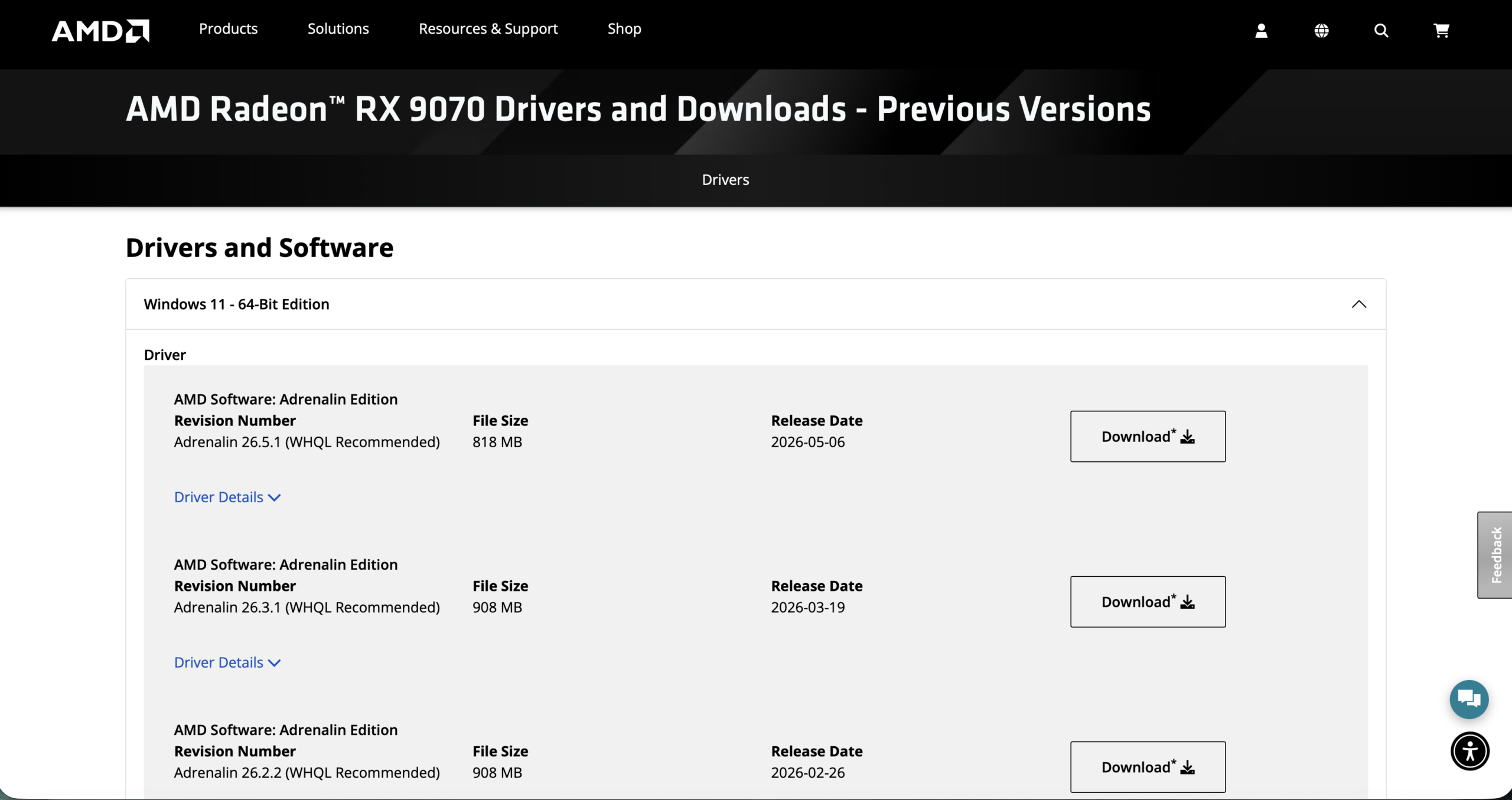
    3. Click Previous Driver and install version 26.3.1. If that option is not there, download 26.3.1 directly from the AMD website.

    1. Run AMD Cleanup Utility to fully remove the old driver files.
    2. Turn off automatic driver updates so AMD does not reinstall 26.5.1 on its own.
    3. Restart your PC.
    4. Open Subnautica 2.

    Leave automatic updates off until Unknown Worlds says a newer driver is safe to use.

    Fix 2: Make the Game Use Your Dedicated Graphics Card

    If your GPU is not AMD, or Fix 1 did not help, your PC might be running Subnautica 2 on integrated graphics by mistake. Here is how to force it onto your dedicated card.

    On Windows 11:

    1. Go to Settings → System → Display → Graphics.
    2. Click Browse and find your Subnautica 2 folder.
    3. Add Subnautica2.exe to the list.
    4. Click Options and choose High Performance.
    5. Restart the game.

    Subnautica 2 Crashing on Startup Fix

    On Windows 10:

    Follow the same steps above. Unknown Worlds also says you need to be on Windows 10 Version 22H2 Build 19045 before the game will run properly. If you are on an older version, update Windows first.

    Fix 3: Fix the DirectX 12 Error

    If you see a message saying DirectX 12 is not supported, here is what to check:

    • Follow Fix 2 to make sure the game is using your dedicated GPU.
    • If you have an NVIDIA or Intel Arc card, update your GPU driver to the latest version.
    • If you have an AMD card on version 26.5.1, do Fix 1 instead. Do not update your driver again.
    • If you are on Windows 10, make sure you are on Version 22H2 Build 19045 as Unknown Worlds requires.
    • Do not add -dx11 to your Steam launch options. Subnautica 2 does not support DirectX 11 and this will not work.

    Once you get the game running, you can check out the best 4K settings for Subnautica 2 for max FPS to get the most out of it.

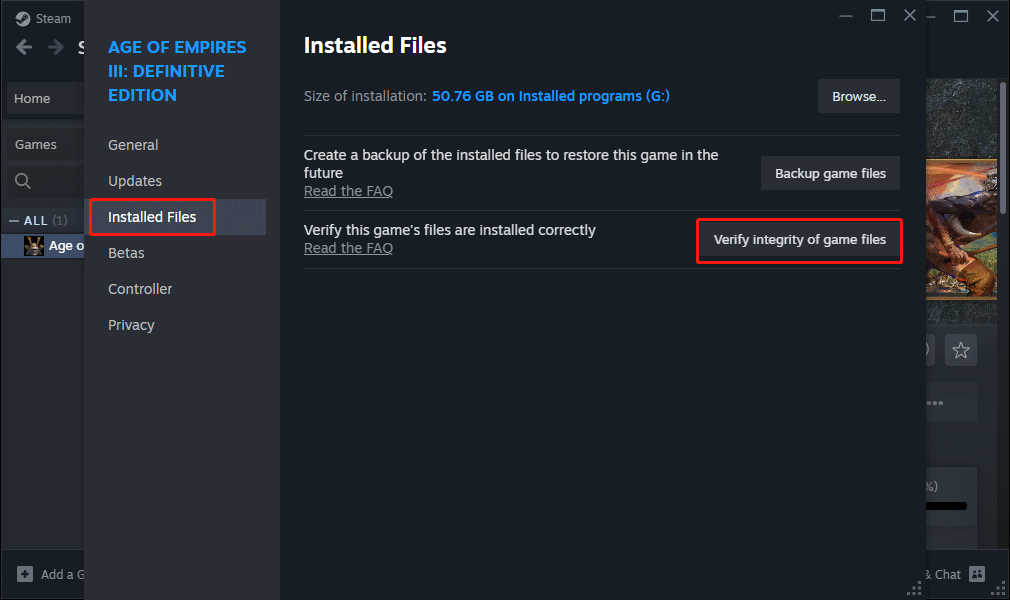
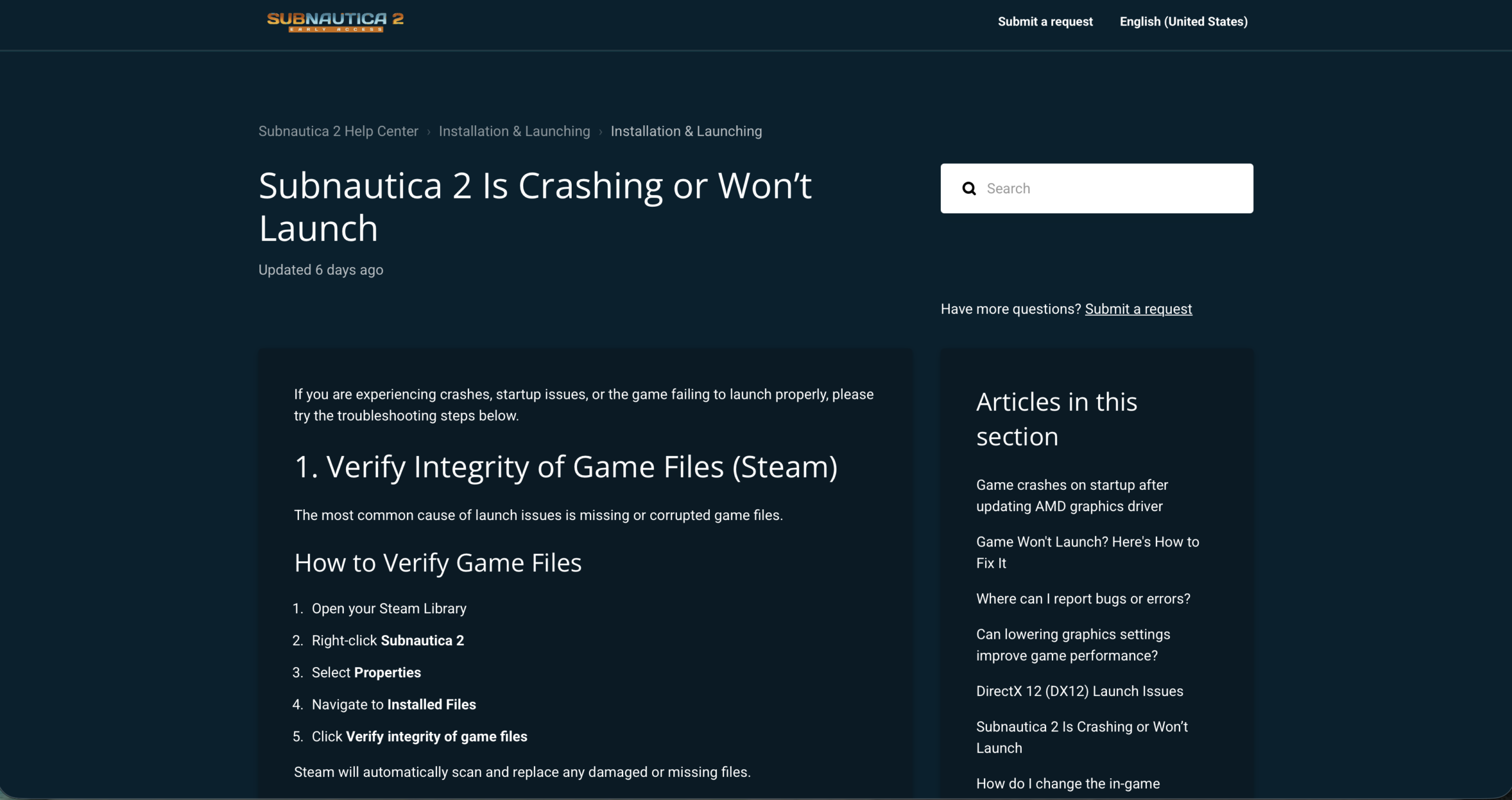
    Fix 4: Check Your Game Files on Steam

    If your download was interrupted or something went wrong during install, your game files might be broken. Steam can find and replace them without you having to reinstall the whole game.

    1. Open your Steam Library.
    2. Right-click Subnautica 2 and click Properties.
    3. Go to the Installed Files tab.
    4. Click Verify integrity of game files.
    5. Let it finish, then try launching the game again.

    Subnautica 2 Crashing on Startup Fix

    If Steam says it replaced some files, that was the problem.

    Fix 5: Clear Your Steam Download Cache

    Steam stores temporary data that can sometimes get corrupted and cause launch problems. Clearing it takes less than a minute.

    1. Open Steam → Settings → Downloads.
    2. Click Clear Download Cache.
    3. Steam will close and ask you to log in again.
    4. Try opening Subnautica 2.

    Fix 6: Turn Off Overlays and Check Your Antivirus

    Background apps that run on top of games can stop Subnautica 2 from starting. Turn these off before you launch:

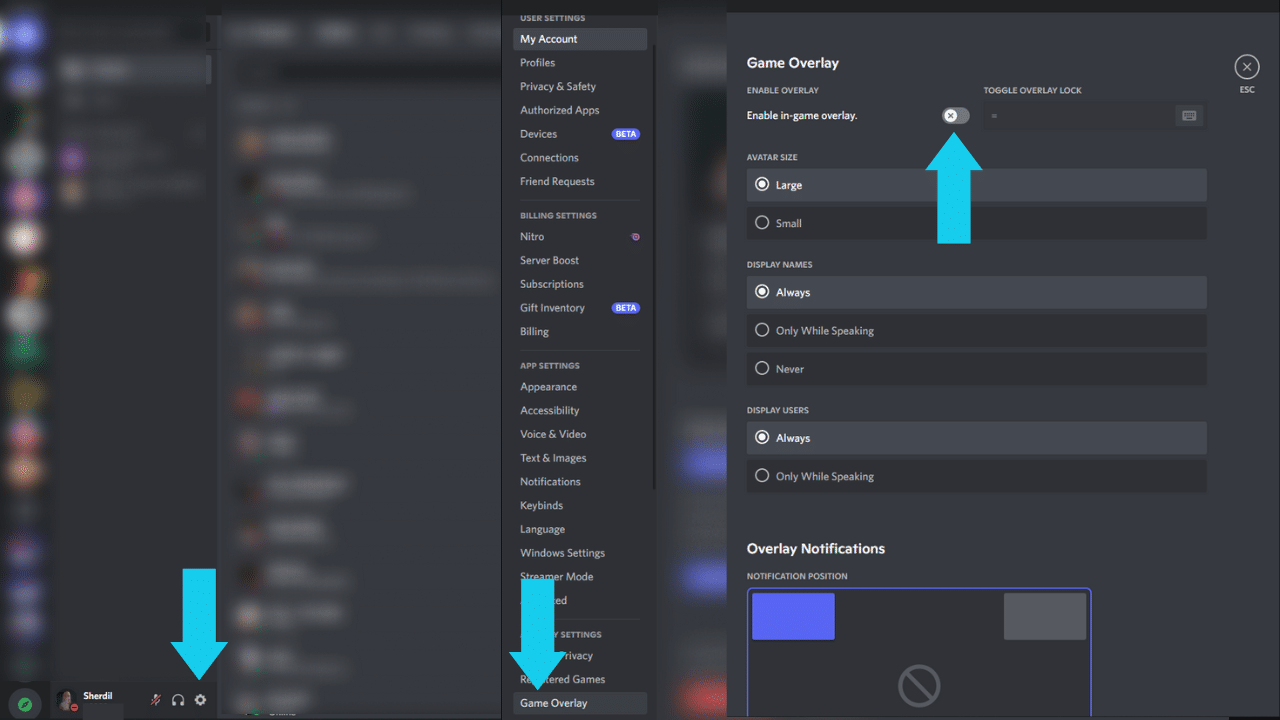
    • Discord Overlay — go to Discord Settings → Game Overlay and turn it off
    • MSI Afterburner — right-click it in the system tray and close it
    • RivaTuner Statistics Server — close it from the system tray
    • Razer Cortex or Synapse — turn off any overlay options in the app
    • Steam Overlay — go to Steam → Settings → In-Game and uncheck the overlay

    Subnautica 2 Crashing on Startup Fix

    Also add Subnautica 2 to your antivirus exclusion list so Windows Defender does not block it:

    1. Open Windows Security → Virus & Threat Protection → Manage Settings.
    2. Scroll to Exclusions and click Add or remove exclusions.
    3. Add the Subnautica 2 folder, usually found at C:\Program Files (x86)\Steam\steamapps\common\Subnautica2.

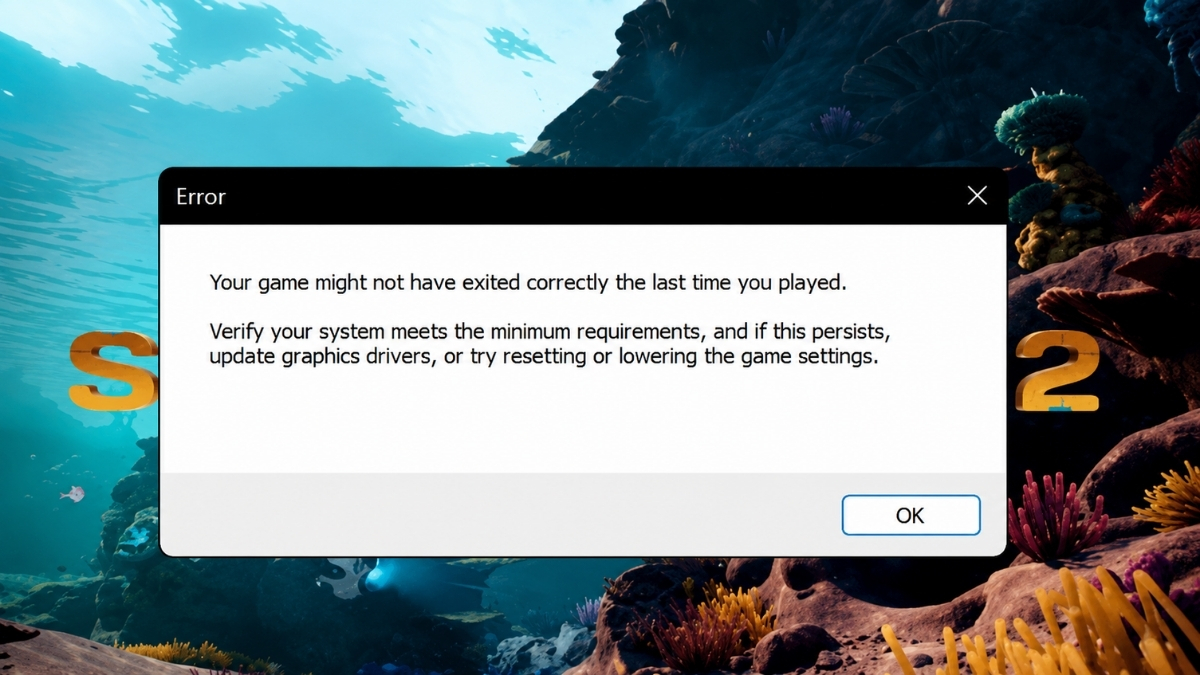
    Fix 7: Getting the “Your Game Might Not Have Exited Correctly” Popup

    If you keep seeing this message every time you try to launch, the game is crashing before it fully opens and showing you this popup on the way out. It is a symptom, not the actual problem.

    Before Subnautica 2 reportedly leaked online ahead of its Early Access launch, reports of driver and launch instability were already surfacing. This popup is one of the clearest signs of that instability.

    Work through this in order:

    1. If you have an AMD card, do Fix 1 first. It stops the loop for most people.
    2. Do Fix 2 to make sure the game uses your dedicated GPU.
    3. Do Fix 4 to check your game files.
    4. Do Fix 5 to clear your Steam cache.
    5. Do Fix 6 to turn off overlays.
    6. Restart your PC after all of that, then try again.

    If you are still stuck, take a screenshot of the error and send it to Unknown Worlds support along with your GPU model and driver version. They ask for this information to investigate the crash.

    official workaround documented by Unknown Worlds

    Shader Crash on Startup (Intel CPU Users)

    This section covers a different crash that some players on Intel 13th and 14th gen desktop CPUs are seeing. The error message mentions ShaderCodeArchive or Oodle in the crash report. This is separate from the AMD driver issue and has no official fix from Unknown Worlds yet.

    Intel has previously acknowledged problems with some of these CPUs related to voltage and microcode settings. If your crash log shows these terms and you have one of those processors, look up your motherboard maker’s latest BIOS update. Do not change any advanced BIOS settings unless you are confident you know what you are doing.

    It is also worth knowing that the legal dispute between Unknown Worlds and Krafton is ongoing, which may affect how fast the studio can push fixes during Early Access. Keep an eye on the Unknown Worlds support page and the Subnautica 2 Steam hub for updates.

    Common Questions

    Why is Subnautica 2 crashing on startup? The most common reasons are the AMD Adrenalin 26.5.1 driver conflict, the game launching on integrated graphics instead of your dedicated GPU, broken game files, overlays running in the background, or antivirus blocking the game. A smaller group of players with Intel 13th and 14th gen CPUs are hitting a shader-related crash.

    How do I fix it on an AMD graphics card? Roll back to AMD Adrenalin 26.3.1, run AMD Cleanup Utility, turn off automatic driver updates, and restart your PC. Unknown Worlds has confirmed this fixes the crash on affected systems.

    How do I fix the DirectX 12 not supported error? Go to Windows Graphics settings and set Subnautica 2 to use your dedicated GPU on High Performance. If you are on Windows 10, make sure you are on Version 22H2 Build 19045. AMD users on 26.5.1 should roll back their driver rather than update.

    Should I reinstall the game if it keeps crashing? Try verifying your game files and clearing the Steam download cache first. Both fix file corruption without a full reinstall. If you have an AMD card on 26.5.1, reinstalling the game alone will not help because the problem is the driver, not the game.

    Is Subnautica 2 on Game Pass? You can find the full answer in our guide on whether Subnautica 2 is coming to Game Pass.

  • Amazon Germany Lists Pokémon Wind and Pokémon Welle at €79.99 Ahead of 2027 Switch 2 Release

    Amazon Germany Lists Pokémon Wind and Pokémon Welle at €79.99 Ahead of 2027 Switch 2 Release

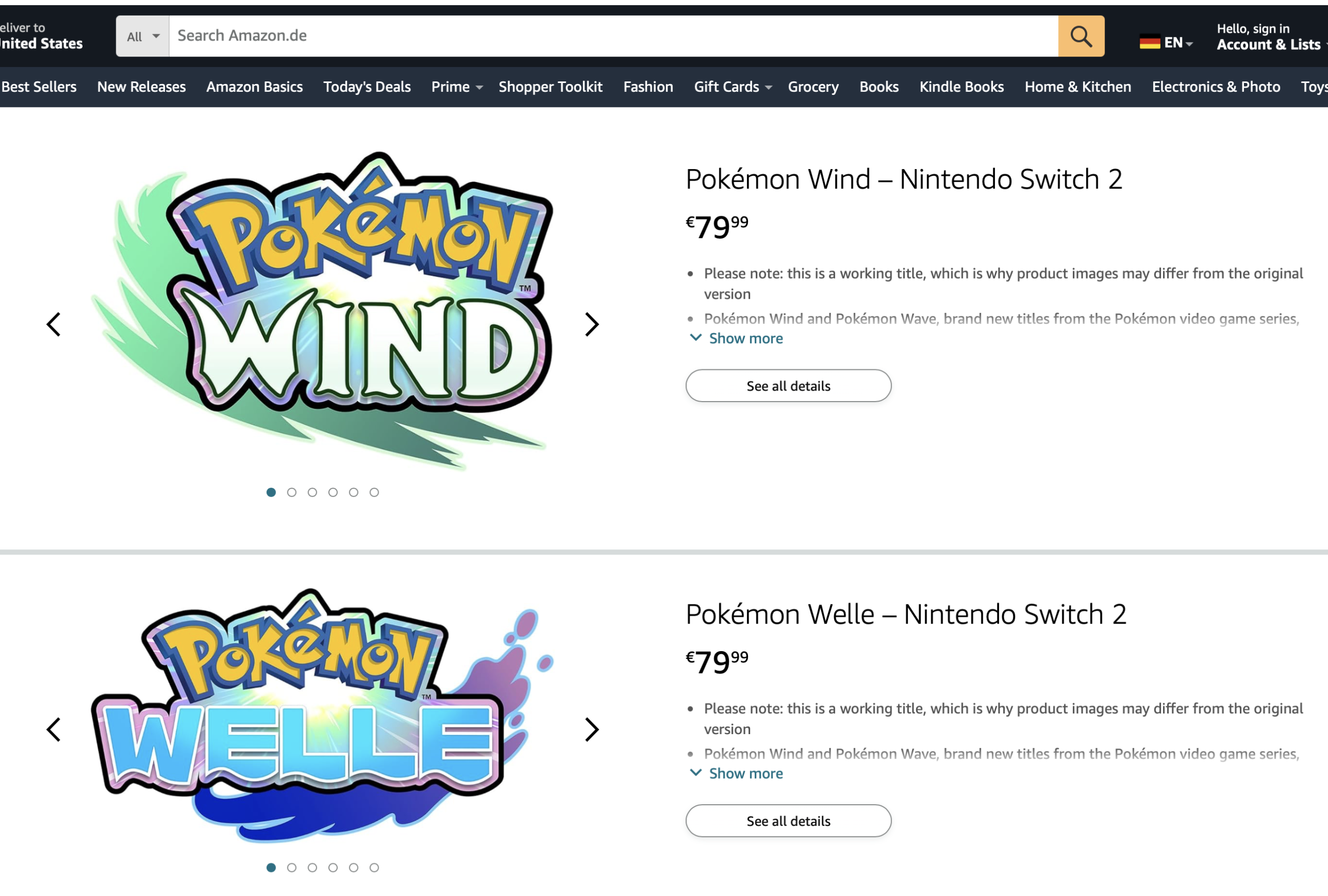
    Amazon Germany has listed Pokémon Wind and Pokémon Welle, the German-localized titles for Pokémon Winds and Pokémon Waves, at €79.99 each for Nintendo Switch 2. The listings are live and sold directly by Amazon, but the price should not be read as Nintendo’s confirmed retail figure. Here’s what the listings actually show and what remains officially unconfirmed.

    What Amazon Germany’s Listings Show

    Both product pages are live on Amazon.de under the titles Pokémon Wind and Pokémon Welle, each priced at €79.99 for Nintendo Switch 2. The listings appear on Amazon.de, which gives them more weight than a random third-party marketplace rumor, but they still carry explicit caveats.

    The Pokémon Wind listing uses placeholder-style language, noting the title is a working title and that product images may differ from the final version. The December 31, 2027 date should be treated as a placeholder because Nintendo has only confirmed a broad 2027 window. Nintendo and The Pokémon Company have only committed to that broad worldwide release window, with no specific launch date announced.

    What Nintendo and The Pokémon Company Have Actually Confirmed

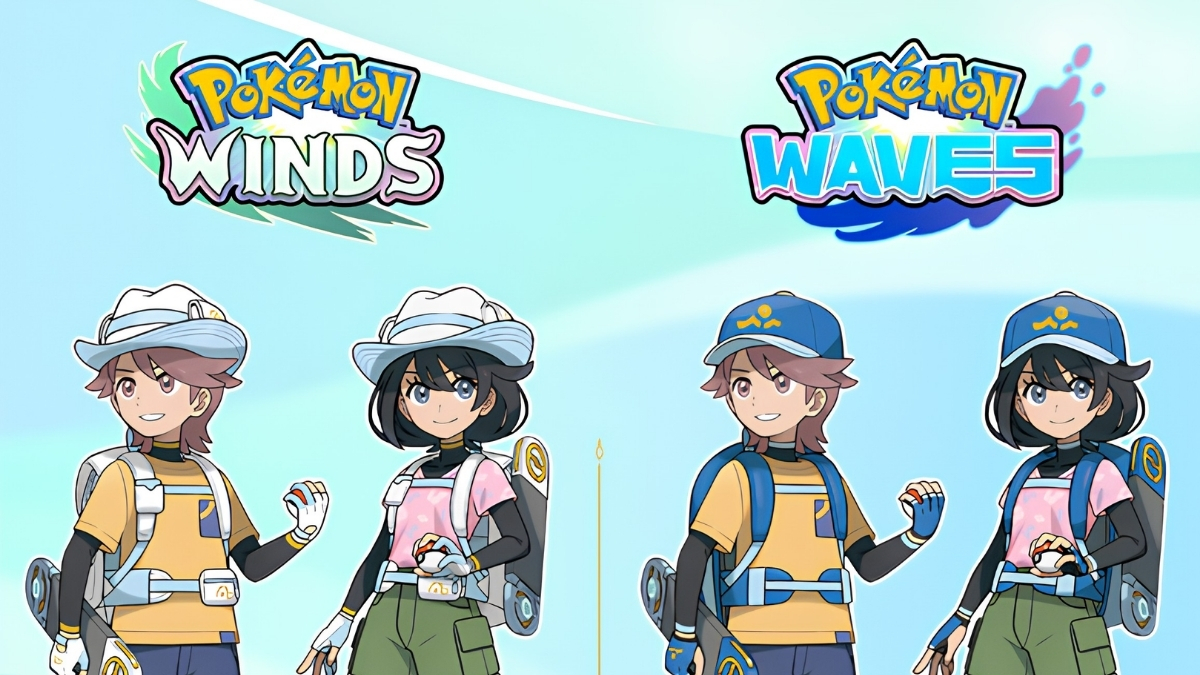
    Pokémon Wind and Pokémon Wave

    The official Pokémon site confirms both games are real, all-new entries in the Pokémon video game series, exclusive to Nintendo Switch 2, and planned for a simultaneous worldwide release in 2027. Nintendo Germany lists the games under the same localized titles, Pokémon Wind and Pokémon Welle.

    Neither the official Pokémon site nor Nintendo has publicly confirmed a retail price for either game. The €79.99 figure exists on Amazon’s listing, not in any official Nintendo or Pokémon Company communication.

    Why €79.99 Is Worth Paying Attention To

    €79.99 sits at the higher end of what Switch 2 games are expected to cost in Europe. If that price holds when Nintendo makes an official announcement, it would position Pokémon Winds and Waves among the premium-tier Switch 2 releases rather than at a standard price point.

    This is not an isolated data point either. Amazon Germany listing both games at the same price simultaneously is notable, but retailer listings can sometimes reflect early pricing expectations, and they can also use placeholders before final details are locked. With the games still only carrying a broad 2027 window, there is meaningful time for that figure to change before Nintendo commits to it officially.

    The honest read here is that €79.99 may be where Nintendo is heading with major Switch 2 releases, but it is not confirmed until Nintendo or The Pokémon Company says so publicly.

    What This Means for Switch 2 Pricing Broadly

    Switch 2 game pricing has already drawn attention since the console launched. If these major Pokémon releases land at €79.99, it would set a clear precedent for how Nintendo prices its flagship titles on the new hardware. If you want to keep track of what’s confirmed and coming to the platform, our Nintendo Switch 2 confirmed games guide covers every announced title so far. And if you’re weighing the total cost of Switch 2 ownership alongside individual game prices, our breakdown of whether Nintendo Switch Online + Expansion Pack is worth it in 2026 is worth a read.

    For now, €79.99 on Pokémon Winds and Waves remains a possibility suggested by a retailer listing, not a Nintendo pricing decision.

    Amazon Germany has both Pokémon Wind and Pokémon Welle listed at €79.99 each for Nintendo Switch 2, with a placeholder release date of December 31, 2027. The listings are real and appear on Amazon.de, but the price is not official. Nintendo and The Pokémon Company have confirmed the games are coming to Switch 2 in 2027. The final retail price is still theirs to announce.

  • GTA Vice City Definitive Edition Fatal Error on Steam Deck OLED: Rockstar’s Fix Explained

    GTA Vice City Definitive Edition Fatal Error on Steam Deck OLED: Rockstar’s Fix Explained

    If you’ve picked up your Steam Deck OLED to revisit Vice City and hit a “Fatal error!” before the game even loads, you’re not alone, and you’re not doing anything wrong. I’ve tracked this issue across Steam threads, Linux gaming communities, and Rockstar’s own support documentation, and the good news is there’s a working fix you can apply in under two minutes.

    If you’re on PC instead and Vice City is failing silently with no error message at all, that’s a separate set of causes, I’ve covered those in detail in GTA Vice City Not Launching on PC: Fix No Error, Black Screen, and Loading Issues.

    Here’s everything you need to know about the Steam Deck OLED fatal error specifically.

    What Is the GTA Vice City Steam Deck OLED Fatal Error?

    The error blocks GTA Vice City Definitive Edition from launching entirely. You press Play, and instead of the loading screen, you get a fatal error dialog and a crash straight back to the Steam interface.

    This isn’t isolated to Vice City. Rockstar’s support page confirms the fatal error can appear when launching any of the three titles in GTA: The Trilogy – The Definitive Edition on Steam Deck OLED, GTA III, Vice City, and San Andreas are all named. Player reports on Steam trace the issue most prominently to the November 2024 update to the Trilogy. Rockstar’s live support page still lists it as under investigation, with the page last updated November 25, 2024.

    Rockstar’s documentation specifically identifies the Steam Deck OLED model, the LCD model is not named in their support article.

    Rockstar’s Official Fix For GTA Vice City Definitive Edition Fatal Error on Steam Deck OLED (Do This First)

    Fatal Error on Steam Deck OLED

    Rockstar has one officially recommended workaround, and it’s straightforward:

    Step 1: Open Steam and navigate to your GTA Vice City Definitive Edition library entry.

    Step 2: Right-click the game and select Properties.

    Step 3: Under the General tab, find the Launch Options field.

    Step 4: Enter the following exactly as written:

    %command% -dx12

    Step 5: Close Properties and launch the game.

    This forces the game to run under DirectX 12 rather than its default rendering path, which bypasses whatever is triggering the crash on OLED hardware. Rockstar’s support page names all three games and gives this same launch-option workaround. in the Trilogy, not just Vice City.

    Rockstar frames this as a temporary workaround, not a permanent patch. Keep the launch option in place until Rockstar ships a confirmed fix through a proper update.

    Why Is This Happening on Steam Deck OLED?

    Rockstar hasn’t officially stated a cause, so I’ll be precise about what’s confirmed versus what’s suspected.

    Several Linux gaming outlets and community sources reported that the fatal error appears tied to how DXVK handles HDR on the OLED display. A related issue was filed and subsequently closed on Valve’s Gamescope GitHub tracker, describing GTA San Andreas Definitive Edition crashing at startup when DXVK HDR is active, and noting that forcing DirectX 12 resolves it. That lines up exactly with what players are experiencing on Steam Deck.

    In plain terms: the game’s rendering layer appears to conflict with how DXVK processes HDR output on the OLED panel. That’s the leading technical explanation from the Linux gaming community, but it is not a confirmed statement from Rockstar. I’m flagging this because some coverage presents the HDR angle as settled fact when it remains community-level investigation.

    Alternative Fix Some Players Are Using

    If the -dx12 launch option doesn’t resolve it for you, a second workaround surfaced in Steam community threads and Linux gaming outlets:

    DXVK_HDR=0 %command%

    This disables DXVK’s HDR processing before the game launches. The writer at Steam Deck HQ personally tested both launch options on Vice City’s Definitive Edition and confirmed both fix the fatal error. One Steam user also noted this option performed better for them on Steam Deck OLED specifically.

    To use it, follow the same steps above and paste DXVK_HDR=0 %command% into the Launch Options field instead.

    Important: This is a community-reported fix, not Rockstar’s official recommendation. Try the -dx12 option first since that’s what Rockstar actually endorses.

    Does Verifying Game Files Help?

    Verifying game files is standard Steam troubleshooting and worth doing as a hygiene step, but it’s unlikely to be the solution here. The problem isn’t corrupt files; it’s a rendering and compatibility conflict specific to OLED hardware. Verifying files can still rule out local installation problems, but Rockstar’s official workaround points to a launch/rendering compatibility issue rather than missing or corrupted files.

    What About Desktop Mode?

    Earlier community discussion suggested launching in Desktop Mode behaved differently because HDR wasn’t active there. That’s no longer a safe assumption. SteamOS 3.8 moved Desktop Mode to Wayland by default and added HDR support for external displays in that environment, so the behavior has become more variable than it was when this issue first surfaced. I’d treat Desktop Mode as an unreliable test at this point rather than a recommended workaround, the launch option fixes above are cleaner and better documented.

    Does This Affect All Three Games in the Trilogy?

    Yes. Rockstar’s support page names GTA III, GTA Vice City, and GTA San Andreas, all Definitive Edition versions, as affected titles on Steam Deck OLED. The -dx12 launch option fix applies to all three.

    Is GTA Vice City Definitive Edition Playable After the Fix?

    Based on what I’ve verified across Steam threads and community outlets, a number of players have reported getting back into the game after applying the launch option. There’s no precise success rate I can put on it, but the fix has been confirmed working by multiple independent sources including players in Steam threads and outlets who tested it hands-on. Performance after launch is a separate conversation, the Definitive Edition Trilogy has had a complicated history on PC and handheld hardware regardless of this specific error, but the fatal error is officially addressed by Rockstar’s %command% -dx12 workaround, with several community reports also saying it worked.

    Quick Reference

    Fix Source How to Apply
    %command% -dx12 Rockstar Official Steam → Properties → Launch Options
    DXVK_HDR=0 %command% Community Reported Steam → Properties → Launch Options
    Verify Game Files General Steam Step Steam → Properties → Local Files

    The GTA Vice City Definitive Edition fatal error on Steam Deck OLED is a known, documented issue, Rockstar acknowledged it and provided a workaround that has helped players get back into the game. Add %command% -dx12 to your launch options and add %command% -dx12 to your launch options first, since that is Rockstar’s official workaround. If that doesn’t work, swap it for DXVK_HDR=0 %command% as a secondary attempt.

    Rockstar’s live support page still lists the issue as under investigation as of its last update in November 2024, so keep an eye on their support documentation and Trilogy patch notes for any update that removes the need for the manual launch option entirely.

  • PlayStation Plus Price Increase Announced for New Members Starting May 20

    PlayStation Plus Price Increase Announced for New Members Starting May 20

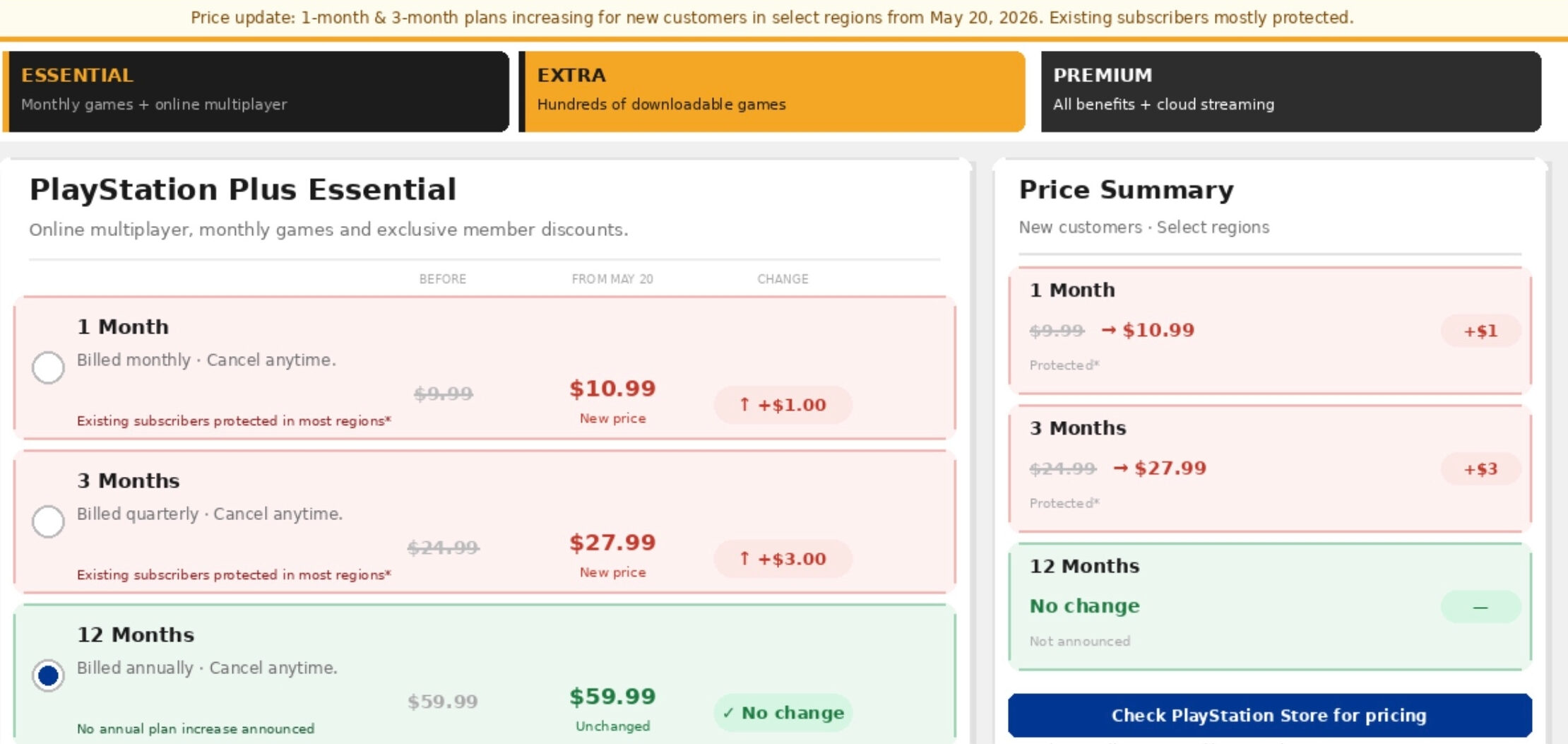
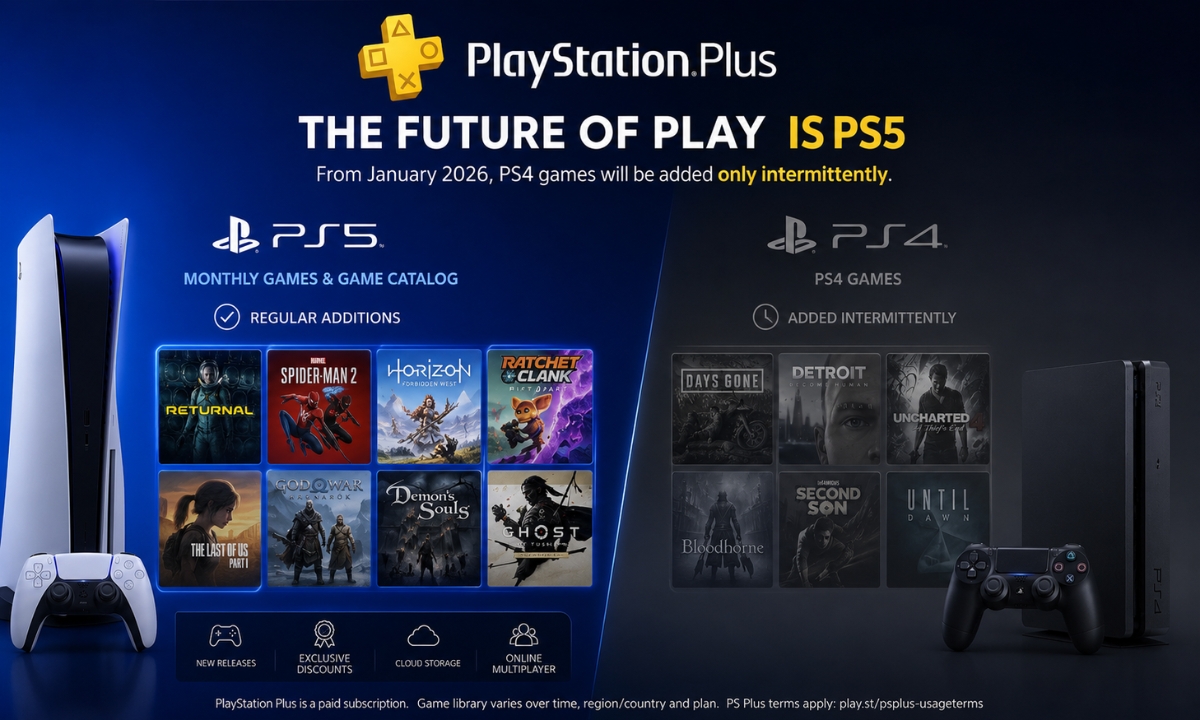
    Sony is raising PlayStation Plus prices for new customers in select regions starting May 20, 2026, with the change focused on shorter subscription plans. One-month subscriptions will start at $10.99 / €9.99 / £7.99, while three-month subscriptions will start at $27.99 / €27.99 / £21.99.

    The company cited “ongoing market conditions” for the change. Current subscribers will not be affected in most regions unless their existing subscription changes or lapses, though Sony listed Turkey and India as exceptions to that protection.

    Before anything else, the most useful thing this article can tell you is whether this affects you right now. The short answer: if you are an existing subscriber outside Turkey and India, it does not, unless your subscription lapses or you change your plan.

    What Is Changing and What Is Not

    PS plus Price increased comparision

    The confirmed increase covers two plan lengths only.

    Plan Old price New price from May 20 Change
    1 month $9.99 / €8.99 / £6.99 $10.99 / €9.99 / £7.99 +$1 / +€1 / +£1
    3 months $24.99 / €24.99 / £19.99 $27.99 / €27.99 / £21.99 +$3 / +€3 / +£2
    12 months No increase announced No increase announced No announced change

    Sony has not announced any change to 12-month plans. The Verge notes that it is also unclear whether PlayStation Plus Extra and Premium tiers are affected beyond what Sony explicitly stated, while Engadget reports that Sony’s announcement only mentioned the one-month and three-month plans specifically. This article will not claim otherwise.

    What that means in practice: if you are currently on a 12-month plan outside Turkey and India, Sony has not announced any change to that annual pricing. If you are on a monthly plan and your subscription lapses after May 20, you will pay the new price when you rejoin.

    Who Is Affected

    Sony’s language in the announcement is precise and worth reading carefully. The increase applies to new customers in select regions. Sony has not published a full list of which regions are included, which is a notable gap in the announcement.

    Current subscribers are protected in most markets, with two named exceptions. If you are in Turkey or India, Sony has confirmed the price protection does not apply to you, meaning you may see the new pricing regardless of your current subscription status.

    If you are outside Turkey and India and already subscribed, your rate does not change unless one of two things happens: your subscription lapses, or you change your plan. Letting a monthly subscription run out and then rejoining after May 20 means you rejoin at the new price. Switching from a three-month plan to a monthly plan after May 20 would also put you on the new rate.

    The safest position for existing subscribers who want to avoid the new pricing is to make sure your subscription does not lapse and that you do not change plan length. If you were already planning to switch from monthly to annual, the 12-month plan may still be the better value because Sony has not announced an annual price increase.

    Why Sony Is Raising Prices

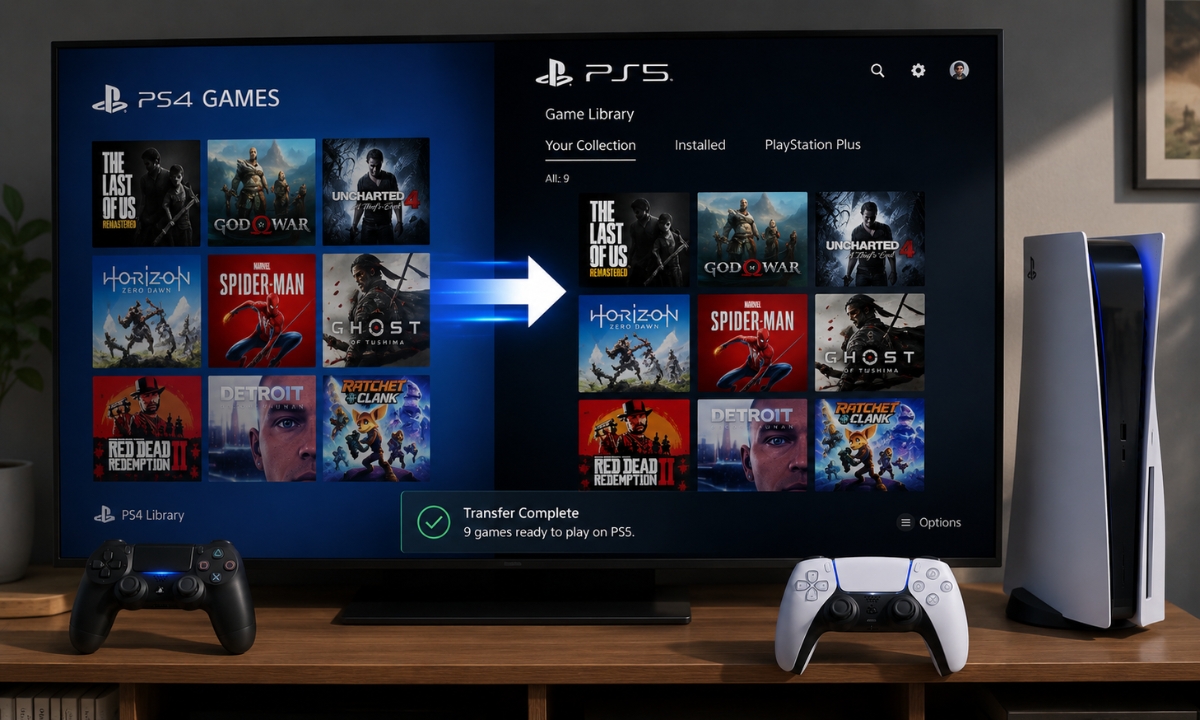
    Sony’s stated reason is “ongoing market conditions,” which is the same broad framing the company used when it raised PS5 hardware prices earlier in 2026. In March, Sony announced global PS5 hardware price increases effective from April 2, bringing the PS5 to $649.99, the PS5 Digital Edition to $599.99, and the PS5 Pro to $899.99 in the United States. The company cited continued pressure in the global economic landscape at the time. Sony has also been pushing PS4 players to upgrade to PS5 as part of the same broader platform shift.

    The PS Plus increase follows the same pattern but is narrower in scope. Raising short-term subscription prices while leaving annual plans untouched is a notable structure. The structure also makes annual subscriptions look more attractive compared with paying month to month.

    This is also not the first time Sony has adjusted PS Plus pricing. The last major restructuring came when PlayStation Plus moved to a tiered model with Essential, Extra, and Premium in 2022. This increase does not restructure the tiers, it just raises the entry price for shorter commitments.

    What Sony Has Not Confirmed

    The research behind this article found several things Sony has not clarified, and this is worth being direct about rather than guessing.

    Sony has not confirmed the full list of affected regions. The announcement says “select regions” without naming them beyond Turkey and India as exceptions to subscriber protection. If you are outside the US, UK, and eurozone, your specific pricing situation is unclear until Sony publishes more detail.

    Sony has not confirmed whether Extra and Premium tiers are affected beyond Essential. The confirmed new prices cover Essential plan pricing. Whether the step-up tiers are seeing parallel increases has not been clearly stated in Sony’s announcement as of this writing.

    Sony has not announced any change to annual pricing. That does not mean it will not happen, but it has not been announced, and this article will not speculate that it is coming.

    This is a targeted price increase on short-term PlayStation Plus plans for new customers, not a blanket hike across every subscriber and every tier. If you are an existing subscriber in most regions, your current pricing is protected as long as you do not let your subscription lapse or change your plan after May 20.

    The practical upside for anyone currently on a monthly subscription who has been thinking about switching to annual: the 12-month plan has no confirmed price increase, and switching means you pay less per month than the new short-term rates.

    Sony is also running a Days of Play giveaway through June 10 where tournament participants can enter to win a 12-month PS Plus Premium membership as part of a prize bundle.

    For everyone else, the change is real but narrower than the headline might suggest. Sony has raised short-term prices by a dollar to three dollars depending on plan length and currency, attributed it to market conditions, and left annual plans and existing subscribers mostly untouched for now.

  • GTA 6 Pre-Order Rumors Look Like Another False Alarm After Best Buy Email Speculation

    GTA 6 Pre-Order Rumors Look Like Another False Alarm After Best Buy Email Speculation

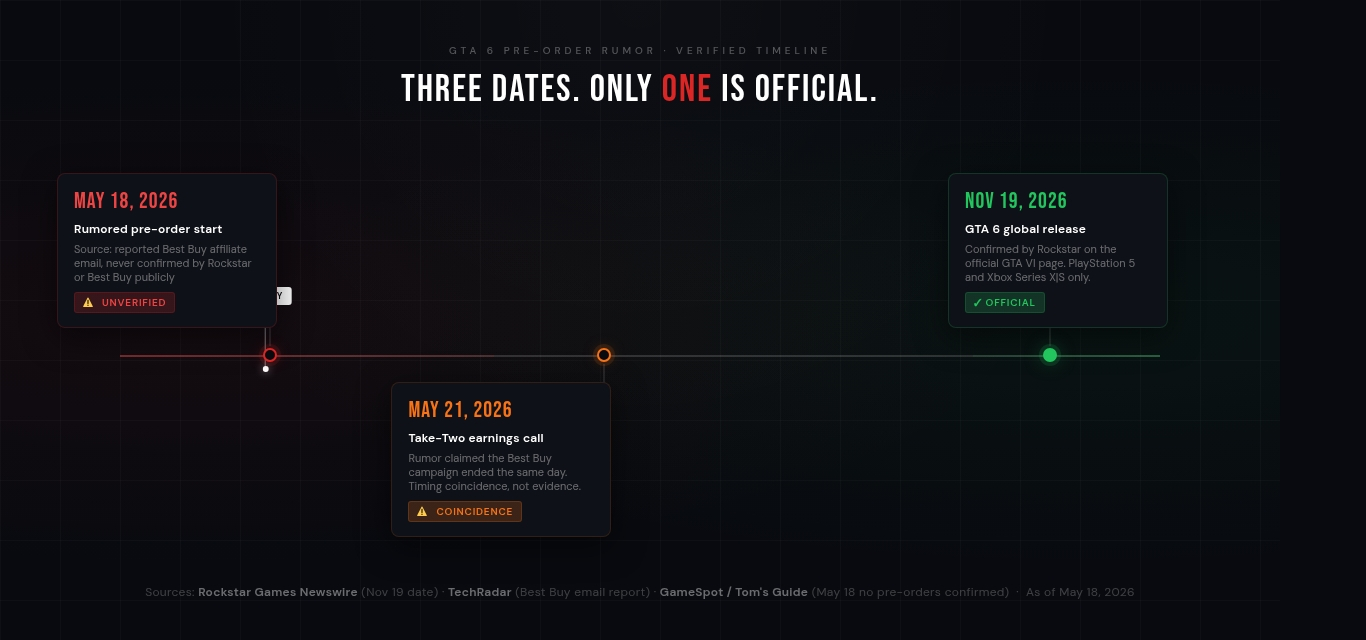
    GTA 6 pre-orders still have not gone live, despite a wave of speculation that Rockstar Games would open orders on May 18. The rumor started after a reported Best Buy affiliate email appeared to point to a short GTA 6 physical pre-order campaign running from May 18 to May 21, but Rockstar has not confirmed any pre-order date, and by midday ET on May 18, there was nothing to show for it.

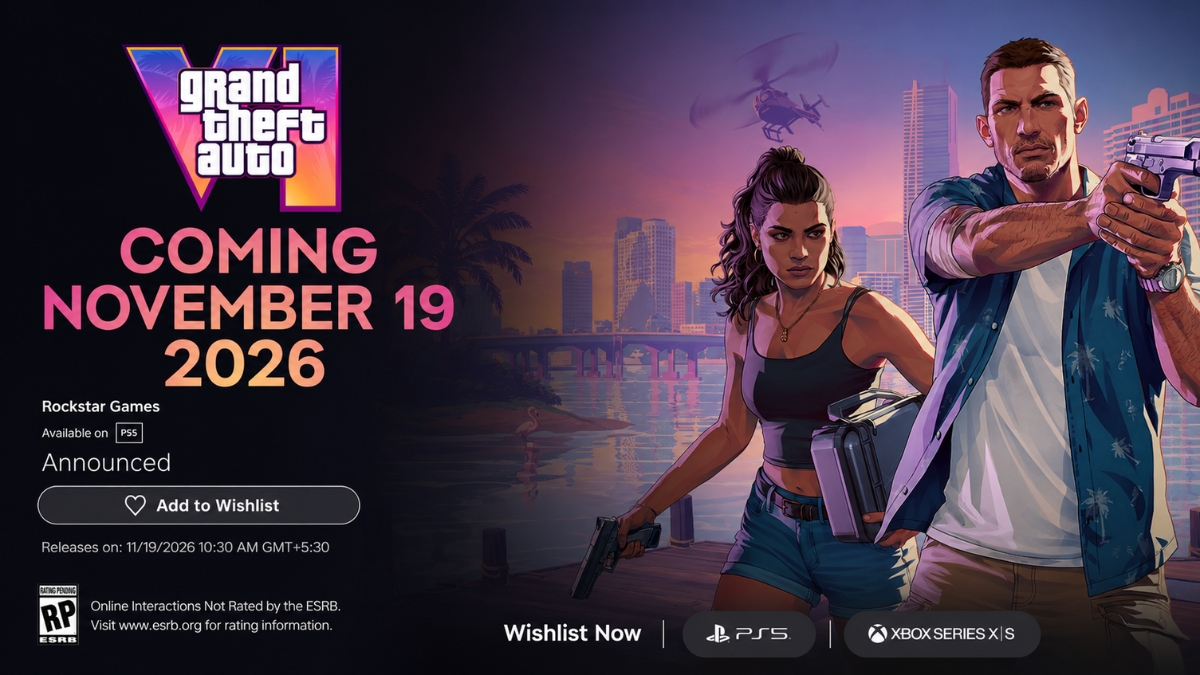
    At the time of writing, Rockstar’s official GTA 6 page lists the game as coming to PlayStation 5 and Xbox Series X|S on November 19, 2026, with a “Wishlist Now” link and trailers. What it does not have is a pre-order button, pricing, edition details, or any bonus content. The PlayStation Store page shows the game as “Announced” with an “Add to Wishlist” option, not a purchase option.

    Zelnick addressed the Best Buy situation directly during Take-Two’s Q4 earnings call on May 21, reaffirming the November 19 date and confirming no pre-orders are open.

    GTA 6 No Pre-order PS5

    If you spent part of May 18 refreshing Best Buy’s website waiting for something to happen, you were not alone, but the evidence behind this rumor was always thinner than the hype suggested.

    The Rumor Started With Two Things, and Neither One Is Solid

    The speculation had two pillars, and neither one holds up well under scrutiny.

    The first was a reported Best Buy affiliate email that allegedly pointed to a GTA 6 physical pre-order campaign running between May 18 and May 21. TechRadar reported on the email, but this was never a public announcement from Rockstar or Best Buy. We covered the full details of what that Best Buy email actually said and what it was pointing to when it first surfaced, and even then, the sourcing was thin. No confirmed pre-order listing with official pricing, editions, or bonus details went live through Rockstar’s official channels or the major console storefronts. The email was reported, not confirmed, and the distinction matters.

    GTA 6 Official Release date

    The second pillar was a “cta_preorder” code spotted in the source of Rockstar’s official GTA 6 website. This one spread fast because it felt like inside information, a developer leaving a trail before a big announcement. But GamesRadar found that Wayback Machine archives show the same code had been sitting in that page since at least 2024. It was not new. It was not a fresh breadcrumb. It was infrastructure that has been there for over a year, waiting for whenever Rockstar actually decides to flip the switch.

    Put those two things together, an unverified affiliate email and a years-old code snippet, and the foundation of the May 18 rumor becomes clear. It was speculation built on weak evidence, amplified by a community that is understandably starving for any GTA 6 news.

    So Why Did So Many People Think May 18 Was Genuinely Happening?

    Part of what gave this rumor traction was the timing. Take-Two Interactive, Rockstar’s parent company, has its fiscal Q4 and full-year FY2026 earnings call scheduled for May 21, 2026. The alleged Best Buy affiliate campaign window reportedly ended on the same day. That coincidence was enough to build a theory: pre-orders open May 18, run through the earnings call on May 21, Rockstar announces them alongside a potential Trailer 3.

    It is a neat narrative. It is also entirely speculative. Earnings calls are not game launch events, and Take-Two has not signaled that any GTA 6 pre-order announcement is tied to that call. Take-Two’s CEO has already explained why GTA 6 is launching on consoles before PC, and none of that reasoning involves timing announcements around earnings calls. The May 21 date showing up in an unverified affiliate email is not evidence that Rockstar planned anything around it.

    GameSpot reported that hopes of May 18 pre-orders “reached a dead end,” and Tom’s Guide found no signs of live pre-orders anywhere by midday ET. The window the rumor was built around came and went without anything materialising.

    Here Is What Is Actually Confirmed, and What Is Not

    Cutting through the noise, here is the state of GTA 6 as of today:

    The release date is confirmed: Rockstar lists November 19, 2026 on the official GTA VI page for PlayStation 5 and Xbox Series X|S. That date has not moved.

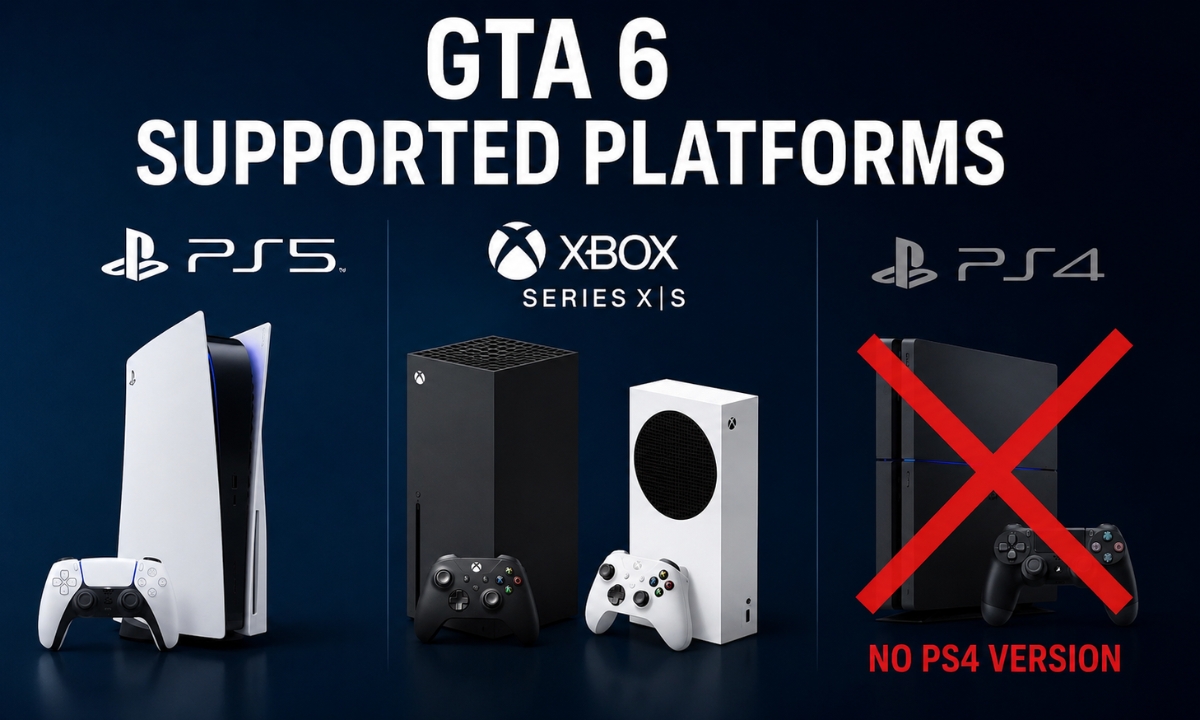
    PC is not announced: Rockstar has confirmed only PS5 and Xbox Series X|S at launch. A PC release has not been announced, and speculating one into existence does not make it real. Sony has been nudging PS4 players toward upgrading to PS5 ahead of GTA 6’s launch, which underlines how firmly the game is tied to the current console generation. If you are still on PS4 and weighing whether the upgrade makes sense before November, that decision is worth thinking through sooner rather than later.

    Official GTA 6 pre-orders do not appear to be live through Rockstar, PlayStation, or Xbox: The PlayStation Store shows “Announced” and “Add to Wishlist.” No confirmed major retailer listing with official pricing, editions, or bonus content has been publicly announced by Rockstar.

    Pricing, editions, and pre-order bonuses are unknown: Rockstar has announced none of this. Take-Two has signaled the game will likely land in the $70 to $80 range rather than hitting $100, but that is as specific as official comment has gotten. Anyone writing about what the Collector’s Edition will include or what the pre-order bonus will be is making it up.

    Trailer 3 has not been announced: The connection between pre-orders and a third trailer is pure speculation. Rockstar has not announced Trailer 3 or tied any new trailer to pre-orders.

    Rockstar Does Not Drop News Through Affiliate Emails. Here Is How It Actually Works.

    Rockstar is not a studio that telegraphs its moves through affiliate emails and website code. When GTA Online launched, when Red Dead Redemption 2 went up for pre-order, when GTA 6 Trailer 1 dropped, these things happened when Rockstar decided they would, announced through Rockstar’s own channels, without a week of affiliate-email preamble.

    The November 19, 2026 release date is six months away. With the game now six months from release, fans have a reasonable reason to watch for pre-order news, but no date is confirmed. That is the legitimate reason to pay attention. Not because a Best Buy affiliate email said May 18, but because the calendar says that if Rockstar is going to give retailers enough runway before a November launch, something needs to happen in the next few weeks.

    But “the timing makes sense” is not the same as “it is happening on this specific date.” Rockstar will open pre-orders when Rockstar opens pre-orders, and the announcement will come from Rockstar’s social channels, the official GTA 6 website, and major retail pages not from a leaked affiliate email that nobody at Rockstar or Best Buy confirmed.

    When Pre-Orders Do Go Live, You Will Know Immediately

    When GTA 6 pre-orders do open, the signals will be unambiguous:

    The Rockstar Newswire will post an official announcement. The GTA 6 page will update with a pre-order button, pricing, and edition details. The PlayStation Store, Xbox Store, and major retailers would likely follow with official listings. A new trailer could accompany the rollout, but Rockstar has not announced one.

    None of those things happened on May 18. Until they do, treat any specific date claim without an official source the same way you would treat the last five GTA 6 pre-order date rumors: with skepticism, not excitement.

    The November 19, 2026 release date is real. Everything else, until Rockstar says it, is not.

  • Forza Horizon 6 PC Issues: Fix Crashes, Stuttering, Steam Errors, and Game Pass Problems

    Forza Horizon 6 PC Issues: Fix Crashes, Stuttering, Steam Errors, and Game Pass Problems

    I’ve spent the launch window of Forza Horizon 6 working through the PC issues that players are actually running into, not theoretical problems, but the specific crashes, non-launches, and stutters that are flooding Steam discussions, ResetEra threads, and Forza Support tickets right now.

    Here is what I found: most of the crash and launch issues have official fixes. Forza Support has published error code documentation, Gaming Services version requirements, and Steam-specific guidance that resolves the majority of reports. The stuttering situation, particularly on AMD systems, is more complicated, and I’m not going to pretend it isn’t.

    One thing I want to be clear about before diving in: I don’t think this is a universally broken PC port. PC Gamer’s testing found the game generally runs well across supported hardware, though it is CPU-heavy and ray tracing costs more than it delivers visually. What I’m seeing in the community is concentrated around specific hardware combinations, launch-entitlement confusion, and a Gaming Services dependency that catches Steam players completely off guard. Most of it is fixable.

    First, Check Whether Forza Horizon 6 Has Actually Unlocked for Your Account

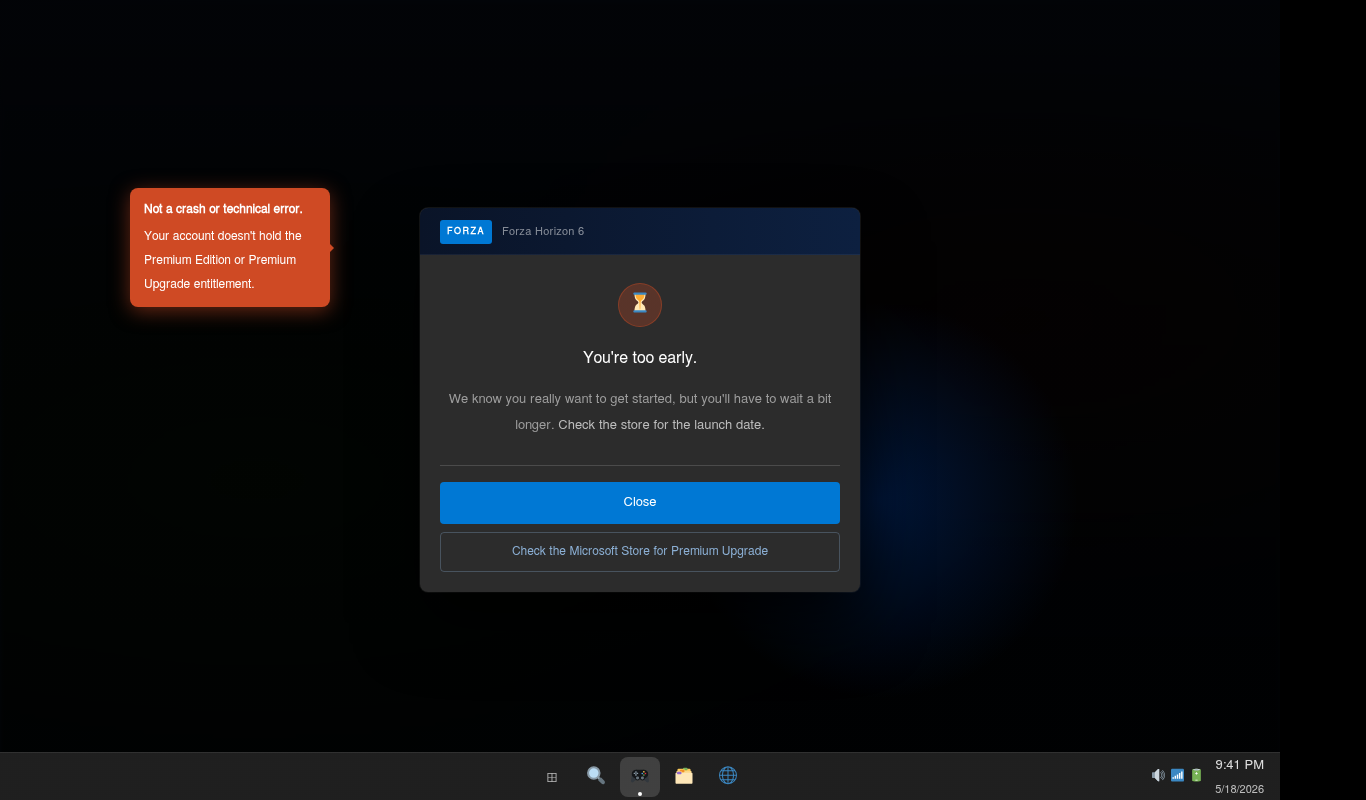
    Before I troubleshoot anything technical, I always confirm that the game is supposed to be accessible to me in the first place. Forza Support documents a specific error, sometimes shown as “You’re too early”, that is not a bug. It means the account doesn’t hold the right entitlement for early access.

    youre-too-early-error

    Here’s how the release window breaks down:

    • Premium Edition and Premium Upgrade owners: Early access started May 15, 2026.
    • Standard and Deluxe Edition buyers: Access begins at general availability, May 19, 2026.
    • Xbox Game Pass / PC Game Pass subscribers: Access begins at general availability unless the same Microsoft account also owns the Premium Upgrade.

    If I’m seeing “You’re too early,” the first thing I check is whether the Microsoft account I’m signed into on Steam or the Xbox app is the same one that owns the Premium Edition or Upgrade. That account mismatch is more common than people expect. After confirming the entitlement and the unlock window, I restart Steam or the Xbox app before trying again.

    If I’m on Standard or Deluxe and early access was never part of my purchase, I stop troubleshooting and wait for May 19. Nothing technical is wrong.

    If you want more context before diving into fixes, these cover the surrounding story: Forza Horizon 6 features, early access details, and unlock times, what the Steam leak revealed ahead of launch, and all 57 achievements and how to reach 1000 Gamerscore.

    Update Gaming Services Before Launching Forza Horizon 6

    This is the first thing I do on any PC where FH6 won’t launch, and I do it even on systems where I installed the game through Steam, which is where most people get surprised.

    Forza Horizon 6 requires Microsoft Gaming Services to run on PC regardless of where you bought it. It handles license verification, Xbox Live authentication, and cloud saves across all PC versions of the game. If Gaming Services is outdated, the game won’t open. Forza Support specifies that version 36.113.2002.0 or higher is required.

    gaming-services-store

    Here’s how I update it:

    1. Open the Microsoft Store.
    2. Click the Library icon in the bottom-left.
    3. Select Get updates or Check for updates.
    4. Find Gaming Services in the list and update it.
    5. Restart the PC, not just the game, the whole machine.

    I don’t skip the restart. Some Gaming Services updates don’t activate until the system reboots, and launching FH6 immediately after the update will produce the exact same error.

    If Gaming Services is corrupted rather than just outdated, I go to Windows Settings → Apps → Gaming Services → Advanced Options → Repair. When that fails, Forza Support’s PC crash guide documents a PowerShell reinstall method. Microsoft also offers a dedicated Gaming Services Repair Tool on the Xbox support website, which handles the most stubborn cases.

    Check PC Requirements, Windows Version, and GPU Support

    pc-spec-requirements

    I won’t waste time on settings tweaks if the system is running below the minimum spec. Here’s what the game actually requires, pulled directly from Steam’s listing.

    Minimum requirements (targets 1080p / 60fps / Low preset):

    • Windows 10 version 22H2 (build 19045) or Windows 11
    • CPU: Intel Core i5-8400 or AMD Ryzen 5 1600
    • GPU: Nvidia GeForce GTX 1650, AMD Radeon RX 6500 XT, or Intel Arc A380
    • 16 GB RAM
    • DirectX 12
    • SSD required, not a recommendation
    • 167 GB available storage

    Recommended tier (targets 1440p / 60+ fps / High preset): Intel Core i5-12400F or Ryzen 5 5600X, paired with RTX 3060 Ti / RX 6700 XT / Intel Arc A580

    GPU architectures that are not supported: The minimum supported Nvidia architecture is Turing meaning the GTX 1650 sits at the floor. Nvidia Pascal and older (GTX 1070, GTX 1080) are not guaranteed to work because they fall below that minimum. AMD Polaris and Vega architectures are listed by Forza Support as unsupported outright. If I’m running hardware in those categories, I’m not going to find a settings fix that makes the game stable. The crash fixes in the next section aren’t applicable when the GPU itself is below what the engine requires.

    If my Windows version is below 22H2, I update that before anything else. Some crashes on older Windows builds come from missing DirectX 12 feature support, not from the game.

    How to Fix Forza Horizon 6 Crashing on PC

    FHC crash error dialog

    The thing I appreciate about FH6’s crash handling is that it uses specific error codes rather than a generic “the game has crashed” message. Each code points to a specific hardware resource or system failure, which makes troubleshooting a lot faster than guessing.

    Error Code What It Means Where I Focus
    FHC Video card crash Update GPU driver; lower ray tracing and VRAM-heavy settings; check GPU stability
    FHD Out of video memory Reduce texture quality, ray tracing, and rendering resolution; switch to DLSS/FSR Quality
    FHE General game crash Disable overlays and monitoring tools; verify game files; update Windows and Gaming Services
    FHF Out of system memory Close background apps; confirm 16 GB RAM; check Windows page file
    FH301 GPU driver needs updating Install the latest Nvidia, AMD, or Intel Arc driver
    FH401 Insufficient system memory RAM is below minimum; close background apps or upgrade
    FH601 Microsoft Media Foundation issue Install missing Windows media components via Optional Features in Windows Settings

    When I see FHC or FHD, VRAM is the first thing I examine. On an 8 GB GPU running Extreme textures or high ray tracing, exceeding the VRAM budget can cause FHD crashes or instability, and since the in-game VRAM meter makes it easy to spot, it’s the fastest thing to check. I drop textures to Ultra on 8 GB cards and reduce or disable RTGI first, because it carries the heaviest VRAM cost for the least visible improvement.

    When I see FHE, I treat it as a broad crash category that needs methodical diagnosis rather than a single obvious cause. Overlays and conflicting background tools are one of the more common contributors, so that’s where I start, but FHE covers any general game crash, so if disabling overlays doesn’t resolve it, I move through the full checklist in the next section.

    Disable Overlays and Conflicting Background Tools

    Forza Support's general PC troubleshooting

    Forza Support’s general PC troubleshooting guidance lists overlays and background tools that can interfere with Forza games. I work through that list before anything else when diagnosing FHE crashes, because these tools hook into the rendering pipeline in ways the ForzaTech engine doesn’t tolerate. The general PC launch and crash guide is at support.

    Before launching, I close or disable all of the following:

    • MSI Afterburner and RivaTuner Statistics Server (RTSS)
    • Discord in-game overlay
    • Nvidia GeForce Experience overlay and ShadowPlay
    • Steam overlay, yes, even on a game I bought through Steam
    • EVGA Precision X1
    • OBS and XSplit running in the background
    • Wallpaper Engine
    • WeMod
    • Nahimic audio software
    • Logitech G Hub when it’s producing elevated CPU usage at launch
    • Any RGB, wheel, or peripheral management software with active overlays

    If I’ve cleared the obvious candidates and crashes continue, I run a clean boot through msconfig, disabling all non-Microsoft startup services, to catch whatever else might be interfering. Then I re-enable services one group at a time until the problem reappears.

    How to Fix Forza Horizon 6 Stuttering and FPS Drops

    I want to be straightforward here: not all stuttering in FH6 has a fix I can give you right now. What type of stutter I’m dealing with determines whether a setting change actually helps.

    Shader compilation stutter I treat as expected and temporary. When I first play, or after a driver update, the game compiles DirectX 12 shaders on the fly as I enter new areas. Until the cache fills in, I’ll see hitches. Running the in-game benchmark before going into the open world accelerates the process, and this stutter largely resolves within the first several hours of play.

    Open-world traversal stutter is a separate and more stubborn problem. I’m seeing it most consistently reported on AMD GPU and Ryzen X3D processor combinations, with consistent micro-stutters every few seconds in the open world that don’t appear during the benchmark at all. PC Gamer’s testing flagged the game as CPU-heavy and identified thread scheduling quirks specifically on dual-CCD Ryzen X3D chips. That doesn’t mean those setups are broken, but it explains why some players with very capable hardware are hitting frame pacing problems that simpler configs aren’t.

    The workarounds I try first:

    • Disable in-game V-Sync and instead cap the framerate through Nvidia Control Panel or AMD Adrenalin, set a few frames below the monitor’s refresh rate.
    • Turn off ray tracing, starting with RTGI, before touching anything else.
    • Drop from Extreme to Ultra or High. The visual gap is small, the performance gap is not.
    • If frame pacing feels inconsistent, switch from Frame Generation to DLSS Quality or FSR Quality. Frame Generation magnifies instability when the underlying frame times are already variable.
    • After any major settings change or driver update, I restart the game entirely and let the shader cache rebuild from a clean state.
    • I keep the in-game VRAM usage meter visible and make sure I’m comfortably within my card’s physical limit.

    If I’m on AMD and stutter persists after all of the above: AMD released driver version 26.5.2 close to launch. It adds official FH6 game support, including game profiles, shader paths, and compatibility adjustments, but it is not confirmed as a dedicated stutter fix; the release notes list no FH6-specific bug fixes. Still, installing it is the right baseline to be on before deeper troubleshooting. Some AMD users are still reporting open-world micro-stutter after driver and settings changes, so those cases may require a game-side or driver-side update rather than a guaranteed local workaround. What I do in that situation is file a support ticket, add my hardware details to the relevant threads on the Forza Feedback Hub, and give Playground the data they need to prioritize it. Pretending there’s a guaranteed workaround when there isn’t would be a waste of your time.

    How to Fix Forza Horizon 6 Steam Problems

    The 59-character path limit is the first thing I check on any Steam install. Forza Support officially documented that FH6 must be installed in a Steam library path that is 59 characters or fewer. If my Steam library is sitting inside something like C:\Users\MyUsername\Documents\PC Games\Steam\SteamLibrary\, that path is almost certainly over the limit and the game simply will not launch, with no error code and no explanation.

    My fix is to move the Steam library to a shorter path: D:\Steam\ or C:\Games\ both work. I use Steam’s built-in content move feature under Settings → Storage, then verify file integrity on FH6 after the move before launching.

    When Steam shows the game as running but nothing appears on screen, here’s my sequence:

    1. Open Task Manager and end any ForzaHorizon6.exe processes still lingering in the background.
    2. Fully quit Steam through the tray icon, because just closing the window leaves Steam running, which can hold a lock on the game process.
    3. Try clearing the DirectX shader cache at C:\Users\[My Name]\AppData\Local\D3DSCache. This is a community workaround; Forza Support’s official FH6 crash guide does not specifically list this as a fix, but some players have reported it resolving silent launch failures. Forza’s official PC crash troubleshooting is at support.
    4. Relaunch Steam and try again. The first boot after clearing the cache may take longer than usual.

    For crashes showing error code 0xc0000409 or a xinput1_3.dll error, I disconnect all controllers before launching and check whether antivirus software is blocking or interfering with the game. Forza Support has a general guide for adding Forza as an exception to antivirus software and firewalls. There’s no confirmed FH6-specific quarantine pattern during launch week, but antivirus interference is a documented general cause of Forza launch failures and worth ruling out.

    For Microsoft account sign-in loops on Steam: FH6 requires a linked Xbox Live account even on Steam. When I hit authentication loops, I sign out of both the Xbox app and Microsoft Store, then sign back in with the Microsoft account that owns the game or my Game Pass subscription. If it keeps looping, I open Windows Credential Manager, find any Xbox Live or Xbox.com credentials stored there, remove them, restart the PC, and sign in fresh. Forza Support includes this credential-clearing step in their official PC troubleshooting guide.

    How to Fix Game Pass and Xbox App Errors

    The first thing I confirm for Game Pass players is that general availability has passed for their region and that the subscription is active on the account signed into the Xbox app.

    When the game won’t open through the Xbox app, my first move is:

    1. Press Win + R, type wsreset.exe, press Enter.
    2. A blank Command Prompt appears. Leave it alone and wait for it to close automatically.
    3. Once the Microsoft Store reopens, I restart the Xbox app and try launching the game again.

    This clears the Store’s temporary cache, which can block license verification and prevent the game from opening even when the subscription is perfectly valid.

    I keep both the Xbox app and Gaming Services updated at all times for Game Pass. The Xbox app and Microsoft Store version depends on Microsoft account licensing, Gaming Services, and Xbox app components. If any of those are outdated or corrupted, FH6 may fail to launch, so updating Gaming Services, the Xbox app, and the Microsoft Store should be part of the first troubleshooting pass, before spending time on anything else (Forza Support: Update Gaming Services).

    For persistent launch errors after updating Gaming Services, I go to Windows Settings → Apps → Xbox → Advanced Options → Reset. That clears the Xbox app’s local data entirely and forces it to re-verify my account and subscription from scratch on the next launch.

    How to Fix Controller, Wheel, and Steam Controller Issues

    The current build’s official known issues list is clear on one thing: the Steam Controller is not officially supported and may crash the game. If I’m using a Steam Controller and hitting crashes, I disconnect it before launching and test with a standard wired Xbox controller first, just to confirm whether the controller is the source of the problem.

    For everything else I’ve worked through:

    • Xbox controller via wired USB is the most stable option in the current build. It’s where I always start when diagnosing controller issues.
    • DualSense controllers: I test with Steam Input both enabled and disabled, because the behavior differs by setup. Some players get better results with Steam Input off.
    • Bluetooth: I avoid it during this launch window. Bluetooth controller disconnects are showing up in reports alongside frame hitches and crashes. Wired or a 2.4 GHz dongle is consistently more stable.
    • Before launching with any controller: I disconnect everything, start the game, reach the main menu, then reconnect. This fixes the cases where the game stops recognizing a controller after the benchmark or between sessions.
    • Wheel users: I close Logitech G Hub, Fanatec Control Panel, and similar companion apps before launching, as they appear on Forza Support’s general list of software that can interfere with the game’s stability.

    When I Stop Troubleshooting and Wait for a Patch

    There are issues from this launch window where I genuinely cannot give someone a reliable fix, and I think it’s more useful to say so than to keep suggesting settings changes that won’t work.

    AMD open-world micro-stutter on setups that remain unstable after driver updates and the settings workarounds above: this one needs attention from Playground Games. The Feedback Portal has active threads on it. Adding hardware details to those threads gives Playground actionable data to work from.

    Steam Controller crashes: officially listed as an unsupported configuration right now.

    Tunnel lighting artifacts and shadow flickering below Ultra settings: Forza Support has confirmed these as known visual issues in the current build.

    Delayed relaunch after running the benchmark: the game takes longer than expected to return to playable state after the benchmark finishes. This is documented behavior in the current build, not a system-side crash.

    For these, my honest recommendation is: file a support ticket with your hardware specs, and track the Forza Feedback Hub, where Playground Games is documenting known issues and their status for FH6, rather than through traditional patch notes. As of the May 2026 launch window, there is no confirmed regular patch cadence; the Feedback Hub is the primary place to monitor progress on open bugs. If the issue is making the game unplayable, use the Steam refund window or pause Game Pass access until a fix ships.

    Looking back across everything I’ve worked through, almost every fixable PC issue in Forza Horizon 6 traces to one of three places: Gaming Services being out of date, a background tool conflicting with the rendering pipeline, or the Steam library path being longer than 59 characters. I start there every time. The error codes handle the rest of the crash troubleshooting. And for stuttering, particularly on AMD, I’m honest about the line between what a settings change can fix and what requires a patch.

  • Is 007 First Light on Game Pass? Early Access and Pre-Order Bonuses Explained

    Is 007 First Light on Game Pass? Early Access and Pre-Order Bonuses Explained

    Updated May 23, 2026 — 007 First Light launches May 27, 2026. Early access begins May 26. Pre-orders are still open.

    If you’re trying to figure out the most cost-effective way to play IO Interactive’s upcoming Bond origin story, start with our full 007 First Light guide if you want the complete breakdown of the release date, story, gameplay, cast, editions, and platforms. For buying advice, you’ve got three straightforward questions to answer: Is it on Game Pass? Can you get in early? And which edition is actually worth buying?

    Here are clear, sourced answers to all three — with any inferences flagged as such.

    Is 007 First Light on Xbox Game Pass?

    007 First Light has not been announced for Xbox Game Pass at launch on May 27, 2026.

    Neither IO Interactive nor Microsoft has made any announcement about a Game Pass deal for the game. No Game Pass badge appears on the Xbox Store listing, and Microsoft typically promotes day-one Game Pass titles well in advance of release. The absence of any announcement this close to launch is a strong signal, though not an official confirmation, that the game will not be on the service on day one.

    For context: IO Interactive is an independent studio, not a Microsoft first-party developer, and 007 First Light is a multiplatform release launching simultaneously on PlayStation 5, Xbox, and PC. Neither of those factors rules out a Game Pass deal — independent and multiplatform games can still reach the service through third-party agreements — but no such agreement has been announced.

    What about later? There is a precedent worth noting. IO Interactive’s previous titles — including Hitman: World of Assassination — did eventually appear on Game Pass after release. That doesn’t mean 007 First Light will follow the same path, but it does mean a post-launch addition isn’t out of the question. Nothing has been announced, and there is no timeline to point to. If you want to play on launch day, you’ll need to purchase the game.

    Is 007 First Light on PS Plus?

    No PlayStation Plus deal has been announced for 007 First Light, either at launch or for any future date. It is a full-price retail release on PlayStation 5.

    007 First Light Early Access: What It Is and How to Get It

    007 first light Game

    “Early access” in the context of 007 First Light means one specific thing: a 24-hour head start for digital pre-orders.

    As of May 23, 2026, pre-orders are still open. If you pre-order today, you will have access tomorrow on May 26. That’s it. This is not a Steam Early Access-style period where the game is available in partial or development form. It is a finished game, available one day early, exclusively for players who pre-order through a digital storefront.

    Which platforms get early access?

    Early access is available through the PlayStation Store, Xbox Store, Steam, and the Epic Games Store. The 24-hour window applies to pre-orders on all of these.

    Nintendo Switch 2 note: Per the official IOI pre-order communications, pre-orders on Nintendo Switch 2 are currently limited to physical editions. IOI’s campaign links for the free Deluxe upgrade and 24-hour early access point to the PlayStation Store, Xbox Store, Steam, and Epic Games Store — Switch 2 is not listed among those digital storefronts. The Switch 2 version is also delayed to Summer 2026 with no confirmed date, so early access arrangements for that platform may differ. Check the official IOI pre-order page for the most current Switch 2 details.

    Do I need a specific edition for early access?

    No. Early access applies to any digital pre-order, including the Standard Edition. You do not need to buy the Deluxe Edition specifically to unlock it. The 24-hour head start comes with any digital pre-purchase, regardless of tier.

    007 First Light Pre-Order Bonuses: What You Actually Get

    007 first light Game

    Pre-ordering 007 First Light on the PlayStation Store, Xbox Store, Steam, or Epic Games Store currently earns you a free upgrade to the Deluxe Edition. IOI’s campaign page links to these four digital storefronts for the offer. Physical editions also include Deluxe upgrade content, though early access handling may vary by retailer and platform — confirm details at the point of purchase. That makes a digital Standard Edition pre-order one of the more straightforward value propositions in gaming right now: pay Standard price, get Deluxe content, and unlock early access.

    The Deluxe Edition upgrade includes:

    • 24-hour early access (digital pre-orders only)
    • Four exclusive outfits: Day of the Dead, Desert Explorer, Silent Anchor, Gentleman Operator
    • Weapon skin: Agent’s Mark
    • Gleaming Pack: four gadget skins — Gleaming Lighter, Gleaming Earphones, Gleaming Dart Gun, and Gleaming Pen

    Note: Some physical retailer listings name the third Gleaming Pack skin as “Gleaming Phone” rather than “Gleaming Dart Gun.” The discrepancy exists between storefronts. Digital platform listings (PlayStation Store, Steam, Epic Games Store) use “Gleaming Dart Gun.”

    The free Deluxe upgrade is a pre-order offer. IOI has not published a specific cutoff date or post-launch terms beyond the pre-order period — once the game releases, verify current availability and pricing at ioi.dk/007firstlightgame.

    GeForce NOW Ultimate Bundle

    NVIDIA is including 007 First Light as a Steam redemption with the purchase or upgrade to a 12-month GeForce NOW Ultimate membership through June 10, 2026. This is not a Game Pass or PS Plus deal — it is a cloud gaming subscription bundle. Full details here.

    IOI Account Milestone Rewards

    Separately from the standard pre-order bonus, IOI has set up a community campaign tied to Steam wishlist milestones. Players who sign up for a free IOI Account unlock cosmetic rewards each time a collective milestone is reached. These are independent of which edition you purchase.

    All 007 First Light Editions Compared

    Here is a complete breakdown of every edition currently available, with confirmed pricing and contents.

    Standard Edition

    Standard Edition starts at $69.99 / €69.99 / £59.99, with physical pricing varying by platform and retailer.

    The base game with all main campaign and TacSim content. Pre-order the digital edition to receive the free Deluxe upgrade and 24-hour early access. Physical availability and exact pricing may vary by country and retailer — check your local storefront for confirmation.

    Deluxe Edition

    $79.99 / €79.99 / £69.99 (SRP) — Standalone purchase, available at launch

    The Deluxe Edition is the standalone paid version of the cosmetic upgrade pack, purchasable at launch for players who did not pre-order. Note: physical editions of the game (Specialist, Collector’s, Legacy) also include the Deluxe upgrade content — this entry refers specifically to purchasing the Deluxe Edition as a standalone product. It includes the same four outfits, Agent’s Mark weapon skin, and Gleaming Pack as the pre-order bonus — but without the 24-hour early access, since that window will have passed. Verify availability and format options at your local storefront before purchasing.

    Specialist Edition

    $69.99 — Amazon-exclusive, Physical Only

    Available for PS5, Xbox Series X|S, and Nintendo Switch 2 (game-key card). The Specialist Edition is the same price as the Standard Edition but includes:

    • Exclusive game packaging
    • Deluxe Edition upgrade content
    • Classic Tuxedo outfit — the only edition to include it

    The Classic Tuxedo is the Specialist Edition’s defining exclusive. It is not currently available in any other edition or as a separate purchase. If the tuxedo skin matters to you, this is the only route at present.

    Collector’s Edition

    007 Store Collector’s Edition Price $199.99 / €199.99 / £169.99 (SRP) — Limited, Physical Only

    Not available for Nintendo Switch 2. Includes everything in the Deluxe upgrade plus:

    • Wearable life-size gold mask replica
    • Steelbook case with magnet
    • Certificate of authenticity
    • Obsidian Gold Suit (in-game)

    Contents may vary slightly by region and retailer. Verify the exact contents on the official IOI pre-order page before purchasing.

    Legacy Edition

    Legacy Edition Price $299.99 / €299.99 / £259.99 — Limited, Physical Only

    Available for PS5, Xbox Series X, and PC (Steam only — not Epic Games Store). Not available for Nintendo Switch 2. The highest-tier edition, built around a centrepiece collectible:

    • Golden Gun figurine with display stand and secret compartment
    • Steelbook case with magnet
    • Certificate of authenticity
    • Golden Gun weapon skin (in-game)
    • Obsidian Gold Suit (in-game)
    • All Deluxe Edition upgrade content

    Stock is limited. The Classic Tuxedo outfit is not included in this edition — it is currently exclusive to the Specialist Edition.

    Which Edition Should You Buy?

    007 first light Game Pass

    This section reflects editorial recommendations based on current confirmed pricing and contents — not a guarantee of future availability or value.

    If you want the lowest entry price and plan to play digitally, a Standard Edition digital pre-order currently includes the Deluxe cosmetics for free and unlocks 24-hour early access. The free Deluxe upgrade is a pre-order offer; verify current terms before purchasing.

    If you want the Classic Tuxedo outfit and prefer physical media: the Specialist Edition is currently the only route, at the same $69.99 SRP.

    If you want a premium physical collectible: the Collector’s Edition ($199.99 SRP) includes the gold mask replica, or the Legacy Edition ($299.99 SRP) includes the Golden Gun figurine with stand and secret compartment.

    Quick Reference

    Question Answer
    Is it on Xbox Game Pass at launch? Not announced
    Is it on PS Plus at launch? Not announced
    Is there a Game Pass deal announced for later? Nothing confirmed
    What is early access? 24-hour head start for digital pre-orders
    Which platforms get early access? PS Store, Xbox Store, Steam, Epic Games Store
    Does Switch 2 get early access? Pre-orders currently limited to physical editions; check IOI’s site
    Do I need the Deluxe Edition for early access? No — any digital pre-order includes it
    Is the free Deluxe upgrade available after launch? It’s a pre-order offer; confirm terms at ioi.dk
    Is the Classic Tuxedo outfit available separately? Not currently — Specialist Edition only at present
    When does the game launch? May 27, 2026 (PS5, Xbox, PC); Summer 2026 (Switch 2)

    All details are based on officially confirmed sources at time of publication. Pre-order offers and edition availability are subject to change — verify current pricing and availability at ioi.dk/007firstlightgame before purchasing.

  • Pragmata Stuttering and Freezing Fixes

    Pragmata Stuttering and Freezing Fixes

    Pragmata is freezing. The screen stutters. Your frame rate drops out of nowhere. You crash to desktop with an error you have never seen before. Sound familiar?

    You are not alone. A lot of PC players are hitting the same problems. The good news is there are real steps you can take right now. This guide walks you through all of them — starting with what Capcom officially recommends, then moving on to fixes that players have found on their own.

    One thing to be upfront about: Capcom has not released a patch that fully fixes all stuttering and freezing on PC. So nothing here is a guaranteed cure. Most of the official steps are safe to try, but advanced workarounds like registry edits or config file changes should be used carefully — this guide flags those clearly as you go.

    If the game is freezing during boss fights specifically, check out our Pragmata Boss Guide — it covers every fight in detail. And once the game is running smoothly, our Pragmata Best Loadout Guide will help you set up the best build for your playstyle.

    Why Is Pragmata Stuttering and Freezing on PC?

    Before jumping into fixes, it helps to know what is actually going wrong. You do not need to be a tech expert — here is the short version.

    Pragmata runs on Capcom’s RE Engine, the same engine used in Monster Hunter Wilds and Resident Evil 4 Remake. On PC, the game has to run across many different hardware and driver setups, which makes troubleshooting more complicated than on other platforms.

    There are three main reasons the game struggles on PC:

    Some repeated hitches may be related to shader cache problems. This is why Capcom recommends deleting the game’s shader cache files for graphical issues and instability. Clearing and rebuilding those files is one of the most common fixes players report helping with stuttering and short freezes.

    High graphics settings can increase the load on your graphics card. Turning down texture quality, ray tracing, or path tracing is a sensible troubleshooting step — especially if the game gets worse after running for a while.

    Pragmata uses DirectX 12. This is confirmed on the Steam store page as a requirement. Because of this, driver instability, GPU overclocks, or GPU timeouts can show up as Fatal D3D or DXGI errors instead of the game recovering quietly. Keeping your drivers up to date and your system stable is the main defence against these.

    These areas explain why the fixes below focus on drivers, shader cache files, graphics settings, overlays, and system stability. Start with the official steps and work through the rest from there.

    What Kind of Problem Are You Having?

    Not all performance problems in Pragmata are the same. Finding the right fix is faster if you know what you are looking for.

    The game lurches or skips every few seconds. This is stuttering. It can be related to shader cache problems or background software getting in the way. Start with the shader cache fix (Fix 3) and the background apps fix (Fix 6).

    The game freezes completely for a second or two, over and over. This is often connected to the game building graphics on the fly. It is most common on your first playthrough. Deleting the shader cache files (Fix 3) is the first thing to try.

    The game runs fine at first, then gets worse the longer you play. This may point to graphics load, VRAM pressure, heat, or driver behaviour building up over time. Lowering your graphics settings (Fix 7) and restarting the game periodically are the main workarounds right now.

    Your frame rate suddenly drops, then comes back. Usually caused by your graphics card getting too hot, graphics settings being too high, or another program competing for resources. Check your temperatures and try lowering settings.

    The game closes suddenly with a “Fatal D3D Error.” This is a crash caused by your graphics card losing connection with the game. It sounds intimidating, but there are several troubleshooting steps worth trying. Fix 5 covers this in detail.

    Has Capcom Fixed Pragmata Stuttering and Freezing?
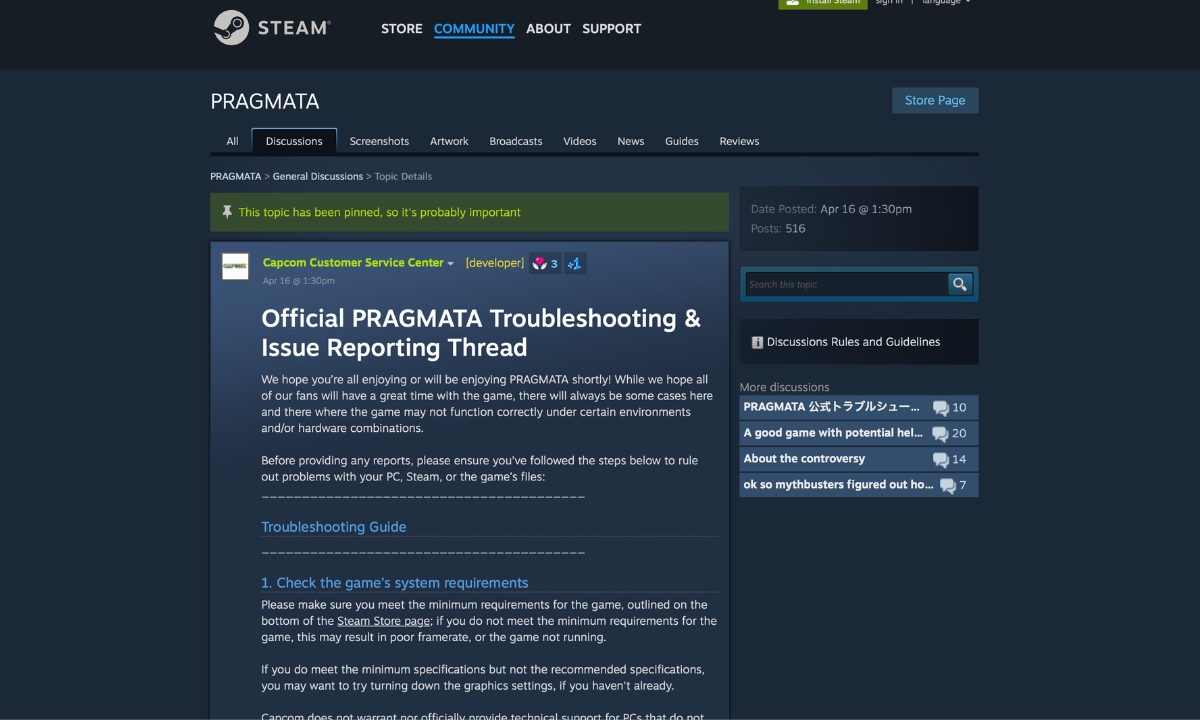
    Has Capcom Fixed Pragmata Stuttering and Freezing?

    Not yet. At the time of writing, Capcom’s update page only lists one patch for Pragmata — a PS5 Pro update from April 21, 2026. There is no PC performance patch confirmed yet.

    What Capcom does have is an official troubleshooting thread on Steam where their support team lists steps players can take to help the game run better. That thread is the foundation for many of the fixes in this guide.

    Intel also released a driver update that fixed a specific crash for players with Intel graphics cards. More on that in Fix 9.

    Players on Steam and Reddit are still reporting problems. So treat everything below as steps to try, not guaranteed fixes. Game Empress will update this guide when Capcom releases a proper patch.

    Fix 1: Update Your Graphics Drivers and Windows

    This is the first thing Capcom tells players to do — and it really does matter. Old graphics drivers are one of the most common reasons Pragmata stutters or crashes on PC.

    Think of a graphics driver like the translator between Pragmata and your graphics card. If the translator is out of date, things get lost in translation, and the game breaks.

    Here is what to do depending on your graphics card:

    NVIDIA users: Go to NVIDIA’s website and download the latest driver. While you are there — if you have something called NVIDIA Smooth Motion turned on, turn it off before launching Pragmata. Players have reported that Smooth Motion causes crashes when the game tries to use DLSS or Frame Generation. It is a quick setting to check and a low-risk thing to try.

    AMD users: Go to AMD’s website and grab the latest driver.

    Intel Arc users: There is a specific driver you need — version 32.0.101.8735, released April 21, 2026. Before this driver, Pragmata could crash while loading the game menu on some Intel graphics setups. Download it from Intel’s official site and see Fix 9 for more details.

    A cleaner way to update drivers. When you uninstall a graphics driver the normal way, it leaves bits and pieces behind that can cause problems with the new driver. A free tool called Display Driver Uninstaller (DDU) removes everything completely. Capcom’s own guide recommends a clean install if a normal update does not help. You can download DDU from Guru3D.

    Also run Windows Update and install anything that is waiting. Pragmata needs DirectX 12 to work, and old Windows versions can cause issues with it.

    Fix 2: Check Your Game Files on Steam
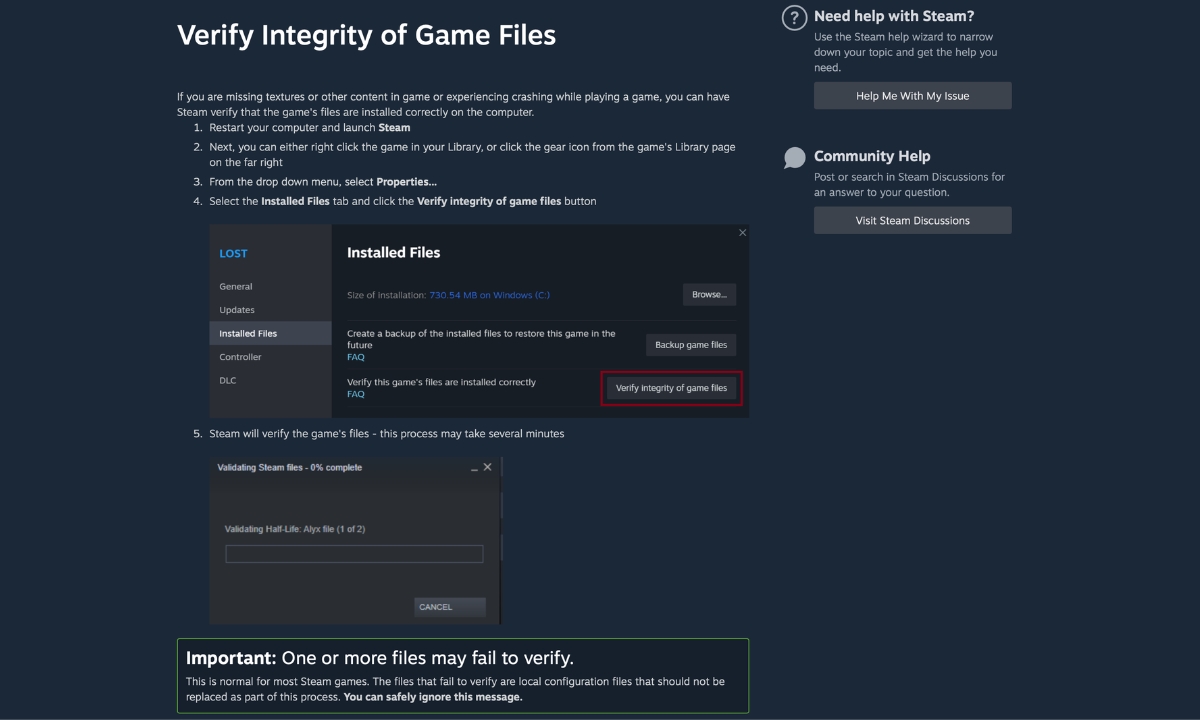
    Check Your Game Files on Steam

    Sometimes a file gets corrupted during download or after an update. One bad file can cause crashes, stuttering, and all sorts of strange behaviour — even if everything else on your PC is fine.

    Steam has a built-in tool that checks your game files and replaces anything broken. Capcom recommends this as one of the first steps to try.

    Here is how to do it:

    1. Open Steam and find PRAGMATA in your library.
    2. Right-click it and choose Properties.
    3. Click Installed Files.
    4. Click Verify integrity of game files.

    Steam compares your local files against Steam’s content server and redownloads anything that is missing or damaged. It takes a few minutes. This normally does not affect save data. Capcom’s guide notes that one or more files may fail to verify — this is normal for local configuration files and you can safely ignore that message. Let the process finish completely before relaunching the game.

    Fix 3: Delete the Shader Cache Files

    This is one of the most important fixes on this list, and it comes straight from Capcom’s official guide.

    Here is the idea: Pragmata creates special files that help it load graphics faster. Over time, these files can get damaged — especially if you changed your settings or had a crash mid-game. When that happens, the game slows down or behaves strangely because it is working from bad data.

    The fix is simple: delete the old files. The game will make fresh ones the next time you start it.

    Capcom specifically names these three files to delete:

    • shader.cache
    • shader.cache2
    • pipelinelist.bin

    You will find them inside the Pragmata game folder. The default location is:

    C:\Program Files (x86)\Steam\steamapps\common\PRAGMATA

    Just open that folder, find those three files, and delete them. The game should recreate them after launch. Players on Steam say that deleting shader.cache2 in particular made a noticeable difference in crash frequency and stuttering.

    Fix 4: The Game Freezes Every Few Seconds — Try This

    If Pragmata freezes briefly on a rhythm — about every 20 to 30 seconds — this is probably connected to the game preparing graphics as you play. It is most common on your first playthrough.

    According to community testing by GameGuidesBox, one tester tracked freezes every 25 seconds during a full first playthrough. After clearing the shader cache and letting the game rebuild it, the second playthrough had no freezes for four hours. Results will vary depending on your PC, but it is a good starting point.

    Here is the step-by-step fix:

    Step 1: Delete the three shader files from your Pragmata folder as described in Fix 3.

    Step 2: Clear the Steam shader cache too. Open Steam, go to Settings > Downloads, and click Clear Download Cache. Then open your Steam folder, go to steamapps > shadercache, find the folder named 3357650 (that is Pragmata’s ID), and delete it.

    Step 3: Launch Pragmata and wait on the main menu for a minute or two before starting the game. This gives it time to rebuild everything before you start playing.

    Step 4: If freezes are still happening after that, open Windows Disk Cleanup, select your C drive, tick DirectX Shader Cache, and click OK. This clears an extra cache your graphics driver uses, and it can help too.

    Why does this work? Multiple guides for games on the same engine describe a pattern where the game prepares graphics effects the first time they appear — pausing briefly each time it does. Once it has done the work once, those pauses stop. Capcom does not explain this directly in their guide, but their recommendation to delete shader files is consistent with it.

    Fix 5: Getting a Fatal D3D Error? Here Is What to Do

    The Fatal D3D error looks like this:

    Fatal D3D error (24, DXGI_ERROR_DEVICE_REMOVED, 0x887a0005)

    That looks intimidating but it basically means: your PC lost its connection to the graphics card and could not get it back. The game crashed instead of recovering.

    This is one crash type Pragmata players are reporting. Here is how to work through it:

    Turn off Path Tracing first. Path Tracing is a very demanding graphics setting that shows up in many of these crash reports. If you have it turned on, turn it off — either in the game settings or by editing the config file (see Fix 8). Some players found this alone stopped the crashes.

    Remove any GPU overclocking. If you have ever used software like MSI Afterburner to make your graphics card run faster, that can cause instability in Pragmata. Set everything back to default and test the game at normal speed before trying anything else.

    Do a clean driver reinstall using DDU. If the crash keeps happening even at default settings, there may be leftover data from old drivers causing the problem. Use DDU (see Fix 1) to wipe everything clean and install fresh drivers. Players who were stuck on this error said a DDU wipe fixed it when nothing else did.

    The TdrDelay registry fix — only if nothing else works. Some third-party guides suggest a Windows registry change that gives your graphics card more time to respond before Windows forces a crash. It is not something Capcom recommends, and it is a system-level change, so only try it as a last resort. If you want to try it:

    1. Press Win + R, type regedit, and press Enter.
    2. Go to HKEY_LOCAL_MACHINE\SYSTEM\CurrentControlSet\Control\GraphicsDrivers.
    3. Right-click in that folder and choose New > DWORD (32-bit) Value.
    4. Name it TdrDelay and set the value to 10.
    5. Restart your PC.

    If this causes any new problems, delete the TdrDelay entry to undo it.

    Crashed after changing Frame Generation to DLSS? Some players got stuck in a crash loop after switching that setting. The fix was deleting both the shader cache files and the config.ini file from the game folder, then letting both rebuild from scratch on the next launch.

    For a deeper look at all types of Pragmata crashes, see our Pragmata Fatal D3D Error and Crashing Fixes guide.

    Fix 6: Close Other Programs and Turn Off Overlays

    Pragmata does not always play well with other software running in the background. Capcom’s own guide calls this out — recording tools, performance overlays, and background apps can all get in the way and cause stuttering or crashes.

    Try turning these off one at a time and testing after each:

    • Steam overlay — turn it off in Steam > Settings > In-Game
    • Discord overlay
    • NVIDIA GeForce Experience overlay
    • NVIDIA Smooth Motion — found in NVIDIA App or driver settings. Players report this causes crashes with DLSS or Frame Generation
    • MSI Afterburner and RivaTuner
    • Xbox Game Bar
    • OBS, ShadowPlay, or any other recording tool
    • Browser tabs, cloud backup tools, anything updating in the background

    Also add Pragmata to your antivirus exceptions. This is something a lot of people miss. If your antivirus is scanning game files while Pragmata is loading them, it can cause hitches and mid-session crashes. Capcom specifically names these three things to exclude:

    • PRAGMATA.exe — found at C:\Program Files (x86)\Steam\steamapps\common\PRAGMATA
    • Steam.exe — found at C:\Program Files (x86)\Steam
    • Your Steam AppData folder — found at C:\Users\[your name]\AppData\Local\Steam

    Fix 7: Turn Down Your Graphics Settings

    If the game is still stuttering after the steps above, your graphics settings might simply be too high for your hardware. Capcom recommends lowering them, starting with the most demanding ones first.

    Go to Options > Graphics and switch to the Minimum preset. If the stuttering stops, you know graphics load is the issue. Then you can slowly raise individual settings until you find where the problem starts.

    Here is what to change and why:

    Ray Tracing — turn it off if your card is not powerful enough. The game requires at least an AMD Radeon RX 6700 XT with 12GB of memory, or an NVIDIA RTX 3060 with 12GB, to support ray tracing properly. If your card is below that, turning ray tracing off will help a lot.

    Path Tracing — turn this off first when troubleshooting. Path Tracing is even more demanding than ray tracing. It appears in a lot of crash reports, particularly the Fatal D3D error. Turning it off is a sensible first troubleshooting step when something goes wrong.

    Texture Quality — stick to Medium. If textures look blurry or the game feels sluggish, your graphics card may be running out of memory. Drop textures to Medium. One community tester reported that the Low preset actually made things worse — causing textures to fail loading and creating frame time spikes. Medium is the safe floor.

    Volumetric Lighting and Fog — lower these in demanding scenes. These settings affect how light moves through air and smoke effects. Lowering them can smooth out performance in busier parts of the game.

    Shadow Quality and Hair Quality — Medium is fine. These have a noticeable impact on performance with very little visible difference when set to Medium.

    Use the game’s upscaling option. In graphics settings, you can switch to a balanced upscaling mode. This makes the game run at a lower resolution internally and then sharpens the image — giving you better performance without making things look dramatically worse.

    Once everything is running smoothly, check out our Pragmata All Weapons Guide to see all 15 weapons in the game, and our Pragmata Best Loadout Guide to build the best setup.

    Fix 8: Crashes When Changing Path Tracing or Frame Generation?

    Some players find that Pragmata crashes the moment they try to turn Path Tracing or Frame Generation on or off in the settings menu. It crashes before the setting even changes.

    Wccftech reports that editing config.ini can bypass crashes caused when toggling Path Tracing or Frame Generation from the in-game menu. The workaround is to set these options before you launch the game instead of changing them inside it:

    1. Right-click PRAGMATA in Steam, choose Manage > Browse Local Files.
    2. Find the file called config.ini and open it with Notepad.
    3. Change your Path Tracing, Frame Generation, and upscaling settings directly in that file.
    4. Save and close the file, then launch the game.

    This way the game starts with the settings already set and never has to restart anything mid-session.

    Also — if you have any GPU overclock running, turn it off before changing graphics-heavy settings. The game is sensitive to that kind of instability.

    Fix 9: Intel Graphics Users — Install This Driver
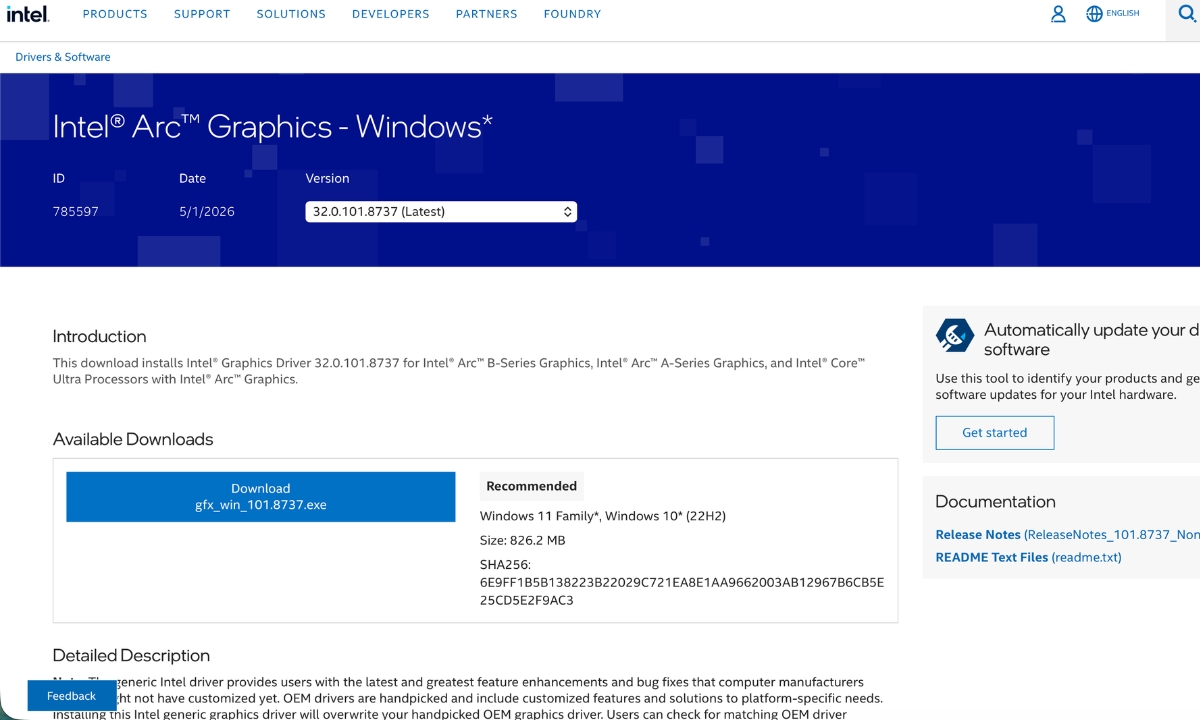
    Intel Arc graphics driver page for Pragmata crash fix

    If your PC has an Intel Arc graphics card or an Intel Core Ultra processor with built-in graphics, there is a specific driver update just for you.

    Intel released driver 32.0.101.8735 on April 21, 2026. Before this update, Pragmata could crash while loading the game menu on some Intel setups. This driver fixes that specific problem.

    It covers:

    • Intel Arc A-Series graphics cards
    • Intel Arc B-Series graphics cards
    • Intel Core Ultra Series 1, 2, and 3 with built-in Intel Arc graphics

    Download it from Intel’s official driver page.

    One important note: this fix only covers that specific menu crash. It does not fix general stuttering, freezing, or long-session slowdowns on Intel hardware. Do not expect it to solve everything.

    Fix 10: Check Your PC’s Temperature, Power Settings, and SSD

    These are easy to overlook but they matter. Capcom’s own guide mentions all of them.

    If your PC gets hot, the game will slow itself down. When your graphics card runs too hot, it automatically reduces its speed to cool down. This causes stuttering that gets worse the longer you play — and usually recovers after you restart the game. Use a free tool like HWMonitor to check your temperatures while playing. If they are running high, make sure your vents are clear and your fans are working.

    Set Windows to High Performance mode. If your PC is set to a power-saving mode, it may be limiting how fast your processor and graphics card run. Search for Power Plan in Windows and switch to High Performance or Balanced. This is especially important on laptops.

    Laptops: make sure Pragmata is using the right graphics card. Many laptops have two graphics cards — a weaker one built into the processor, and a stronger dedicated one. Pragmata should always use the dedicated one. Open your NVIDIA or AMD control panel and check that Pragmata is assigned to the dedicated card. Running it on the built-in graphics will cause serious performance problems.

    Install the game on an SSD. Capcom recommends an SSD in the system requirements. Pragmata loads a lot of data as you move through the game. If it is installed on an older hard drive, you may see loading pauses and texture delays. Moving it to an SSD is worth doing if you have the option.

    Quick Answers

    Has Capcom permanently fixed Pragmata stuttering and freezing? Not yet. As of the time of writing, there is no PC performance patch from Capcom. What exists are their official troubleshooting steps, one Intel driver fix, and workarounds players have shared.

    Why does the game freeze every few seconds? This is likely connected to the game preparing graphics effects as you play. Deleting the shader cache files — shader.cache, shader.cache2, and pipelinelist.bin — from the game folder and letting them rebuild has helped many players. It is most common on a first playthrough.

    What is the Fatal D3D error? It means your PC lost connection to the graphics card and could not get it back. Start by turning off Path Tracing and removing any GPU overclock. If it keeps happening, do a clean driver reinstall with DDU.

    Should I delete the shader cache files? Yes. Capcom’s guide specifically recommends it for graphical issues and instability. The files are safe to delete — the game rebuilds them automatically.

    Does NVIDIA Smooth Motion cause crashes in Pragmata? Players report that disabling it fixed crashes when using DLSS or Frame Generation. It is not an official Capcom statement, but it is easy to check and worth trying.

    What did the Intel driver fix? Driver 32.0.101.8735 fixed a crash that happened when loading the game menu on some Intel Arc and Core Ultra setups. It does not fix general stuttering or freezing.

    Where do I report a crash to Capcom? Go to Capcom’s pinned Steam thread. When Pragmata crashes, it saves a crash report file inside your game folder in a folder called CrashReport. Attach that zip file, along with your DxDiag.txt and config.ini, when you contact Capcom support.

    More Pragmata Guides


    Game Empress will update this guide when Capcom releases a patch for PC performance.
  • Pragmata Fatal D3D Error and Crashing Fixes on PC

    Pragmata Fatal D3D Error and Crashing Fixes on PC

    If you’re seeing a Pragmata Fatal D3D error on PC, or the game is crashing with a black screen, a crash report tool message, or freezes tied to enabling DLSS, Frame Generation, or Path Tracing, the problem usually points to one of a handful of causes: GPU driver issues, DirectX 12 instability, NVIDIA Smooth Motion conflicts, corrupted game files, shader cache problems, or VRAM pressure. This guide breaks down each crash type and the fixes most likely to match your specific situation — so you’re not working through a generic list when a targeted fix exists.

    Disclaimer: These fixes draw on official Intel driver release notes, NVIDIA’s Game Ready Driver documentation, Steam’s system requirements and support guidance, WCCFTech’s troubleshooting guide, and player-reported workarounds from Steam Discussions and ResetEra. Not every fix will work for every hardware configuration.

    Quick Fixes to Try First

    Start here if you’re troubleshooting a Pragmata Fatal D3D error before diving into the specific sections below:

    • Restart the game and your PC
    • Update your GPU driver (see sections below for version numbers)
    • Verify Pragmata’s game files on Steam
    • Disable Path Tracing and Frame Generation temporarily
    • Turn off NVIDIA Smooth Motion in the NVIDIA app if crashes happen when toggling DLSS, Frame Generation, or Path Tracing (see dedicated section below)
    • Close all overlays: Steam Overlay, Discord Overlay, NVIDIA Overlay, MSI Afterburner, RivaTuner
    • Remove any GPU overclock or undervolt
    • Lower texture quality and shadow settings if crashes are intermittent
    • Clear or rebuild the shader cache

    Update Your GPU Driver First

    GPU drivers are one of the first things to rule out when diagnosing a Pragmata Fatal D3D error, DXGI_ERROR_DEVICE_REMOVED crash, or DirectX 12 instability.

    NVIDIA: NVIDIA released GeForce Game Ready Driver 596.21 WHQL as the day-one driver for Pragmata. It specifically optimizes for the game’s Path Tracing, DLSS Multi Frame Generation, and DLSS Ray Reconstruction pipeline. If you’re running an older driver, the first step is updating to 596.21 or newer via the NVIDIA app or GeForce.com.

    AMD: AMD added official Pragmata support in Adrenalin Edition 26.5.1, released May 6, 2026. If you installed an older Adrenalin build at launch, update to 26.5.1 or newer before testing other fixes. Steam lists AMD Radeon RX 6700 XT 12 GB as the minimum GPU required for ray tracing support, so Radeon users should also lower ray tracing and other GPU-heavy settings if crashes continue. Grab the latest Adrenalin Edition from AMD’s website.

    Intel Arc: See the dedicated Intel section directly below — there is a specific driver fix documented for Pragmata crash-on-menu-load.

    Intel Arc Users: Install Driver 32.0.101.8735 or Newer — This Is Your Fix

    If you’re running any Intel Arc GPU or a laptop with Core Ultra integrated Arc graphics and getting a Pragmata Fatal D3D error or menu crash, this is the official first fix to try — Intel has formally documented it. For general gameplay help once you’re stable, see our Pragmata boss guide.

    Intel’s release notes for driver 32.0.101.8735 (non-WHQL, released April 21, 2026) explicitly list the following as a fixed issue:

    Pragmata (DX12) may experience application crash while loading into game menu.

    This fix applies across all of the following Intel GPU groups:

    • Intel Arc A-Series discrete graphics
    • Intel Arc B-Series discrete graphics
    • Intel Core Ultra Series 1 with built-in Intel Arc GPUs
    • Intel Core Ultra Series 2 with built-in Intel Arc GPUs
    • Intel Core Ultra Series 3 with built-in Intel Arc GPUs

    This driver was issued specifically to address the Pragmata DX12 menu crash — it contains no new feature additions or support for other games. If you have an Arc GPU and the game crashes on the menu screen, this driver update is your primary fix. Download it from Intel’s Arc Graphics driver page or use Intel Driver & Support Assistant to detect your hardware.

    A community workaround that existed before the driver fix involved deleting the game’s shader cache and config files. If you installed the driver and still see issues, that workaround remains worth trying (see the shader cache section below).

    How to Fix the Pragmata Fatal D3D Error

    The Pragmata Fatal D3D error typically surfaces with the DXGI_ERROR_DEVICE_REMOVED error code (0x887a0005), which means Windows lost connection to the GPU mid-session. This can happen for several reasons:

    Cause 1: GPU driver timeout. The GPU hangs, Windows kills it, and DirectX 12 throws the device-removed error. A community-reported workaround involves adjusting Windows’ TDR (Timeout Detection and Recovery) delay. This is an advanced troubleshooting step only. Microsoft’s official documentation explicitly states that end users should not manipulate TDR registry keys outside of targeted testing or driver development. Back up your registry before proceeding, understand you are making a system-level change, and consider whether other fixes in this guide are a better starting point.

    If you still want to try it:

    1. Press Win + R, type regedit, and press Enter
    2. Back up the registry first: File → Export, save a copy somewhere safe
    3. Navigate to HKEY_LOCAL_MACHINE\SYSTEM\CurrentControlSet\Control\GraphicsDrivers
    4. Right-click, select New > DWORD (32-bit) Value, and name it TdrDelay
    5. Set the value to 10 (Decimal)
    6. Restart your PC

    This tells Windows to wait up to 10 seconds before declaring the GPU unresponsive, instead of the default 2 seconds. It does not fix the underlying instability but can prevent false-positive crashes when the GPU is under heavy load.

    Cause 2: GPU overclock or undervolt. Pragmata runs on Capcom’s RE Engine, which has been reported as sensitive to GPU overclocks by both WCCFTech’s troubleshooting guide and player reports across RE Engine titles including Monster Hunter Wilds and Resident Evil Requiem. If you use an overclock or undervolt, return the GPU to stock settings while testing. Close MSI Afterburner, Precision X1, or any similar tool first.

    Cause 3: VRAM pressure. The Pragmata Fatal D3D error can also be a sign of the GPU running out of video memory. The 8 GB threshold is meaningful specifically for ray tracing: Steam’s system requirements list 12 GB GPUs as the minimum for RT support, and at 1440p with RT or Path Tracing active, 8 GB VRAM cards can exceed their headroom. Higher resolutions, ray tracing, Path Tracing, and high texture settings can all increase VRAM pressure — lower these settings and test again.

    Pragmata Crashes When Enabling DLSS or Path Tracing? Disable NVIDIA Smooth Motion First

    Some NVIDIA users report that Pragmata crashes the moment DLSS, Frame Generation, or Path Tracing is toggled in the in-game settings — a pattern that can look like a Pragmata Fatal D3D error but is triggered by a settings conflict rather than a hardware fault. Several players on Steam Discussions say turning off Smooth Motion in the NVIDIA app global settings stopped the crash. This has not been officially confirmed by NVIDIA or Capcom, but it is one of the first things worth checking if this crash pattern matches your situation.

    To disable Smooth Motion:

    1. Open the NVIDIA app
    2. Go to Graphics settings
    3. Find Smooth Motion and set it to Off
    4. Restart Pragmata

    Several Steam users reported that turning Smooth Motion off stopped the crash on RTX 3080 Ti, RTX 4090, and other NVIDIA GPUs even when running driver 596.21.

    Enabling Path Tracing or Frame Generation Crashes the Menu? Edit config.ini Directly

    Pragmata Fatal D3D Error and Crashing Fixes on PC

    If toggling Path Tracing or Frame Generation in the in-game settings menu instantly crashes Pragmata to desktop (separate from the Smooth Motion issue above), you can bypass the in-game UI entirely by editing the game’s configuration file directly.

    1. In Steam, right-click Pragmata → Manage → Browse Local Files
    2. Locate config.ini in the installation folder and make a backup copy first
    3. Open config.ini with Notepad and look for lines relating to Path Tracing, Frame Generation, and DLSS/Upscaling settings
    4. Edit only lines that match those categories — the exact label names may vary between game versions, so change only entries you can clearly identify, and do not guess
    5. Save the file and start Pragmata without changing those settings in-game

    This workaround was documented by WCCFTech based on player reports and allows the game to load with those features active without triggering the menu crash. Pair this with ensuring Smooth Motion is disabled in the NVIDIA app.

    Turn Off Frame Generation If Pragmata Keeps Crashing or Stuttering

    Frame Generation and DLSS Multi Frame Generation are high-demand features that can add extra GPU and frame-pacing workload. Beyond crash reports, some players on forums report that Frame Generation in Pragmata amplifies traversal stutter and creates microstutter during camera rotation on certain setups. Disabling Frame Generation and running the game uncapped or with VSync produces smoother frame pacing for some users, though results vary by hardware. While you troubleshoot, see all 15 weapons in Pragmata and where to find them so you’re ready when the game is stable.

    If Pragmata crashes after enabling Frame Generation:

    • Disable Frame Generation in-game or via config.ini
    • Ensure NVIDIA Smooth Motion is off (see above)
    • Test the game with only DLSS Super Resolution enabled and no Frame Generation
    • If crashes stop, Frame Generation was likely one trigger on your setup — report it to Capcom with your GPU model, driver version, and exact error

    Note: Standard DLSS Frame Generation is available on RTX 40 and 50 Series GPUs. DLSS Multi Frame Generation — which NVIDIA quotes at up to 3.1× performance multiplier — is exclusive to RTX 50 Series. RTX 40 Series users can use standard DLSS Frame Generation, but DLSS Multi Frame Generation settings are intended for RTX 50 Series hardware only.

    Disable Path Tracing If Pragmata Keeps Crashing

    NVIDIA describes Pragmata’s path-traced effects as part of the GeForce RTX PC feature set, and independent benchmark coverage confirms Radeon hardware cannot access the Path Tracing option in this title. Radeon users should treat standard ray tracing as the supported RT path unless Capcom or AMD state otherwise. Path Tracing is also the most GPU-intensive setting in the game and one reported trigger for crashes on some systems — particularly those under VRAM pressure, running an active GPU overclock, or on hardware at the lower end of the ray tracing requirement.

    Steam’s official system requirements note that ray tracing alone requires at minimum an AMD Radeon RX 6700 XT 12 GB or NVIDIA GeForce RTX 3060 12 GB — and Path Tracing demands significantly more than basic ray tracing. If you’re on a card with 8 GB or 10 GB of VRAM, Path Tracing at higher resolutions may exceed your VRAM headroom and contribute to instability.

    If Pragmata crashes after enabling Path Tracing:

    1. Disable Path Tracing in-game, or set PathTracing=OFF in config.ini
    2. Test the game in standard ray tracing mode or with ray tracing off entirely
    3. If the game becomes stable, Path Tracing was likely one of the triggers on your setup — try re-enabling it only with DLSS set to Performance mode to reduce the rendering workload

    For help building the best setup once you have the game running cleanly, see our Pragmata best loadout guide.

    AMD Radeon users: Path Tracing is not available on AMD hardware in Pragmata. AMD users have access to standard ray tracing and FSR upscaling.

    Verify Pragmata Game Files on Steam

    Corrupted installation files — from a partial download, failed update, or shader cache mismatch — can cause a Pragmata Fatal D3D error on startup or crashes during shader compilation. Steam’s file verification checks whether the game’s files are installed correctly and reacquires missing or corrupted files. Steam’s own support documentation covers the full process.

    1. Open Steam and go to your Library
    2. Right-click PRAGMATAPropertiesInstalled Files
    3. Click Verify integrity of game files
    4. Wait for the scan to complete (this may take several minutes)
    5. Restart the game after verification finishes

    Steam’s own support documentation notes that one or more files may fail to verify — this is normal for most games and refers to local configuration files that Steam intentionally skips. You can safely ignore that message.

    Clear Shader Cache or Let Shaders Rebuild

    Crashes that occur specifically during startup, on the loading screen, or during the game’s shader compilation phase often point to a corrupt shader cache rather than a driver or hardware issue. Clearing the cache forces the game to rebuild shaders from scratch.

    NVIDIA:

    1. Open NVIDIA Control Panel → Manage 3D Settings
    2. Set Shader Cache Size to Unlimited, which may help reduce cache-related stutter or rebuild issues on some systems
    3. To clear the existing cache, navigate to %LocalAppData%\NVIDIA\GLCache and delete the contents

    AMD:

    1. Open AMD Adrenalin
    2. Go to Graphics → Advanced → Reset Shader Cache

    After clearing, launch Pragmata and allow it to compile shaders fully on the first startup before loading into the game. Do not alt-tab or interrupt this process.

    One player on Steam reported that deleting both the shader cache and the config.ini file resolved crashes that occurred after switching the DLSS mode — the game had written a bad config state after the initial crash, and clearing it allowed a clean restart.

    Lower VRAM-Heavy Graphics Settings

    If Pragmata crashes intermittently — especially during intense scenes, open areas, or scenes with heavy reflections — VRAM pressure is a possible contributor. Cards with 8 GB of VRAM meet the recommended spec for standard 1080p/Balanced play, but Steam lists 12 GB GPUs as the minimum required for ray tracing support. Enabling RT or Path Tracing on an 8 GB card at 1440p can push VRAM beyond its limit and cause intermittent hitching or crashes.

    Settings to lower if VRAM pressure is suspected:

    • Texture Quality — drop one level and test again
    • Shadow Quality — High to Medium
    • Shadow Cache — Reduce if available
    • Ray Tracing — Disable or use Standard RT instead of Path Tracing
    • Resolution Scale / DLSS Mode — Switch from Quality to Balanced or Performance to lower the internal render resolution
    • DLSS Frame Generation — Disable to reduce driver overhead

    Setting the shader cache to Unlimited in NVIDIA Control Panel (or the equivalent in AMD Adrenalin) may help in some cases by reducing how often the GPU has to recompile shaders as the cache fills, though it is not a guaranteed crash fix.

    Disable Overlays and Background Tools

    Background tools that hook into DirectX 12 — or that generate their own overlays on top of the game — are a common source of crash-on-launch and mid-game crash reports for RE Engine games, and can contribute to a Pragmata Fatal D3D error even when the GPU driver itself is stable. Close all of the following before launching Pragmata if you’re experiencing crashes:

    • Steam Overlay (right-click Pragmata in Steam → Properties → uncheck “Enable the Steam Overlay while in-game”)
    • Discord Overlay
    • NVIDIA Overlay (via NVIDIA app settings)
    • MSI Afterburner and RivaTuner Statistics Server
    • OBS Studio, Streamlabs, or other recording/streaming tools
    • FPS counters and monitoring tools (HWiNFO overlay, RTSS)
    • Lossless Scaling or any third-party frame generation tool

    One Steam user confirmed that opening Discord mid-session caused both Pragmata and Streamlabs to crash simultaneously, suggesting Discord’s overlay hooking into DX12 was the trigger. Test the game with all overlays completely disabled before re-enabling them one at a time.

    Remove GPU Overclocks and Undervolts to Fix Pragmata Fatal D3D Errors

    As mentioned in the Fatal D3D section, player reports and troubleshooting guides frequently point to GPU overclocks as a crash factor in RE Engine games. Because Pragmata runs on the same engine, testing at stock clocks is a standard first step when debugging a Pragmata Fatal D3D error or device-removed crash. This applies to both overclocks (which push the GPU beyond stable limits) and undervolts (which can cause instability under high-sustained load).

    If you have an active overclock or undervolt profile:

    1. Close MSI Afterburner, Precision X1, or AMD Adrenalin’s tuning features
    2. Restore all GPU clocks to default (stock)
    3. Restart your PC and test Pragmata before re-applying any profile

    Pragmata’s GPU load under Path Tracing in particular is sustained and high — even a mild overclock that is stable in other games can fail under this kind of workload.

    What If Nothing Works?

    If you’ve worked through all of the above and Pragmata still crashes:

    • Check for patches and driver updates. Intel shipped a dedicated non-WHQL hotfix within days of launch specifically for the Pragmata menu crash on Arc hardware, and AMD added official game support in Adrenalin 26.5.1. Keep your GPU driver current and watch the Pragmata Steam community page for patch notes.
    • Report persistent crashes with full details. Include your GPU model and VRAM, CPU, RAM amount, Windows version, driver version, exact error code (such as DXGI_ERROR_DEVICE_REMOVED or E_OUTOFMEMORY), and the exact circumstances that trigger the crash (startup, enabling Path Tracing, changing Frame Generation, specific area of the game). Submit through the relevant support channels: Capcom’s Steam community, NVIDIA’s driver feedback, AMD’s support site, or Intel’s Arc driver page.
    • Use a conservative preset temporarily. Switch to the Balanced or Performance preset with Path Tracing and Frame Generation disabled. These presets are designed to run on a wider range of hardware and are less likely to hit driver or VRAM edge cases.
    • Avoid Path Tracing and Frame Generation until stability improves. Standard ray tracing with DLSS Super Resolution is substantially less demanding and is a less demanding fallback on supported RTX hardware. Once your Pragmata Fatal D3D error is resolved and the game is stable, see our guide on how to beat the Sector Guard in Pragmata to get back into the action.

    Frequently Asked Questions

    What causes the Pragmata Fatal D3D error? A Pragmata Fatal D3D error most commonly points to GPU driver instability, DirectX 12 device timeouts (DXGI_ERROR_DEVICE_REMOVED), NVIDIA Smooth Motion conflicting with DLSS, Frame Generation or Path Tracing stress, corrupted game files or shader cache, VRAM exhaustion, or GPU overclocking software interfering with the RE Engine. Intel Arc users have a specific documented driver bug that was patched in driver 32.0.101.8735.

    How do I fix Pragmata crashing on startup? Update your GPU driver, verify Steam game files, disable all overlays, clear the shader cache, and use the default graphics preset. If you’re on Intel Arc hardware, install driver 32.0.101.8735 or newer. If the crash began after switching DLSS modes, delete the config.ini file and let the game regenerate it.

    Why does Pragmata crash when I enable DLSS or Frame Generation? One reported cause on NVIDIA hardware is Smooth Motion being enabled in the NVIDIA app global settings. Several players report that Pragmata crashes the moment DLSS or Path Tracing is toggled while Smooth Motion is active globally, and that disabling it stopped the crash. This has not been officially confirmed by NVIDIA or Capcom, but it is one of the first things worth checking before other steps.

    Does Path Tracing cause Pragmata crashes? It can on some systems, particularly those under VRAM pressure or running the game with an active GPU overclock. NVIDIA describes Pragmata’s path-traced effects as part of the GeForce RTX PC feature set, and its use is paired with DLSS Ray Reconstruction to help manage the performance cost. Steam’s system requirements note that even basic ray tracing requires at least an RTX 3060 12 GB or RX 6700 XT 12 GB.

    What is the Intel Arc Pragmata crash fix? Install Intel graphics driver 32.0.101.8735 or newer. Intel’s official release notes document a fixed issue where Pragmata (DX12) crashed while loading into the game menu. The fix covers Arc A-Series, Arc B-Series, Core Ultra Series 1, Core Ultra Series 2, and Core Ultra Series 3 GPUs.

    Should I verify Pragmata files on Steam? Yes. Steam’s verify feature checks whether the game’s installed files are correct and reacquires any that are missing or corrupted. Corrupted files from a failed download or shader cache mismatch can cause startup crashes or crashes during shader compilation. Run it from Pragmata → Properties → Installed Files → Verify integrity of game files.

    Why is Frame Generation causing stuttering in Pragmata? Some players report that Frame Generation can amplify traversal stutter or camera microstutter on certain setups. Disabling Frame Generation and running with an FPS cap via VSync or an external limiter instead of NVIDIA Reflex cap has helped some users, though results vary by hardware.

    More Pragmata Guides

    Once your crashes are resolved and the game is running, these guides will help you get the most out of it:

  • Is Subnautica 2 Coming To Game Pass?

    Is Subnautica 2 Coming To Game Pass?

    Yes, Subnautica 2 is coming to Xbox Game Pass. Microsoft has confirmed that the sequel will launch into Game Preview on May 14, 2026, for Xbox Series X|S, Windows PC, supported handhelds, and Cloud through Game Pass, with day-one availability through Xbox Game Pass Ultimate and PC Game Pass. The game will not be a full 1.0 release at launch — it is entering Game Preview, meaning players should expect an in-development version that may change over time.

    Subnautica 2 Launches Day One on Game Pass

    Xbox Wire has confirmed that Subnautica 2 will be available day one through Xbox Game Pass Ultimate and PC Game Pass when it enters Game Preview on May 14, 2026. The game is also listed in Xbox’s official May 2026 Game Pass lineup, where it appears under Game Pass Ultimate and PC Game Pass for Cloud, Xbox Series X|S, handheld, and PC.

    Which Game Pass Tiers Include Subnautica 2?

    Subnautica 2 Coming Game Pass

    Xbox’s confirmed wording names two tiers: Xbox Game Pass Ultimate and PC Game Pass. The game is not confirmed for every Game Pass tier. If you are on a different tier, check your subscription level before May 14.

    It is worth noting that the Xbox Store lists a separate line stating that online multiplayer on console requires Xbox Game Pass Essential, Premium, or Ultimate — but that refers to console online multiplayer access, not which tiers include the game itself.

    Is Subnautica 2 a Full Release?

    No. Subnautica 2 is launching in Game Preview, Xbox’s early-access program. The Xbox Store notes that the game is a work in progress and may change over time. Players who jump in on May 14 will be playing an in-development build, not the finished 1.0 version.

    Can You Play Subnautica 2 With Friends?

    Yes. Subnautica 2 supports both solo play and optional co-op multiplayer with up to three friends, for four-player co-op total. Co-op is not required — players who prefer to explore alone can do so.

    Subnautica 2 Game Pass Release Date

    Subnautica 2 enters Game Preview on May 14, 2026, included with Xbox Game Pass Ultimate and PC Game Pass on day one, for Xbox Series X|S and Windows PC.

  • Should You Upgrade From PS4 to PS5 Before GTA 6?

    Should You Upgrade From PS4 to PS5 Before GTA 6?

    Thinking about whether to upgrade from PS4 to PS5 before GTA 6? If you want to play at launch, the answer is yes. Rockstar confirmed GTA 6 for PS5 and Xbox Series X|S on November 19, 2026. There is no PS4 version. If you stay on PS4, you cannot play GTA 6.

    If GTA 6 is not your main reason, the decision is more personal. It depends on your budget, your PS4 library, and how much you use PS Plus.

    This guide covers both situations.

    Why You Need to Upgrade From PS4 to PS5 Before GTA 6

    GTA 6 supported platforms showing PS5 and Xbox Series X/S only

    GTA 6 is a PS5 and Xbox Series X|S game only. There is no PS4 version and no workaround. Your PS4 cannot play it.

    The game launches on November 19, 2026. There is no PC release date yet. Rockstar always launches on console first, with PC coming later — likely 2027 at the earliest.

    If you want GTA 6 at launch, you need to upgrade. There is no other option.

    Sony has already started sending upgrade messages to PS4 owners who have GTA 6 on their wishlist. The push is real and it is happening now.

    You Keep Your PS4 Games on PS5

    PS4 games transferring to PS5 through backward compatibility

    Worried about losing your game library? You will not. PlayStation says the overwhelming majority of PS4’s 4,000+ games work on PS5 through backward compatibility.

    Some PS4 games also benefit from Game Boost on PS5. This can give you smoother or faster frame rates for free. Your saves transfer too, either through PlayStation Network cloud saves or a USB drive.

    You are not starting over. Your library comes with you.

    PS Plus Is Getting Worse on PS4

    PlayStation Plus becoming more focused on PS5 games Upgrade From PS4 to PS5 Before GTA 6

    Do you pay for PlayStation Plus? Then this matters to you.

    PlayStation’s own PS Plus page says: “From January 2026, PS4 games will be added only intermittently.”

    That means PS4 games are no longer added to the Monthly Games or Game Catalog on a regular basis. PS5 games are the priority now. If you are still on PS4, you are paying for a service that is increasingly designed for PS5 owners.

    How Much Does a PS5 Cost in 2026?

    Sony raised PS5 prices twice in less than a year. Here is what you will pay now in the U.S. (April 2026 prices):

    • PS5 Digital Edition: $599.99
    • PS5 Disc Edition: $649.99
    • PS5 Pro: $899.99

    The original PS5 launched at $499.99. Prices went up because of a global rise in memory chip costs.

    GTA 6’s price has not been officially announced yet. Here is the latest on what GTA 6 is likely to cost. Budget for the game on top of the console.

    You can reduce the cost by trading in your PS4. PlayStation advertises up to $150 in trade-in savings through Back Market via PlayStation Direct. The exact amount depends on your PS4 model and its condition.

    PS5 or PS5 Pro — Which Should You Buy?

    PS5 and PS5 Pro comparison for GTA 6 buyers

    For most PS4 owners looking to upgrade from PS4 to PS5 before GTA 6, the standard PS5 is the right choice.

    The PS5 Pro costs $899.99. It has faster rendering, better ray tracing, and PSSR AI upscaling. But it is built for people who already own a PS5 and want an upgrade. It is not the best value if you are coming from a PS4.
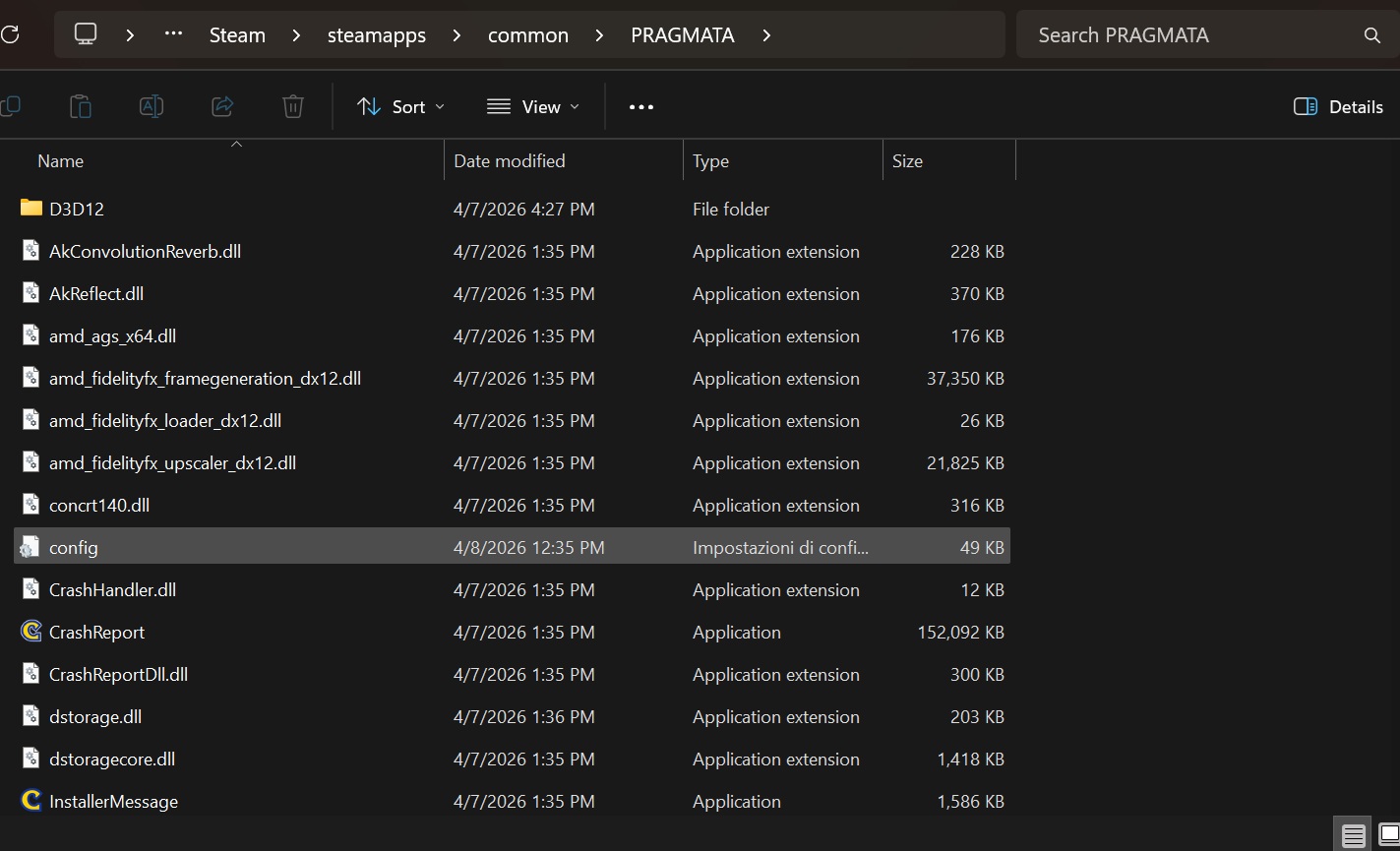
    GTA 6 will run on the base PS5. Whether it will have specific PS5 Pro enhancements has not been confirmed by Rockstar.

    If your only goal is to play GTA 6 at launch, buy the standard PS5. It costs $250 to $300 less than the Pro.

    What About Waiting for the PS6?

    Sony has not announced a PS6 release date or price. Nobody knows when it is coming.

    Waiting for the PS6 means missing GTA 6 at launch. It also means staying on PS4 while PS Plus continues to reduce its value for older hardware.

    If money is tight, waiting is a reasonable choice. But if GTA 6 is why you are asking this question, the PS6 is not a realistic option right now.

    So Should You Upgrade?

    Yes — if you want GTA 6 at launch. There is no PS4 version. There is no PC date to wait for. You need a PS5. The Digital Edition at $599.99 is the most affordable way in.

    It depends — if GTA 6 is not your main reason. Your PS4 library comes with you. PS Plus is slowly becoming less useful on PS4. The PS5 game library is now very strong. If your PS4 still works fine and money is tight, waiting for a deal is a fair call.

    Yes — if you use PS Plus. You are paying for a service that is being built for PS5. The longer you stay on PS4, the less you get from your subscription.

    The decision to upgrade from PS4 to PS5 before GTA 6 is straightforward if you want to play at launch. For everyone else, it comes down to your budget and how much you still get from your PS4.

    Frequently Asked Questions

    Can I play GTA 6 on PS4? No. GTA 6 is only available on PS5 and Xbox Series X|S. There is no PS4 version.

    When does GTA 6 come out? November 19, 2026, on PS5 and Xbox Series X|S. No PC release date has been announced.

    How much does a PS5 cost in 2026? The Digital Edition is $599.99 and the Disc Edition is $649.99 in the U.S. as of April 2026. The PS5 Pro is $899.99. Sony has raised prices twice due to memory chip costs.

    Will my PS4 games work on PS5? Yes. PlayStation says the overwhelming majority of the 4,000+ PS4 library plays on PS5. Some games also run better through Game Boost at no extra cost.

    Should I buy a PS5 or PS5 Pro for GTA 6? Buy the standard PS5. GTA 6 runs on the base PS5. The Pro costs $250 to $300 more and is aimed at existing PS5 owners who want a performance boost.

    Is upgrading from PS4 to PS5 worth it even without GTA 6? Probably yes, especially if you use PS Plus. Sony is reducing PS4 game additions to the service. The PS5 library is large and your PS4 games come with you. If your PS4 still meets your needs and budget is tight, waiting for a deal is fine too.

    What about waiting for the PS6? Sony has not announced a release date or price for the PS6. Waiting for it means skipping GTA 6 at launch with no confirmed timeline for when the next console arrives.

  • Forza Horizon 6 Car List So Far: Confirmed Highlights, Cover Cars, DLC, and Rewards

    Forza Horizon 6 Car List So Far: Confirmed Highlights, Cover Cars, DLC, and Rewards

    Forza Horizon 6 will launch with more than 550 cars, but Playground Games has not revealed the full roster yet. The official confirmed list currently includes hundreds of models across Japanese icons, European supercars, American muscle, off-road vehicles, Forza Editions, car-pack vehicles, promotional cars, and loyalty rewards. Some confirmed cars are tied to add-ons, promotions, pre-order bonuses, VIP, Welcome Pack access, or loyalty rewards, so not every listed vehicle should be treated as a standard base-game unlock.

    Last checked: May 12, 2026. The official Forza car list is still being updated before launch.

    How Many Cars Are in Forza Horizon 6?

    Forza Horizon 6 will launch with more than 550 cars. Playground Games says the official list includes models revealed to date and will continue to be updated ahead of the May 19 launch. Windows Central’s maintained count currently lists 392 confirmed cars, but that is not the final launch roster — the full launch roster will include more than 550 cars.

    Confirmed Car Highlights

    These are the most notable confirmed entries across the roster:

    Car Notes
    2025 Toyota GR GT Prototype Cover car; video game debut
    2025 Toyota Land Cruiser Cover car
    2017 Ferrari J50 Pre-order / Premium Upgrade bonus
    2554 AMG Transport Dynamics M12S Warthog CST Halo crossover vehicle
    2010 Lexus LFA Japanese performance icon
    1998 Toyota Supra RZ JDM icon
    2020 Toyota GR Supra Modern Toyota hero car
    2024 Nissan Z NISMO Modern Japanese sports car
    2024 Nissan GT-R NISMO Modern GT-R flagship
    1992 Nissan Skyline GT-R Classic Skyline
    2005 Honda NSX-R Japanese supercar icon
    2023 Honda Civic Type R Modern hot hatch
    1990 Mazda Savanna RX-7 Rotary icon
    1992 Mazda RX-7 Type R Rotary/tuner appeal

    Forza Horizon 6 in-game screenshot showing a car on a Japanese road

    Japanese Cars Confirmed for Forza Horizon 6

    japanese cars confirmed for Forza Horizon 6 set in Japan

    Given the Japan setting, Japanese manufacturers are heavily represented in the confirmed list, with confirmed cars from Toyota, GR, Lexus, Nissan, Datsun, Honda, Mazda, Autozam, Mitsubishi, and Subaru.

    Toyota / GR / Lexus Toyota, GR, and Lexus entries span multiple decades and classes. Confirmed models include the GR GT Prototype, GR Supra, GR86, GR Yaris, Land Cruiser, Supra RZ, Sports 800, and the Lexus LFA, among others.

    Nissan / Datsun The Nissan roster covers the GT-R lineage, Skyline models, Silvia, Fairlady Z, 370Z, and the current Z NISMO. A Datsun entry is also confirmed.

    Honda Confirmed Honda models include the NSX-R, S2000, Civic Type R, and entries from the Time Attack Car Pack.

    Mazda / Autozam Multiple RX-7 variants, including the 1990 Savanna RX-7 and 1992 RX-7 Type R, are confirmed alongside Autozam entries.

    Mitsubishi Multiple Lancer Evolution models are confirmed across different generations.

    Subaru The BRZ, WRX, and 22B STi are confirmed.

    Cover Cars and Pre-Order Bonus

    The two cover cars are the 2025 Toyota GR GT Prototype, making its video game debut, and the 2025 Toyota Land Cruiser.

    Players who purchase any edition of Forza Horizon 6 — or the standalone Premium Upgrade — before May 19, 2026 receive an exclusive pre-tuned 2017 Ferrari J50 as a pre-order bonus. Premium Edition buyers also get four-day early access starting May 15 — see our early access and start times guide for regional unlock times and edition details.

    DLC, Welcome Pack, VIP, Promotional, and Loyalty Reward Cars

    Forza Horizon 6 official car list showing DLC and Welcome Pack tagged entries

    Some confirmed vehicles are tied to add-ons, promotions, pre-orders, VIP, Welcome Pack, or loyalty rewards rather than standard garage access. The official list marks each with its access type.

    Italian Passion Car Pack Includes the 1990 Alfa Romeo SE 048SP, 2021 Alfa Romeo Giulia GTAm, 1967 Ferrari 275 GTB4 Spider, and 2025 Ferrari F80.

    Time Attack Car Pack Covers a set of WTAC/time-attack builds across Honda, Nissan, Toyota, Lotus, and Mitsubishi.

    Welcome Pack The Welcome Pack includes five pre-tuned cars. Confirmed Welcome Pack examples on the official car list include the 2021 BMW M4 Competition Coupé, 2018 Ferrari FXX-K Evo, 2020 Mercedes-AMG GT Black Series, 2023 Ford F-150 Raptor R, and 2004 Mitsubishi Lancer Evolution VIII MR.

    VIP The official add-ons page says VIP Membership includes three exclusive Forza Edition cars. The currently published car list clearly marks the 1999 Dodge Viper GTS ACR Forza Edition as a VIP entry.

    Promotional The Peel P50 Trolli Edition and Toyota Sports 800 Fanta Edition are listed as promotional cars on the official car page.

    Loyalty Rewards Playground Games confirmed that players who have played previous Forza titles on the same Xbox Gamertag can claim specific cars after completing the Tokyo City introductory race with Mei. The confirmed loyalty reward vehicles are:

    • 2024 Chevrolet Corvette E-Ray
    • 2021 Mercedes-AMG ONE
    • 2016 Aston Martin Vulcan
    • 2016 Lamborghini Centenario LP 770-4
    • 2014 Lamborghini Huracán LP-610-4
    • 2013 Dodge SRT Viper GTS

    Key Confirmed Forza Horizon 6 Cars So Far

    The table below highlights notable confirmed cars from the official Forza car list. It is not the complete confirmed roster — Windows Central’s maintained count puts that figure at around 392. Cars tied to DLC, packs, or rewards are noted in the Notes column. The list will continue to be updated as Playground Games reveals additional entries in the lead-up to launch.

    Make Model Notes
    Alfa Romeo 1990 SE 048SP Italian Passion Car Pack
    Alfa Romeo 2021 Giulia GTAm Italian Passion Car Pack
    Aston Martin 2016 Vulcan Loyalty reward
    BMW 2021 M4 Competition Coupé Welcome Pack
    Chevrolet 2024 Corvette E-Ray Loyalty reward
    Dodge 1999 Viper GTS ACR Forza Edition VIP
    Dodge 2013 SRT Viper GTS Loyalty reward
    Ferrari 1967 275 GTB4 Spider Italian Passion Car Pack
    Ferrari 2017 J50 Pre-order bonus
    Ferrari 2018 FXX-K Evo Welcome Pack
    Ferrari 2025 F80 Italian Passion Car Pack
    Ford 2023 F-150 Raptor R Welcome Pack
    Honda 2005 NSX-R Confirmed
    Honda 2023 Civic Type R Confirmed
    Honda S2000 Confirmed
    Lamborghini 2014 Huracán LP-610-4 Loyalty reward
    Lamborghini 2016 Centenario LP 770-4 Loyalty reward
    Lexus 2010 LFA Confirmed
    Mazda 1990 Savanna RX-7 Confirmed
    Mazda 1992 RX-7 Type R Confirmed
    Mercedes-AMG 2020 GT Black Series Welcome Pack
    Mercedes-AMG 2021 ONE Loyalty reward
    Mitsubishi Lancer Evolution (multiple generations) Confirmed
    Nissan 1992 Skyline GT-R Confirmed
    Nissan 2024 GT-R NISMO Confirmed
    Nissan 2024 Z NISMO Confirmed
    Nissan Silvia Confirmed
    Nissan Fairlady Z Confirmed
    Peel 1962 P50 Trolli Edition Promotional DLC
    Subaru BRZ Confirmed
    Subaru WRX Confirmed
    Subaru 22B STi Confirmed
    Toyota 1998 Supra RZ Confirmed
    Toyota 2020 GR Supra Confirmed
    Toyota 2025 GR GT Prototype Cover car
    Toyota 2025 Land Cruiser Cover car
    Toyota GR86 Confirmed
    Toyota GR Yaris Confirmed
    Toyota Sports 800 Fanta Edition Promotional DLC
    AMG Transport Dynamics 2554 M12S Warthog CST Halo crossover

    This table highlights notable publicly confirmed cars from the roster. The full launch list will exceed 550 cars. The full launch list will exceed 550 cars.

    Will More Cars Be Added?

    Yes. Playground Games has confirmed the official car list is still being updated, and the full launch roster will include more than 550 cars. Additional cars are confirmed through Car Pass, car packs, and expansions.

    If you’re also tracking the launch itself, see our guides on Forza Horizon 6 storage requirements and preload status and early access start times by region. For achievement hunters, the full achievements list covers all 57 targets and how to reach 1,000 Gamerscore. For context on what was revealed before launch, see our Forza Horizon 6 leak coverage.

  • The Legend of Zelda Movie Release Date Moved Up Set To Arrive Sooner in 2027

    The Legend of Zelda Movie Release Date Moved Up Set To Arrive Sooner in 2027

    The live-action adaptation of Nintendo’s legendary game series, The Legend of Zelda, is one of the most highly anticipated upcoming movies. Fans have been eagerly waiting for the movie’s release. The movie was originally scheduled for March 26, 2027, before being delayed to May 7, 2027. Now, Nintendo has yet again changed the release date!

    Zelda co-creator and film producer Shigeru Miyamoto took to X (formerly Twitter) to announce the new release date. He revealed that the release date has been moved up by one week. Although Nintendo did not explain the reshuffle, it is a good news for fans.

    Shigeru Miyamoto said that the upcoming fantasy adventure film will now be released on April 30, 2027. He also mentioned in his post that the team is working hard to deliver the film as soon as possible.

    He wrote, “This is Miyamoto. I would like to let you know that the worldwide theatrical release date for the live-action film of The Legend of Zelda has been moved up to April 30, 2027, from May 7. The team is working hard to deliver the film to everyone as soon as possible. There’s less than a year to go until release, so thank you for waiting.”

    The film will also be released in IMAX, while principal photography was completed in April 2026.

    Directed by Wes Ball, the film stars Benjamin Evan Ainsworth as Link and Bo Bragason as Zelda. Nintendo and Sony have not revealed much about the rest of the cast. Filming reportedly took place in New Zealand.