
Some PC players have reported Pragmata crashing on startup since the game’s Steam launch on April 16, 2026. Capcom posted an official troubleshooting thread pinned to the PRAGMATA Steam forums on April 16 — that thread is the primary source for every official step below. Community-traced fixes for two specific crash types are included separately, with their source and confidence level clearly noted.
Windows 11 Is a Hard Requirement, Not a Recommendation
The minimum OS listed on the Steam store page is Windows 11 (64-bit). Windows 10 is outside the listed system requirements and is not officially supported by Capcom, so startup crashes on Windows 10 may not receive official support. If you are on Windows 11 and still experiencing Pragmata crashing on startup, install all pending Windows updates and restart before trying anything else — Capcom recommends running Windows Update and installing the latest OS updates as part of its standard troubleshooting process.
Official Capcom Troubleshooting Steps
These steps come directly from Capcom’s pinned Steam troubleshooting thread. Work through them in order before submitting a bug report.
1. Confirm You Meet the Minimum System Requirements
Capcom does not officially support systems below the minimum specifications, and does not guarantee normal operation on mobile GPUs, external GPUs, or pre-release Windows Insider builds. The minimum requirements listed on Steam are:
- OS: Windows 11 (64-bit)
- CPU: Intel Core i5-8500 or AMD Ryzen 5 3500
- RAM: 16 GB
- GPU: NVIDIA GeForce GTX 1660 (6 GB) or AMD Radeon RX 5500 XT (8 GB)
- Storage: 40 GB available space (SSD recommended)
If your system meets minimum but not recommended specs, lower graphics settings — particularly ray tracing — before any other step.
2. Add PRAGMATA and Steam to Your Antivirus Exclusion List
Security software is a possible cause of Pragmata crashing on startup. Capcom notes that some launch issues may be attributed to antivirus or firewall programs blocking the game executable due to false-positive errors. Add the following to your antivirus and firewall exclusion list:
C:\Program Files (x86)\Steam\steamapps\common\PRAGMATA\PRAGMATA.exeC:\Program Files (x86)\Steam\Steam.exeC:\Users\%USERNAME%\AppData\Local\Steam
If these paths were already on the exclusion list, remove them and re-add them to refresh the rule.
3. Run Steam and the Game Executable as Administrator
Right-click Steam.exe and select Run as administrator. If the problem continues, also right-click PRAGMATA.exe in the game’s installation folder and do the same.
4. Update GPU Drivers and Windows OS
Capcom says outdated GPU drivers can cause issues ranging from graphical problems to the game not starting — making them a common first thing to rule out when Pragmata crashing on startup. NVIDIA and Intel both released Pragmata-related driver updates around launch. Relevant driver updates include:
- NVIDIA: GeForce Game Ready Driver 596.21 (April 16, 2026) or later. Capcom’s troubleshooting guide lists a clean driver reinstall using DDU (Display Driver Uninstaller) as an option if a standard update does not resolve the issue.
- AMD: Latest Adrenalin Edition from amd.com/en/support/download/drivers.
- Intel Arc: Driver 32.0.101.8735 (April 21, 2026) is a non-WHQL beta release recommended for Intel Arc and Core Ultra users. The driver’s release notes confirm it addresses an application crash while loading into the game menu, affecting Arc A-series, B-series, and Core Ultra Series 1, 2, and 3 GPUs.
5. Verify Game Files on Steam
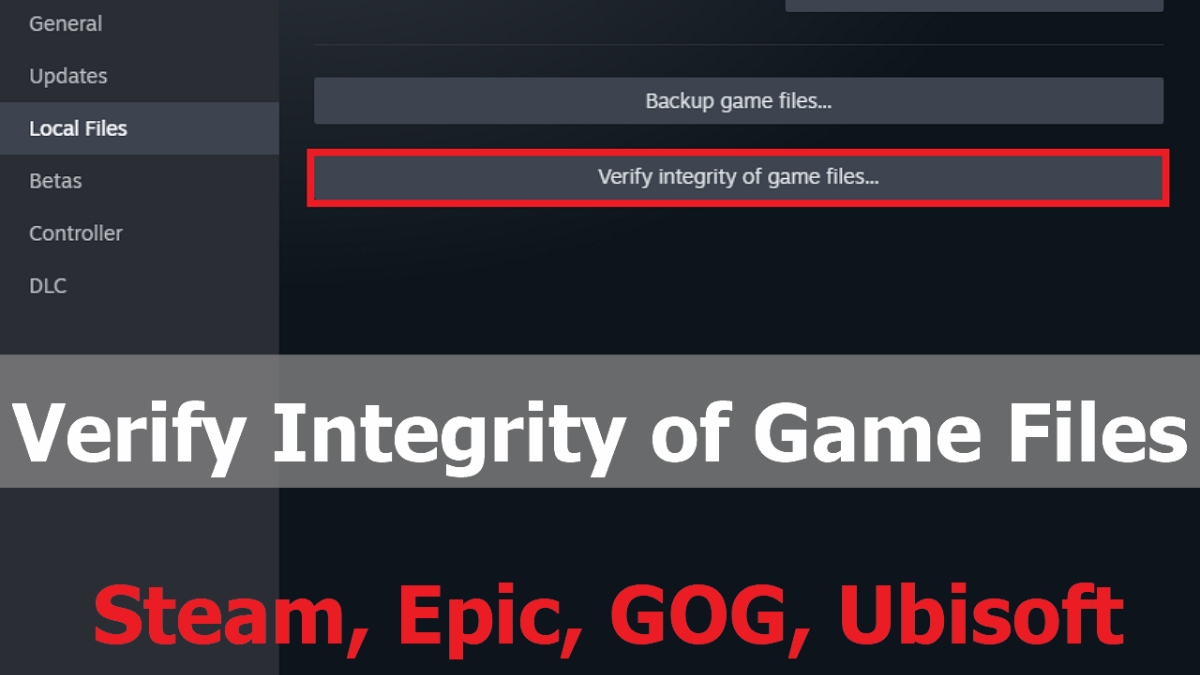
Missing or damaged installation files can contribute to Pragmata crashing on startup and can be ruled out by verifying the game cache. In your Steam Library, right-click PRAGMATA → Properties → Installed Files → Verify integrity of game files. Steam verifies the game’s files and re-downloads anything missing or damaged.
Community-Traced Fixes for Specific Crash Types
These are not from Capcom’s official thread. The DLSS/Smooth Motion workaround has user confirmation from inside Capcom’s own Steam thread. The [Render] config.ini edit is a demo-era workaround with no confirmation for the full game and should be treated as experimental. Try these only after the official steps above have not resolved Pragmata crashing on startup.
NVIDIA Smooth Motion Causing Crashes With DLSS, Frame Generation, or Path Tracing
If Pragmata crashing on startup occurs when you attempt to enable DLSS, Frame Generation, or Path Tracing, NVIDIA Smooth Motion in your driver’s global settings may be the cause for some users. A user in Capcom’s official Steam troubleshooting thread claimed the conflict happens when Smooth Motion is enabled globally — the game incorrectly defaults to Smooth Motion, a driver-level frame generation feature intended only for non-DLSS titles, causing an immediate crash when any DLSS feature is activated.
Easy fix: Open config.ini at ...\Steam\steamapps\common\PRAGMATA\config.ini in Notepad and set:
UpscalingAlgorithm=None
Save the file and relaunch. This disables DLSS at the config level before the game can trigger the conflict.
If that does not resolve it:
- Disable Steam Cloud saves temporarily
- Back up your saves from
...\Steam\userdata\<your_user_id>\3357650\remote\win64_save - Delete all files inside
win64_save - Delete
config.inifrom the PRAGMATA game folder — the game recreates it with defaults on next launch - Launch the game, reach the main menu, then quit
- Restore your save files from the backup
- Re-enable Steam Cloud if you use it
- Do not re-enable DLSS or Frame Generation until a fix is confirmed
No official Capcom patch note specifically names this DLSS/Smooth Motion conflict as fixed as of June 2026. If the crash produces a Fatal D3D or DXGI_ERROR_DEVICE_REMOVED error message specifically, see Pragmata Fatal D3D Error and Crashing Fixes on PC for targeted fixes by error type.
Config.ini [Render] Edit — Shader Compilation and Loading Screen Crashes
This workaround originated in a Steam discussion thread during the PRAGMATA Sketchbook demo period and may apply to the full game, but is not officially endorsed by Capcom. If Pragmata crashing on startup occurs during shader compilation or at the loading screen, the following config.ini edit may help. Open ...\Steam\steamapps\common\PRAGMATA\config.ini in Notepad, find the [Render] section, and set or add the following values:
[Render]
AliasBarrierWorkaround=Enable
AllowMeshShader=Enable
Capability=DirectX12
CentralUpdateTileMapping=Disable
DevelopEcoShaderForSinglePSO=Disable
FallbackShaderModel=Enable
ForceAliasBarrier=Disable
ForceMeshShader=Disable
LoadWinPixGpuCapturer=Disable
NonZeroFillResource=Enable
NvidiaRootCBVOptimization=Enable
ParallelBuildCommandList=Enable
ParallelBuildProcessorCount=8
QAMode=Disable
RenderWorkerThreadPriorityAboveNormal=Disable
TightFitShaderCache=Enable
UseAsyncCompute=Disabled
UseComputeQueuePairing=Enable
UseMultiThreadedCommandList=Disabled
UsePipelineStateCache=Enabled
UseProfileMarker=Enable
UsingIndepentRenderWorker=Enable
Save and relaunch. If this breaks anything, deleting config.ini from the game folder resets it to defaults.
How to Submit a Crash Report to Capcom
When Pragmata crashing on startup occurs, a CrashReport folder is automatically generated at:
C:\Program Files (x86)\Steam\steamapps\common\PRAGMATA\CrashReport
The folder contains a .zip file named with the date and time of the crash. Attach the most recent .zip when posting in Capcom’s official pinned troubleshooting thread. Capcom specifically requests this file to investigate hardware-specific issues.
Still Crashing After All of the Above
Some users report crashes tied to DLSS, Frame Generation, Path Tracing, or Smooth Motion that persist after driver updates. These are being tracked in the PRAGMATA Steam forums. If Pragmata crashing on startup continues after all official steps, post in Capcom’s thread with your crash report .zip, GPU model, driver version, and your Windows 11 update status. Capcom has an active bug-reporting process and the CrashReport file is the most useful data you can provide. If the game launches but stuttering or freezing starts during gameplay, that is a separate set of issues covered in Pragmata Stuttering and Freezing Fixes.