Category: Game Guides

In-depth game guides from Game Empress, with walkthroughs, tier lists, location maps, and step-by-step strategies to help you master the games you love.

  • How To Make Cow In Little Alchemy 1? Even If You’re A Beginner

    How To Make Cow In Little Alchemy 1? Even If You’re A Beginner

    Little Alchemy features 720 objects, which is a massive increase over the first Little Alchemy. Some of these commodities, like knights, persons, or rockets, need complicated combinations to activate.

    No player can be deemed an expert in Little Alchemy 1 unless they have collected all 720 objects using every possible combination. After several fruitless efforts, we eventually gathered all of the materials and found out how to construct a cow in Little Alchemy. We will also coach you through the steps necessary to get there.

    How to Make Cow in Little Alchemy 1?

    How To Make Cow In Little Alchemy 1
    How To Make Cow In Little Alchemy 1

    In Little Alchemy, you only need two elements to make a cow. To get to the cow, you must first obtain certain extremely vital distinguishing objects. As a result, there are 16 straightforward stages to making a cow in Little Alchemy :

    1. Earth + Earth = Land
    2. Fire + Fire = Energy
    3. Earth + Fire = Lava
    4. Water + Water = Puddle
    5. Air + Lava = Stone
    6. Puddle + Water = Pond
    7. Fire + Stone = Metal
    8. Pond + Water = Lake
    9. Earth + Metal = Plow
    10. Lake + Water = Sea
    11. Earth + Plow = Field
    12. Earth + Sea = Primordial Soup
    13. Energy + Primordial Soup = Life
    14. Land + Life = Animal
    15. Animal + Field = Livestock
    16. Field + Livestock = Cow

    Congratulations, you have just obtained the cow! You can now begin to uncover many more objects simply by using this item. In Little Alchemy, you may make 35 additional combinations with just this ingredient! And once you have those, your options are nearly limitless.

    Other things you may construct with a cow in Little Alchemy include the goat, camel, barn, minotaur, and others!

    Take a look at some more gaming guide articles:

    All Cow Combinations

    Here are some additional possible combinations (or all in general) for making the cow in Little Alchemy:

    1. Barn + Livestock
    2. Farmer + Livestock
    3. Field + Livestock
    4. Grass + Livestock

    We love hearing from our readers! If you have any questions or comments, please feel free to contact us on Game Empress.

  • Pragmata Crashing on Startup: Fixes for PC

    Pragmata Crashing on Startup: Fixes for PC

    Some PC players have reported Pragmata crashing on startup since the game’s Steam launch on April 16, 2026. Capcom posted an official troubleshooting thread pinned to the PRAGMATA Steam forums on April 16 — that thread is the primary source for every official step below. Community-traced fixes for two specific crash types are included separately, with their source and confidence level clearly noted.

    Windows 11 Is a Hard Requirement, Not a Recommendation

    The minimum OS listed on the Steam store page is Windows 11 (64-bit). Windows 10 is outside the listed system requirements and is not officially supported by Capcom, so startup crashes on Windows 10 may not receive official support. If you are on Windows 11 and still experiencing Pragmata crashing on startup, install all pending Windows updates and restart before trying anything else — Capcom recommends running Windows Update and installing the latest OS updates as part of its standard troubleshooting process.

    Official Capcom Troubleshooting Steps

    These steps come directly from Capcom’s pinned Steam troubleshooting thread. Work through them in order before submitting a bug report.

    1. Confirm You Meet the Minimum System Requirements

    Capcom does not officially support systems below the minimum specifications, and does not guarantee normal operation on mobile GPUs, external GPUs, or pre-release Windows Insider builds. The minimum requirements listed on Steam are:

    • OS: Windows 11 (64-bit)
    • CPU: Intel Core i5-8500 or AMD Ryzen 5 3500
    • RAM: 16 GB
    • GPU: NVIDIA GeForce GTX 1660 (6 GB) or AMD Radeon RX 5500 XT (8 GB)
    • Storage: 40 GB available space (SSD recommended)

    If your system meets minimum but not recommended specs, lower graphics settings — particularly ray tracing — before any other step.

    2. Add PRAGMATA and Steam to Your Antivirus Exclusion List

    Security software is a possible cause of Pragmata crashing on startup. Capcom notes that some launch issues may be attributed to antivirus or firewall programs blocking the game executable due to false-positive errors. Add the following to your antivirus and firewall exclusion list:

    • C:\Program Files (x86)\Steam\steamapps\common\PRAGMATA\PRAGMATA.exe
    • C:\Program Files (x86)\Steam\Steam.exe
    • C:\Users\%USERNAME%\AppData\Local\Steam

    If these paths were already on the exclusion list, remove them and re-add them to refresh the rule.

    3. Run Steam and the Game Executable as Administrator

    Right-click Steam.exe and select Run as administrator. If the problem continues, also right-click PRAGMATA.exe in the game’s installation folder and do the same.

    4. Update GPU Drivers and Windows OS

    Capcom says outdated GPU drivers can cause issues ranging from graphical problems to the game not starting — making them a common first thing to rule out when Pragmata crashing on startup. NVIDIA and Intel both released Pragmata-related driver updates around launch. Relevant driver updates include:

    • NVIDIA: GeForce Game Ready Driver 596.21 (April 16, 2026) or later. Capcom’s troubleshooting guide lists a clean driver reinstall using DDU (Display Driver Uninstaller) as an option if a standard update does not resolve the issue.
    • AMD: Latest Adrenalin Edition from amd.com/en/support/download/drivers.
    • Intel Arc: Driver 32.0.101.8735 (April 21, 2026) is a non-WHQL beta release recommended for Intel Arc and Core Ultra users. The driver’s release notes confirm it addresses an application crash while loading into the game menu, affecting Arc A-series, B-series, and Core Ultra Series 1, 2, and 3 GPUs.

    5. Verify Game Files on Steam

    Pragmata Crashing on Startup

    Missing or damaged installation files can contribute to Pragmata crashing on startup and can be ruled out by verifying the game cache. In your Steam Library, right-click PRAGMATA → PropertiesInstalled FilesVerify integrity of game files. Steam verifies the game’s files and re-downloads anything missing or damaged.

    Community-Traced Fixes for Specific Crash Types

    These are not from Capcom’s official thread. The DLSS/Smooth Motion workaround has user confirmation from inside Capcom’s own Steam thread. The [Render] config.ini edit is a demo-era workaround with no confirmation for the full game and should be treated as experimental. Try these only after the official steps above have not resolved Pragmata crashing on startup.

    NVIDIA Smooth Motion Causing Crashes With DLSS, Frame Generation, or Path Tracing

    If Pragmata crashing on startup occurs when you attempt to enable DLSS, Frame Generation, or Path Tracing, NVIDIA Smooth Motion in your driver’s global settings may be the cause for some users. A user in Capcom’s official Steam troubleshooting thread claimed the conflict happens when Smooth Motion is enabled globally — the game incorrectly defaults to Smooth Motion, a driver-level frame generation feature intended only for non-DLSS titles, causing an immediate crash when any DLSS feature is activated.

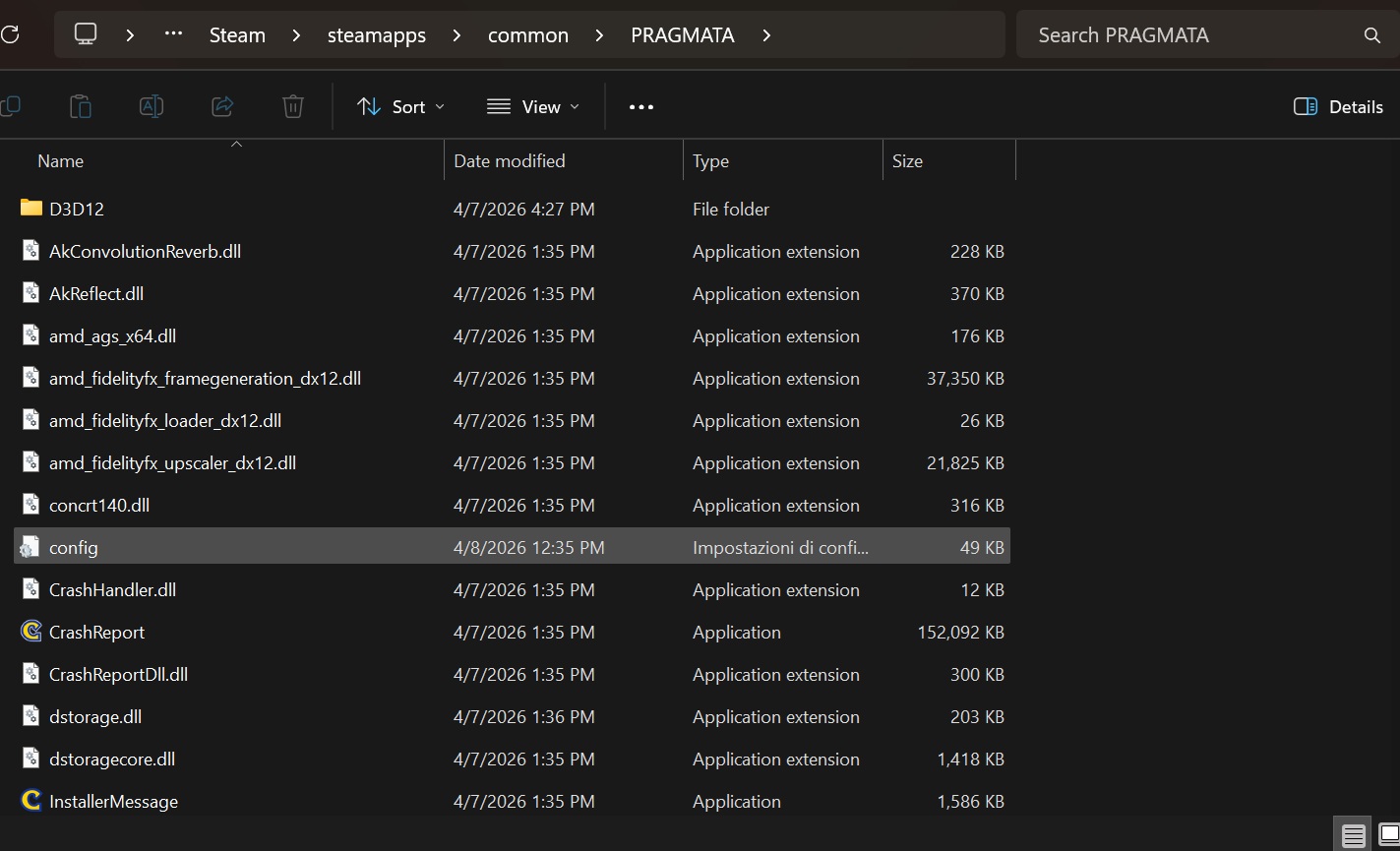
    Easy fix: Open config.ini at ...\Steam\steamapps\common\PRAGMATA\config.ini in Notepad and set:

    UpscalingAlgorithm=None
    

    Save the file and relaunch. This disables DLSS at the config level before the game can trigger the conflict.

    If that does not resolve it:

    1. Disable Steam Cloud saves temporarily
    2. Back up your saves from ...\Steam\userdata\<your_user_id>\3357650\remote\win64_save
    3. Delete all files inside win64_save
    4. Delete config.ini from the PRAGMATA game folder — the game recreates it with defaults on next launch
    5. Launch the game, reach the main menu, then quit
    6. Restore your save files from the backup
    7. Re-enable Steam Cloud if you use it
    8. Do not re-enable DLSS or Frame Generation until a fix is confirmed

    No official Capcom patch note specifically names this DLSS/Smooth Motion conflict as fixed as of June 2026. If the crash produces a Fatal D3D or DXGI_ERROR_DEVICE_REMOVED error message specifically, see Pragmata Fatal D3D Error and Crashing Fixes on PC for targeted fixes by error type.

    Config.ini [Render] Edit — Shader Compilation and Loading Screen Crashes

    This workaround originated in a Steam discussion thread during the PRAGMATA Sketchbook demo period and may apply to the full game, but is not officially endorsed by Capcom. If Pragmata crashing on startup occurs during shader compilation or at the loading screen, the following config.ini edit may help. Open ...\Steam\steamapps\common\PRAGMATA\config.ini in Notepad, find the [Render] section, and set or add the following values:

    [Render]
    AliasBarrierWorkaround=Enable
    AllowMeshShader=Enable
    Capability=DirectX12
    CentralUpdateTileMapping=Disable
    DevelopEcoShaderForSinglePSO=Disable
    FallbackShaderModel=Enable
    ForceAliasBarrier=Disable
    ForceMeshShader=Disable
    LoadWinPixGpuCapturer=Disable
    NonZeroFillResource=Enable
    NvidiaRootCBVOptimization=Enable
    ParallelBuildCommandList=Enable
    ParallelBuildProcessorCount=8
    QAMode=Disable
    RenderWorkerThreadPriorityAboveNormal=Disable
    TightFitShaderCache=Enable
    UseAsyncCompute=Disabled
    UseComputeQueuePairing=Enable
    UseMultiThreadedCommandList=Disabled
    UsePipelineStateCache=Enabled
    UseProfileMarker=Enable
    UsingIndepentRenderWorker=Enable
    

    Save and relaunch. If this breaks anything, deleting config.ini from the game folder resets it to defaults.

    How to Submit a Crash Report to Capcom

    When Pragmata crashing on startup occurs, a CrashReport folder is automatically generated at:

    C:\Program Files (x86)\Steam\steamapps\common\PRAGMATA\CrashReport

    The folder contains a .zip file named with the date and time of the crash. Attach the most recent .zip when posting in Capcom’s official pinned troubleshooting thread. Capcom specifically requests this file to investigate hardware-specific issues.

    Still Crashing After All of the Above

    Some users report crashes tied to DLSS, Frame Generation, Path Tracing, or Smooth Motion that persist after driver updates. These are being tracked in the PRAGMATA Steam forums. If Pragmata crashing on startup continues after all official steps, post in Capcom’s thread with your crash report .zip, GPU model, driver version, and your Windows 11 update status. Capcom has an active bug-reporting process and the CrashReport file is the most useful data you can provide. If the game launches but stuttering or freezing starts during gameplay, that is a separate set of issues covered in Pragmata Stuttering and Freezing Fixes.

  • Bungie Reveals Major Marathon Season 2 Combat Tuning, Sentinel, and Open Play Week

    Bungie Reveals Major Marathon Season 2 Combat Tuning, Sentinel, and Open Play Week

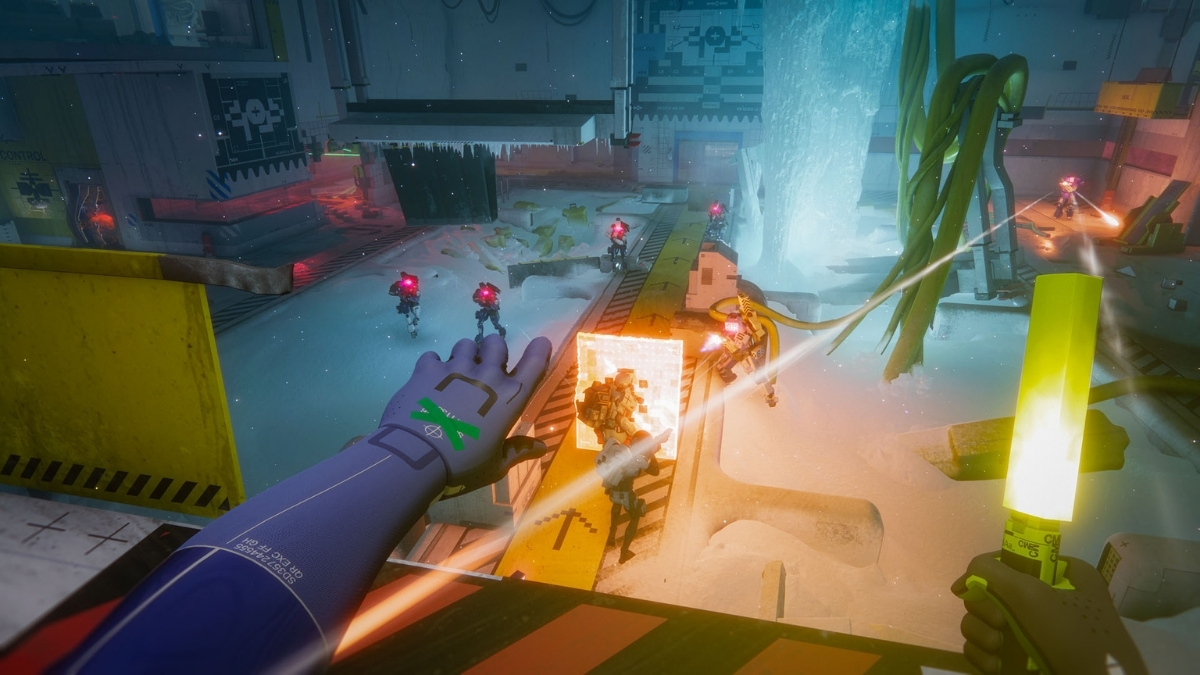
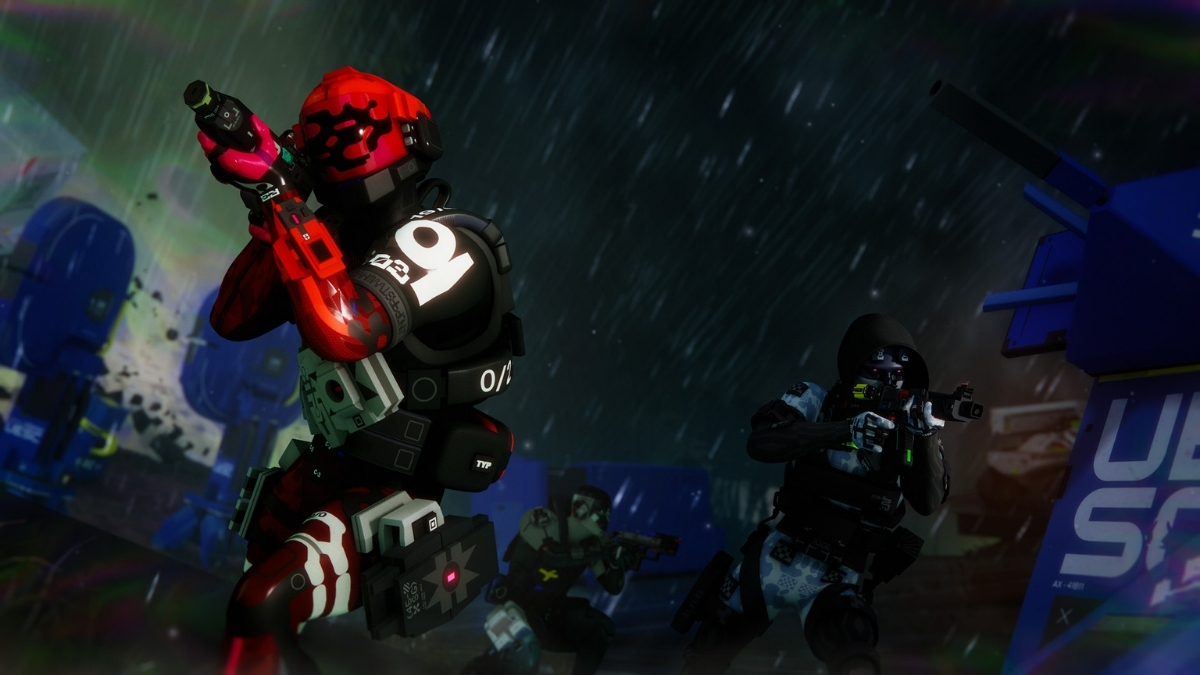
    Bungie has published a comprehensive preview of Marathon Season 2’s combat tuning, covering weapons, mods, equipment, the new Sentinel Runner shell, implant reworks, and sandbox changes arriving when the season launches on June 2. The update is accompanied by an Open Play Week running June 2 through June 9 on Steam, PlayStation 5, and Xbox Series X|S.

    This is not a narrow balance pass. Bungie frames the entire Season 2 update as a deliberate effort to make Marathon’s combat more readable, expressive, and tactically meaningful — with changes spanning every layer of how players build and fight on Tau Ceti.

    Season 2 Is Built Around Clearer Combat and Stronger Loadout Identity

    Marathon Season 2

    The central design goal Bungie articulates for Season 2 is legibility. Weapons should communicate their roles more clearly. Builds should reward intentional decisions. More parts of a loadout should matter in any given run.

    That philosophy shows up repeatedly across the preview: in how weapon archetypes are being tuned to occupy distinct range brackets, in the naming overhaul for implants, in the Signal Jammer nerf that reduces its effectiveness during active firefights, and in the new Darksight Scopes and Vector Rounds that layer information tools into loadout construction. Season 2 is not trying to add complexity for its own sake — it is trying to make existing decisions feel more consequential.

    New Weapons: KKV-9SD and D54 Battle Pistol

    KKV-9SD

    Marathon Season 2 New Weapon

    The KKV-9SD is a pistol-frame SMG with an integrated suppressor and the fastest fire rate Bungie has ever shipped on a single weapon. It is built for close-range combat, specifically designed to punish shotgun rushers. It uses pistol optic mods, pistol magazine mods, and chips.

    Its Prestige mod is Flechette Drum, which provides sustain by healing the player whenever they break an enemy shield — a strong pairing for the aggressive, high-tempo playstyle the weapon encourages.

    D54 Battle Pistol

    D54 Battle Pistol

    The D54 Battle Pistol is a fully automatic, three-round burst handgun positioned between the Pistol and Magnum archetypes. Bungie describes it as a dedicated 1v1 dueling weapon and a strong swap option when paired with other hard-hitting archetypes like snipers or shotguns.

    Its Prestige mod is Daredevil Stock, which uses the new folding stock mod archetype. With the stock collapsed, enemy defeats stack up to two charges. Unfolding the stock converts those charges into a nine-round super burst — a mechanic that actively rewards situational awareness and timing over passive stat accumulation.

    Misriah 2442, Overrun, and CE Tactical Sidearm: Key Tuning Breakdowns

    Misriah 2442

    Misriah 2442

    The Misriah 2442 had established a dominant position in Season 1. Bungie’s primary intervention is not a direct damage nerf but a structural one: rate-of-fire bonuses are being removed from the entire Slick Mag family. The base rate of fire is simultaneously raised from 58 RPM to 72 RPM to compensate — the net effect is that the weapon loses the extreme fire-rate ceiling that Slick Mag builds enabled.

    Change Detail
    Hip-fire pellet spread +10%
    ADS pellet spread +5%
    Base rate of fire 58 RPM → 72 RPM
    Base damage falloff start 11m → 10m
    Max damage falloff start 15m → 16m
    Magazine stat Rebased so every mag gives at least +1 round
    Base/max magazine size Unchanged (4 / 10)

    The spread increases push the Misriah back into its intended close-to-mid range bracket without gutting it as a weapon type.

    Full-Auto Selector Prestige Mod

    Bungie is also redesigning the Full-Auto Selector Prestige Mod, which had made the Misriah’s playstyle too static. The rework creates a meaningful tension between hip-fire and ADS modes:

    Mode Behavior
    Hip-fire Full auto, +10% pellet spread, significantly higher stability
    ADS Higher range, tighter pellet spread, no full-auto

    The fire-rate bonus drops from 150 RPM to 90 RPM, offset by new additions of +50 ADS Speed and +50 ADS Accuracy. The rework encourages players to switch between hip-fire and ADS depending on range and pressure.

    Overrun

    The Overrun suffered from painful recoil that made lower-rarity versions feel unreliable in budget builds.

    Stat Change
    Horizontal recoil Reduced by ~50%
    Vertical recoil Reduced by ~12%

    High-rarity Overrun was already performing well. This pass is primarily aimed at making Standard and Enhanced versions viable in Sponsored Kits and cost-conscious loadouts.

    CE Tactical Sidearm

    The CE Tactical Sidearm is receiving one of the larger individual weapon passes in Season 2, because it failed to attract players even when fully built into.

    Area Change
    Recoil settle speed +15%
    ADS accuracy error multiplier Reduced by ~50%
    Aim assist falloff distances Min and max both increased
    Magnetism falloff distances Min and max both increased
    Aim assist cone +33% at base stat, +16% at max stat
    Moving accuracy Reduced at minimum stat; increased at maximum stat
    Crouch accuracy Max crouch accuracy bonus reduced

    The practical intent is to make the weapon more forgiving, more attractive to build around, and more competitive in its intended range.

    Mods and Chips: A Major Buildcrafting Shake-Up

    Mods and Chips: A Major Buildcrafting Shake-Up

    Season 2 adds two new mod families and eight new chip families, while every magazine and optic mod receives a balance pass.

    New Mod Family: Folding Stocks

    Folding Stocks debut on the KKV-9SD and D54 Battle Pistol. When collapsed, they boost hip-fire accuracy and movement speed. Players can toggle the stock open via the alternate weapon action input, converting those hip-fire bonuses into ADS accuracy and range advantages. This is an active, moment-to-moment gameplay decision rather than a passive stat swap.

    New Optic Archetype: Darksight Scopes

    Darksight Scopes are a new optic family tied to Night Marsh. Every weapon archetype will receive its own Darksight Scope in Deluxe and Superior rarities. While aiming down sights, Darksight Scopes use a full-screen vignette similar to sniper optics, and players can toggle a night-vision-style effect that lights up the area around them. Superior versions make the night-vision effect wider and extend its range.

    Chip Rotations

    Chip Family Status
    Stack Overflow Removed from Season 2 loot pool
    Optimal Prime Removed from Season 2 loot pool

    Bungie cites inconsistent performance for Stack Overflow and a failure to find its intended buildcrafting niche for Optimal Prime.

    New Chip Families (Selected Examples)

    Chip Rarity Effect
    Alarmist All rarities After ADS for a short duration, projectile impacts generate a scan drone alert
    Scrapyard All rarities Defeating hostiles can drop depleted health items or standard materials
    Brain Freeze Superior only Precision downs or kills trigger a Frost-spreading explosion

    Bounty Hunter Updates

    Rarity Previous Credits Updated Credits
    Standard 10 25
    Enhanced 15 50
    Deluxe 20 75
    Superior 25 100

    Bungie also fixed a bug where Bounty Hunter was not awarding credits for eliminating UESC scan drones.

    Cloudborn Redesign

    Cloudborn’s previous version overflowed the magazine on reload inside smoke. The redesigned version abandons that mechanic in favor of passive bonuses to stability, accuracy, handling, and movement speed while the player remains in smoke — a less swingy, more consistent benefit.

    Vector Rounds

    Marathon Season 2 screenshot showing dark sci-fi combat environment and visibility tools

    One Superior-tier magazine mod in every family will include Vector Rounds by default. After ADS for a short time, the next projectile impact generates a revealing pulse — similar to Darksight — that highlights enemies caught in the detonation area. This is an information tool built directly into the magazine slot, expanding buildcrafting options for players who want persistent target tracking without committing an optic slot.

    Equipment Changes: Grenade Nerfs, Signal Jammer, and New Tools

    Grenade Nerfs

    General Grenade Timing

    All grenade ready animations are being extended by 0.2 seconds. The throw itself is preserved once released, but back-to-back grenade spam is now slower.

    Frag and Heat Grenade Nerfs

    Grenade Stat Change
    Frag Grenade Max damage 135 → 115 (−15%)
    Heat Grenade Damage 40 → 20 (−50%)

    Signal Jammer

    Signal Jammer was functioning as a default requirement in Season 1, reducing the value of specific counterintel tools such as Early Warning System and Vital Intel. Season 2’s changes make it situationally useful rather than universally dominant:

    • Jamming now flickers off when the player shoots, uses abilities, takes damage, or performs actions
    • No longer blocks Early Warning System detection
    • No longer blocks Vital Intel detection

    It remains a stealth and repositioning tool but loses effectiveness in active combat — which opens space for other information equipment to matter.

    New Equipment

    Frost Mine — A placeable Claymore-style device that detonates on proximity, dealing spherical blast damage and spreading the Frost debuff to nearby enemies.

    Vector Grenade — An information-first tool that creates lingering revealing pulses across a large radius on detonation, highlighting spaces and enemies. Bungie positions it as particularly effective in Night Marsh environments.

    Signal Flares — Available in red, green, and blue, Signal Flares provide light rather than damage. Bungie frames them as communication tools for non-verbal coordination between players.

    Sentinel: Defensive Area Control Comes to Marathon

    Season 2 introduces Sentinel, a new Runner shell built around traps, area denial, and holding ground under pressure.

    Sentinel Abilities

    Ability Type Effect
    Defender System Prime Ability Deploys a defensive platform that neutralizes incoming explosives with a limited number of projectiles; nearby allies gain weapon stability and reload speed
    Snare Mine Tactical Ability A proximity mine that detonates into Immobilizing submunitions
    Prey Tracker Trait Ability Activates motion tracking that reveals moving enemies in a cone on the HUD
    Castle Doctrine Passive Readies and reloads SMGs, Pistols, and Shotguns faster based on nearby hostiles; splash damage temporarily boosts Hardware, Firewall, and Self-Repair Speed

    Sentinel adds a new defensive option to Marathon’s Runner shell roster, built around countering explosive pressure, shotgun rushers, and movement-heavy enemy archetypes.

    Sentinel-Specific Runner Cores

    ## Sentinel: Defensive Area Control Comes to Marathon

    Sentinel ships with 10 Sentinel-specific Runner cores. Three examples:

    Core Rarity Effect
    Reversal Enhanced Defeating an Immobilized target heals the player over time
    Wellness Beacon Deluxe Standing near Defender System accelerates medical item use for the player and allies
    Eminent Domain Prestige Grenades neutralized by Defender System fall as lootable items

    Implants Are Being Reworked for Better Readability

    Season 1 implants displayed stat packages as item names, burying perk information in tooltips. Season 2 reverses this structure entirely.

    Change Detail
    Primary identity Each implant now grants one fixed, named perk
    Item naming The perk name is reflected directly in the item name
    Stat packages Each implant carries a fixed stat package
    Existing perks Season 1 perks remain collectible
    New perks Eight new implant perks added

    One example new perk is Going Dark, which makes the player invisible while using healing consumables. Bungie cites Tox Injectors and Triage Cloaking Device as examples of how the new naming convention communicates perk identity at a glance. Implant icon readability is noted as the next priority after this structural change ships.

    Runner Shell Quality-of-Life and Ability Balance

    Beyond Sentinel, Bungie is shipping broader Runner shell improvements: mantle system refinements, smoother movement, reduced desync, and deathbox spawning fixes that prevent loot boxes from appearing in inaccessible locations.

    One balance change affects ability cooldowns: Prime and Tactical Recovery stats will accelerate cooldowns less at 100 stat. Bungie’s stated intent is to preserve counterplay in high-level engagements, where ability uptime had become too difficult to contest.

    Marathon Season 2 Open Play Week: June 2–9

    Marathon Season 2 begins June 2, with Open Play Week running June 2 through June 9 on Steam, PlayStation 5, and Xbox Series X|S.

    Bungie has not released complete patch notes yet. The full notes will arrive alongside the Season 2 launch. The preview explicitly describes itself as covering headliners — additional weapon, mod, and equipment changes not mentioned here may appear in the final patch documentation.

  • How Long Is 007 First Light? Story Length and Tactical Simulator

    How Long Is 007 First Light? Story Length and Tactical Simulator

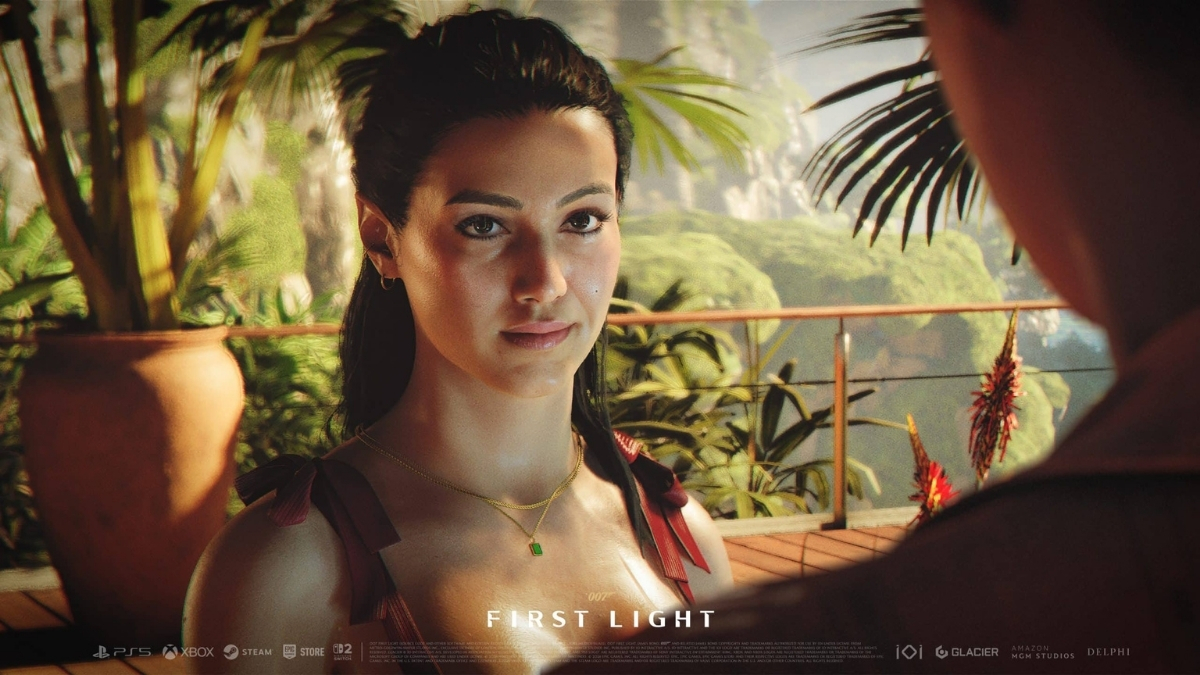
    007 First Light is expected to take around 20 hours to finish for the average player, based on reporting tied to developer comments. That estimate applies to the main campaign only and does not include Tactical Simulator, the separate replay-focused mode designed to add extra challenges after or alongside the story.

    The 20-hour figure reportedly comes from YouTuber JorRaptor, who said he spoke with Gameplay Director Andreas Krogh and other IO Interactive developers. That reporting indicates that the general consensus from those developer conversations pointed to roughly 20 hours for a standard main campaign run, with playtime shifting depending on difficulty and approach.

    How long is 007 First Light based on playstyle?

    007 first light Game

    Playtime varies meaningfully depending on how you approach the game’s campaign and its multiple difficulty settings. Faster players or those on lower difficulty settings could finish closer to 15 hours. Players pushing harder difficulties or taking a slower, more thorough approach may land nearer 25 hours. Current estimates also suggest that factoring in Tactical Simulator missions, collectibles, and trophies could push total playtime into the 30 to 40 hour range, though that figure is more speculative than the core 20-hour campaign estimate.

    007 First Light does not currently have New Game Plus planned, so the story is a single-run experience without a built-in second playthrough structure.

    What is Tactical Simulator and does it add to the length?

    
How-Long-Is-007-First-Light-on-Tactical-Simulator

    The main campaign figure does not account for Tactical Simulator. The mode is inspired by Hitman-style escalation content, reusing main story locations under added difficulty, restrictions, and online leaderboards. Post-launch missions are also planned, meaning the mode will grow beyond what ships with the game.

    Cosmetic outfits — including preorder and special-edition items — are restricted to Tactical Simulator rather than available in the main campaign, giving the mode a functional role rather than purely optional replay value. For players who engage with Tactical Simulator fully, total playtime should extend well beyond the 20-hour campaign estimate.

    The 20-hour figure has not been confirmed in writing by IO Interactive directly. Treat it as the strongest reported estimate available right now until post-launch player data confirms it.

  • What Is Xbox Play Anywhere? How It Works on Xbox, PC, and Handhelds

    What Is Xbox Play Anywhere? How It Works on Xbox, PC, and Handhelds

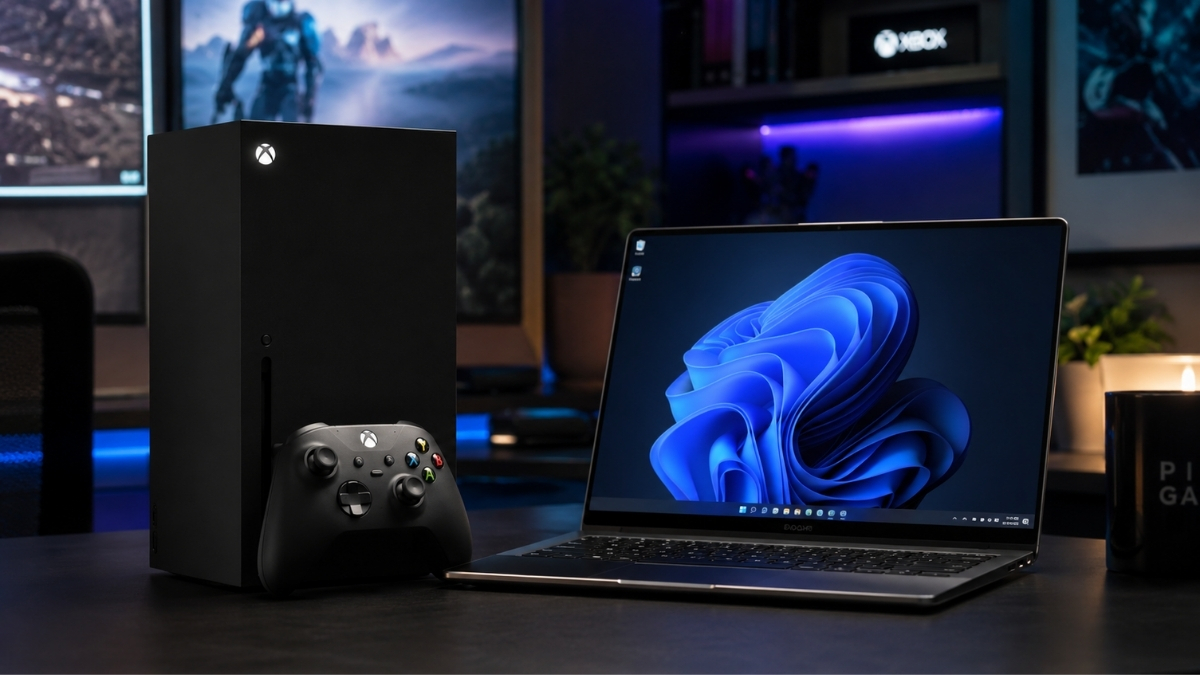
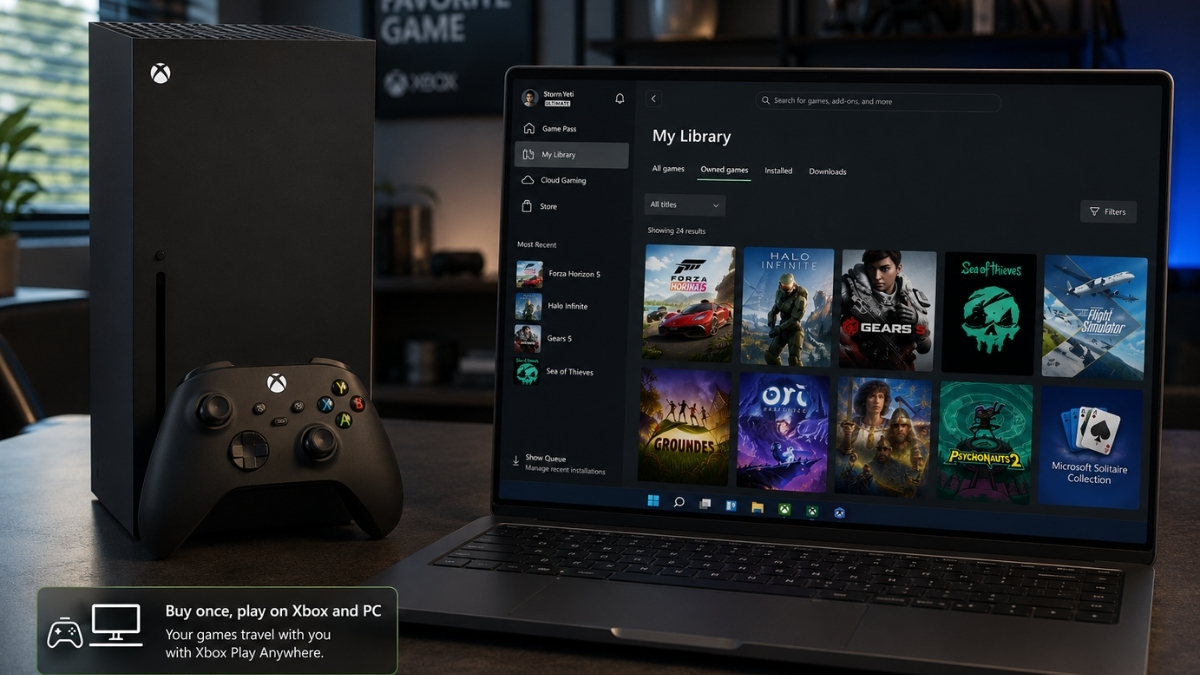
    Xbox Play Anywhere is Microsoft’s cross-buy and cross-progression program. Buy a supported digital game once, and you can install and play it on Xbox console, Windows PC, and supported Windows 11 gaming handhelds, all under the same Microsoft account, with no additional purchase required. For supported Xbox Play Anywhere games, saves, add-ons, achievements, and progress carry across eligible devices.

    This article explains exactly how it works, what it doesn’t cover, and how it differs from Game Pass, Cloud Gaming, and Remote Play, the three programs most commonly confused with it.

    What Xbox Play Anywhere Actually Means

    Xbox Play Anywhere delivers three things in one eligible digital purchase:

    Cross-buy — One purchase gives you both the Xbox console version and the Windows PC version of a supported game. You don’t pay separately for each platform.

    Cross-save — Your progress syncs across devices through Xbox cloud saves. Start a campaign on Xbox, continue it on a Windows laptop, pick it up again on a handheld.

    Shared Xbox ecosystem — Achievements, add-ons, season passes, consumables, and in-game unlocks follow your Microsoft account across the supported Play Anywhere versions of a game.

    As of April 2026, Microsoft has confirmed over 1,500 games support Xbox Play Anywhere.

    How Xbox Play Anywhere Works

    The process is straightforward once you know what to do:

    1. Buy a supported digital game from the Xbox Store, Microsoft Store, or via an eligible digital code from a participating retailer.
    2. Sign in with your Microsoft/Xbox account on any supported device.
    3. On Xbox console, the game appears under My Games & Apps → Ready to Install.
    4. On Windows PC, it appears in My Library inside the Xbox app.
    5. Progress syncs automatically through Xbox cloud saves whenever you’re connected.

    There is no manual transfer, no re-purchasing, and no linking process. The account is the key, the same library and saves are waiting wherever you sign in.

    Does Xbox Play Anywhere Cost Extra?

    No. Microsoft is explicit on this: there is no additional cost when you already own an eligible digital Xbox Play Anywhere game. The program is built into the purchase itself, not a separate subscription or add-on.

    Is Xbox Play Anywhere Digital Only?

    Yes, and this matters. Xbox Play Anywhere applies only to digital copies of supported games. If you buy a disc version of the same title, the Play Anywhere benefit does not apply, you own a physical Xbox copy, not a cross-platform digital entitlement.

    Eligible purchases must be made through:

    • Xbox Store
    • Microsoft Store (on Windows)
    • Digital codes from participating retailers

    Purchases made on Steam, Epic Games Store, or other third-party storefronts do not qualify, even if the game itself supports Play Anywhere on the Xbox/Microsoft side.

    Buying a game on Steam or Epic may still give you the PC version from that storefront, but it does not create an Xbox Play Anywhere entitlement unless the purchase is tied to the Xbox/Microsoft Store ecosystem. The game being available on both platforms is not the same as the purchase being cross-platform.

    Xbox Play Anywhere vs. Game Pass

    Xbox Play Anywhere vs Game Pass

    This comparison trips up a lot of players. They are fundamentally different programs:

    Feature Xbox Play Anywhere Xbox Game Pass
    Type Cross-buy/cross-save feature Subscription service
    Ownership You keep access to the purchased digital game through your account, separate from any subscription You access games while subscribed and while the title remains in the library
    Extra cost None after eligible digital purchase Paid monthly subscription
    Main benefit Buy once, play across Xbox, PC, and supported handhelds Access a large rotating game library
    What happens if you stop paying Nothing changes for games you purchased digitally; Game Pass access ends for subscription-only titles You lose access to the Game Pass library

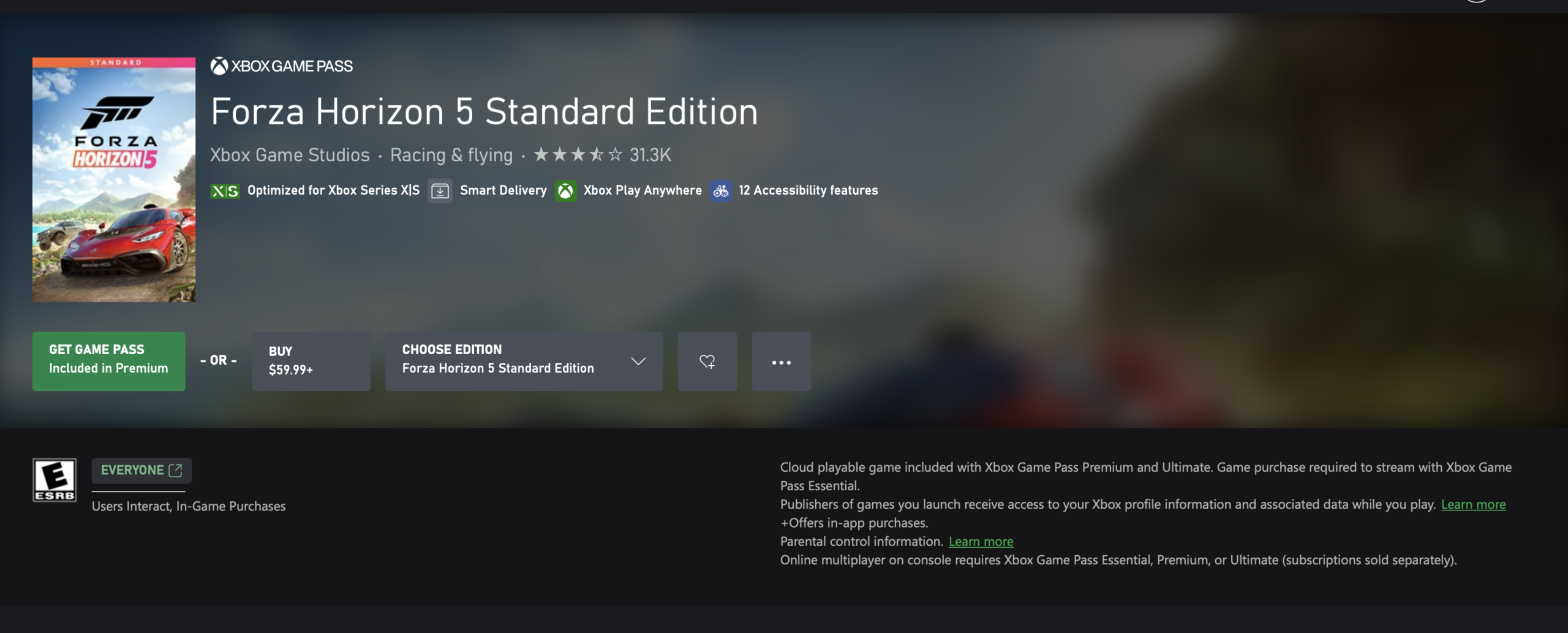
    Some Game Pass games are also Play Anywhere titles. But accessing a game through Game Pass does not give you Play Anywhere ownership. To get the cross-buy benefit, you must make an eligible digital purchase, not just stream or download it as part of a subscription.

    Xbox Play Anywhere vs. Cloud Gaming vs. Remote Play

    Xbox Play Anywhere vs. Cloud Gaming vs. Remote Play

    These three are the most frequently confused features in the Xbox ecosystem. Here is what each one actually does:

    Feature What it does Requires
    Xbox Play Anywhere Download and play a supported game natively on Xbox, PC, or a supported handheld Eligible digital purchase
    Xbox Cloud Gaming Stream games from Microsoft’s cloud servers to a device Usually an active Game Pass plan, though select free-to-play games and select owned cloud-playable games may also be available.
    Xbox Remote Play Stream games from your own Xbox console to another device Your own Xbox console with remote features enabled, turned on or in Sleep mode

    The key distinction: Play Anywhere is native installation on multiple devices. Cloud Gaming is remote streaming from Microsoft’s infrastructure. Remote Play is remote streaming from your personal console. None of them are interchangeable.

    How to Know If a Game Supports Xbox Play Anywhere

    How to Know If a Game Supports Xbox Play Anywhere

    Supported games are marked with the Xbox Play Anywhere badge in the Xbox Store and Microsoft Store. The badge appears on the game’s store page. Titles like Hades II and Gotham Knights are among the games that support the program, and Microsoft maintains a full Play Anywhere games list on Xbox.com where you can browse or search the entire catalog.

    If a game does not show the badge, do not assume it supports Play Anywhere, store metadata can lag or vary by region, but the badge is the most reliable indicator available.

    Do Saves, DLC, and Achievements Carry Over?

    For supported Play Anywhere games, yes. Microsoft confirms that the following travel across supported console, PC, and handheld versions:

    • Save games (via Xbox cloud saves)
    • Game add-ons and DLC
    • Season passes
    • Consumables
    • In-game unlocks
    • Achievements

    This applies to supported Play Anywhere titles specifically. Cross-save behavior on non-Play Anywhere games varies by developer and is not part of this program.

    Can You Play the Same Game on Multiple Devices at Once?

    No. Xbox explicitly states you cannot be signed into the same Play Anywhere game on an Xbox console, Windows PC, and supported handheld simultaneously using the same account. You can switch between devices freely, but not run concurrent sessions.

    Does Xbox Play Anywhere Work on Gaming Handhelds?

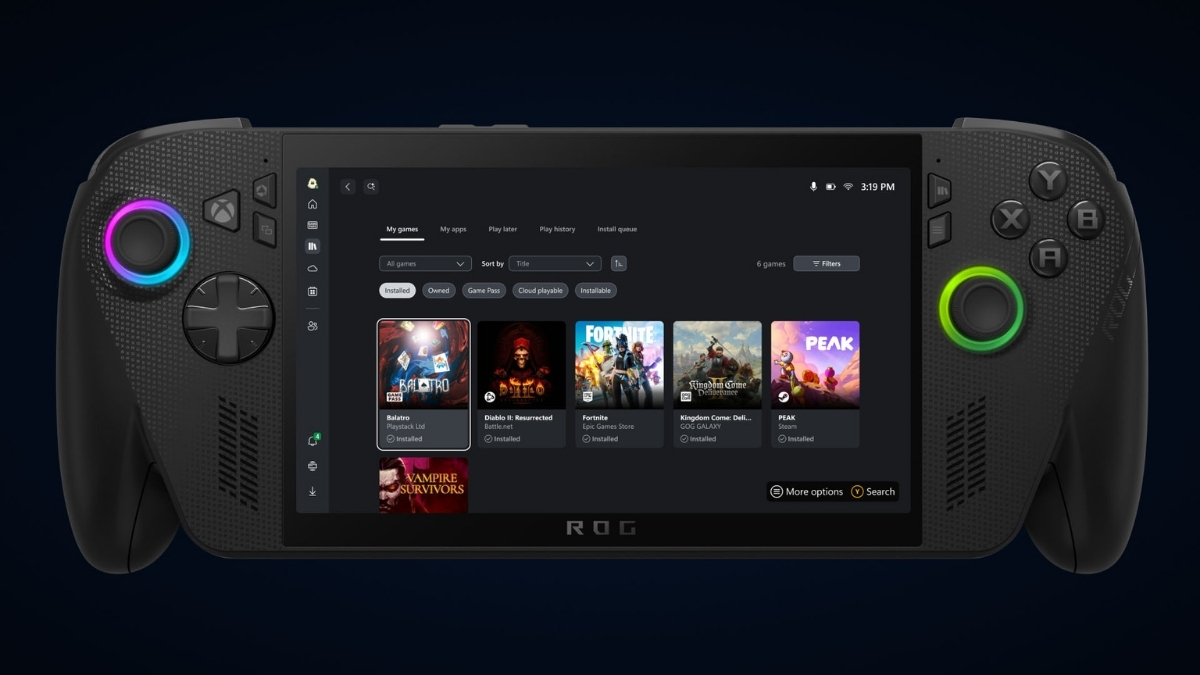
    Microsoft has expanded the Play Anywhere positioning to include supported Windows 11 gaming handhelds, including the ROG Xbox Ally and ROG Xbox Ally X. A game marked as Xbox Play Anywhere that you own digitally can be installed and played on these devices under the same account, with the same save sync and DLC access.

    Xbox Play Anywhere Work on Gaming Handhelds?

    This makes Play Anywhere one of the more practical programs for handheld PC gaming, since you’re not limited to streaming, the game runs natively on the device.

    Common Xbox Play Anywhere Problems

    Xbox Play Anywhere Work on Gaming Handhelds?

    Game isn’t showing up in PC library Check that you’re signed into the correct Microsoft account, the one you used to purchase the game. The Xbox app on Windows must be installed and signed in.

    Bought the disc version Disc copies do not carry Play Anywhere entitlement. You’ll need a digital purchase to access the cross-platform benefit.

    Bought on Steam or Epic Third-party storefronts are not part of the program. The purchase needs to have been made through Xbox Store or Microsoft Store.

    The game supports Xbox and PC but not Play Anywhere Some multiplatform games sell Xbox and PC versions separately without being Play Anywhere titles. Check for the badge specifically, “available on Xbox and PC” does not automatically mean Play Anywhere.

    Wrong Microsoft account Your library and saves are tied to your account. Signing in with a different account gives you access to that account’s purchases only.

    Save isn’t syncing Make sure both devices are connected to the internet and signed into the same Microsoft account. Fully quit the game on the first device before opening it on another, then allow time for Xbox cloud saves to sync. If the latest save still doesn’t appear, restart the Xbox app or console. If syncing continues to fail, check Xbox network status at support.xbox.com, as cloud save issues are sometimes service-side.

    DLC appears missing on one device DLC should transfer automatically on supported Play Anywhere titles. If it doesn’t appear, restart the Xbox app or console, confirm you’re on the correct account, and check the store page for the DLC to see if it’s already listed as owned.

    Confusing a Game Pass download with an owned game If you downloaded a game through Game Pass and your subscription lapses, you lose access. Access to games you purchased digitally through Xbox/Microsoft Store is tied to your account, not your subscription status.

    FAQ

    Is Xbox Play Anywhere free? There is no extra charge. The benefit is included when you make an eligible digital purchase of a supported game.

    Do I need Xbox Game Pass for Xbox Play Anywhere? No. Game Pass and Play Anywhere are separate programs. You do not need a Game Pass subscription to use Play Anywhere.

    Does Xbox Play Anywhere work with disc games? No. Only digital purchases qualify.

    Can I use Xbox Play Anywhere on Steam? No. Steam purchases do not activate Play Anywhere on the Xbox/Microsoft side.

    Do saves transfer between Xbox and PC? Yes, for supported Play Anywhere titles, saves sync automatically through Xbox cloud saves.

    Does DLC transfer between Xbox and PC? Yes, for supported Play Anywhere games, add-ons and DLC are shared across supported versions.

    Can two people play the same Xbox Play Anywhere game at the same time on one account? No. Concurrent sessions on the same account are not permitted.

    How do I find Xbox Play Anywhere games? Look for the Xbox Play Anywhere badge in the Xbox Store or Microsoft Store, or browse the full list at xbox.com/games/xbox-play-anywhere.

    Does Xbox Play Anywhere work on ROG Xbox Ally? Yes. The ROG Xbox Ally and ROG Xbox Ally X are among the supported Windows 11 handhelds for the program.

    What is the difference between Xbox Play Anywhere and Cloud Gaming? Play Anywhere is native installation across supported devices with a digital purchase. Cloud Gaming streams titles from Microsoft’s servers and requires Game Pass for most use cases.

    What is the difference between Xbox Play Anywhere and Remote Play? Remote Play streams from your own Xbox console to another device. Play Anywhere lets you download and run the game natively on a second device without needing your console online or nearby.

  • Subnautica 2 Crashing on Startup Fix: AMD Driver Rollback, DX12 Error, and Steam Fixes

    Subnautica 2 Crashing on Startup Fix: AMD Driver Rollback, DX12 Error, and Steam Fixes

    If Subnautica 2 crashing on startup or before it even opens, you are not alone. This has been one of the biggest issues since Subnautica 2 launched in Early Access this May. The good news is that most startup crashes come down to one of a few known causes, and the fixes are straightforward.

    Start with Fix 1 if you have an AMD graphics card. If you see a DirectX 12 error, go to Fix 3. Everyone else, work through the list in order.

    What Is Causing the Crash

    why Subnautica 2 Crashing on Startup

    There are five main reasons Subnautica 2 crashes on startup:

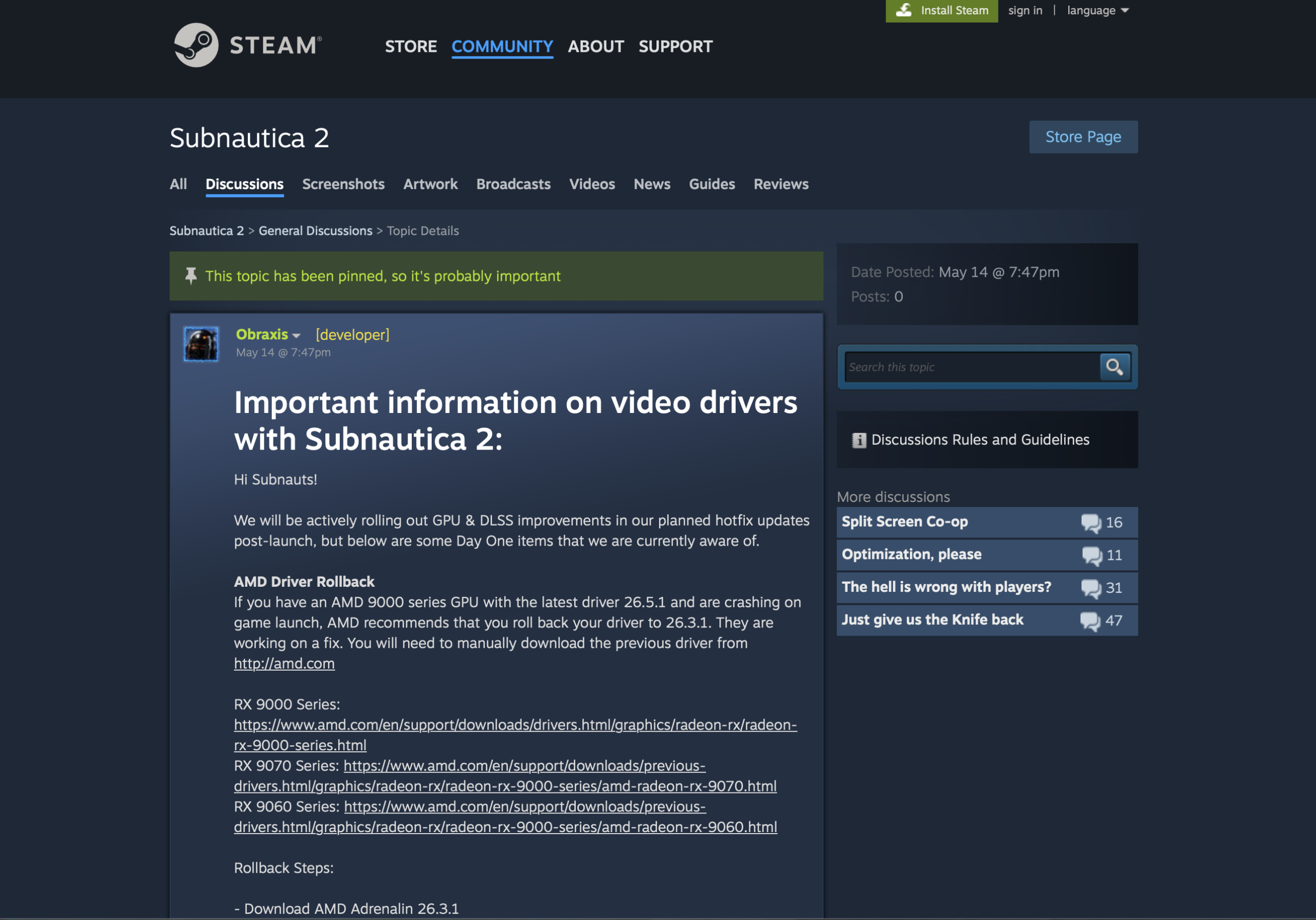
    Your AMD driver is the wrong version. If you recently updated to AMD Adrenalin 26.5.1, that driver has a known conflict with Subnautica 2. Unknown Worlds has officially confirmed this and says rolling back to version 26.3.1 is the fix. This is the most clearly documented startup crash right now.

    The game is running on the wrong GPU. Subnautica 2 needs DirectX 12, which your integrated graphics chip cannot handle properly. If the game launches on that instead of your dedicated graphics card, it will crash.

    Your game files are damaged. A bad download or interrupted update can leave broken files that stop the game from starting.

    An overlay is blocking the game. Apps like Discord, MSI Afterburner, and RivaTuner run in the background and can interfere with Subnautica 2 when it starts up.

    A shader crash is happening during load. A smaller group of players, mostly on Intel 13th and 14th gen CPUs, are seeing a crash related to shader files loading. This is covered at the end.

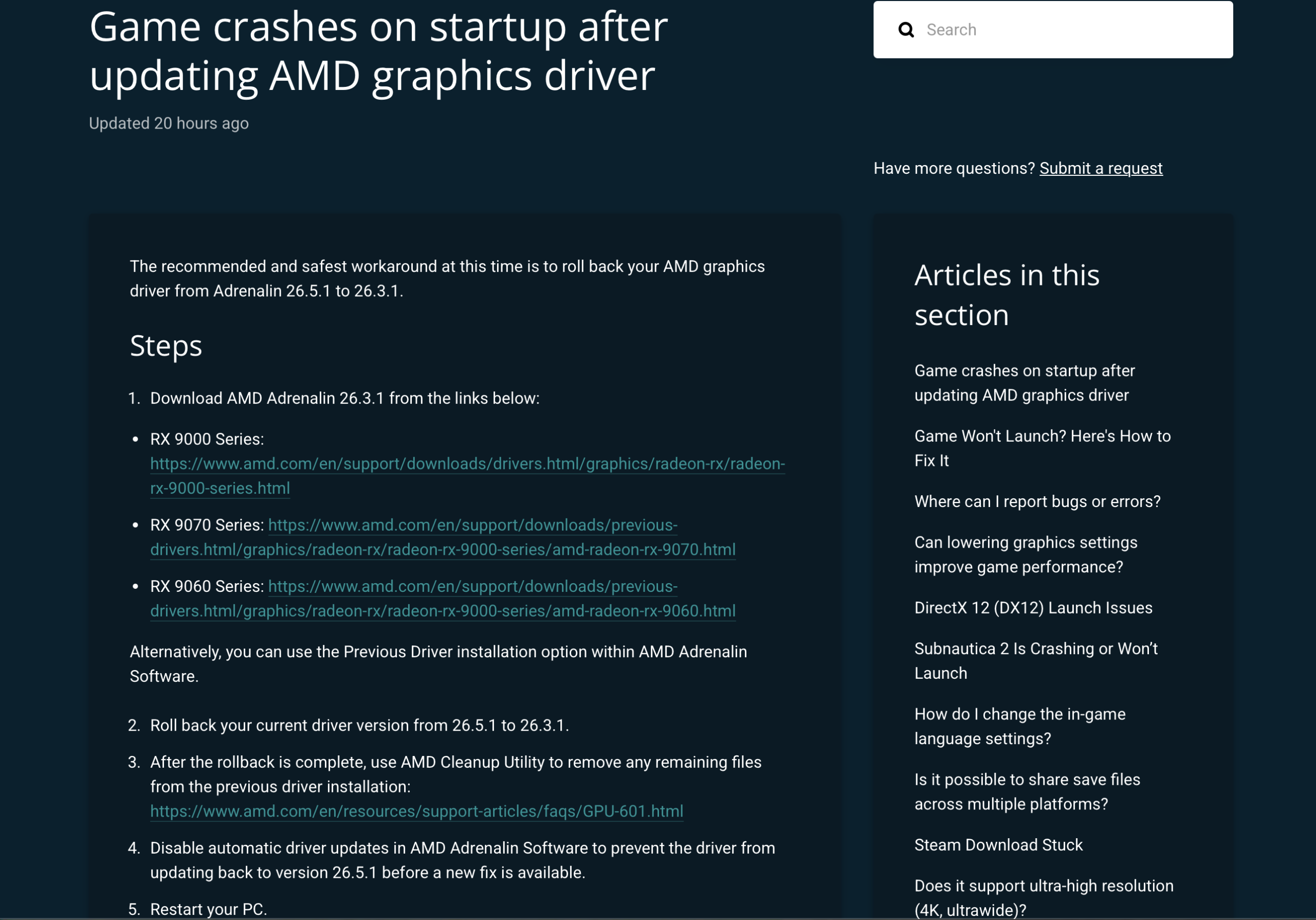
    Fix 1: Roll Back Your AMD Driver to 26.3.1

    If you have an AMD graphics card and updated to Adrenalin 26.5.1 recently, this is almost certainly your problem. Unknown Worlds says rolling back to 26.3.1 has been confirmed to fix the crash.

    Do not skip this and jump to the other fixes first. Verifying files or turning off Discord will not solve a driver conflict.

    This is the official workaround documented by Unknown Worlds

    Here is what to do:

    1. Open AMD Software: Adrenalin Edition on your PC.
    2. Go to Settings → System → Driver & Software.
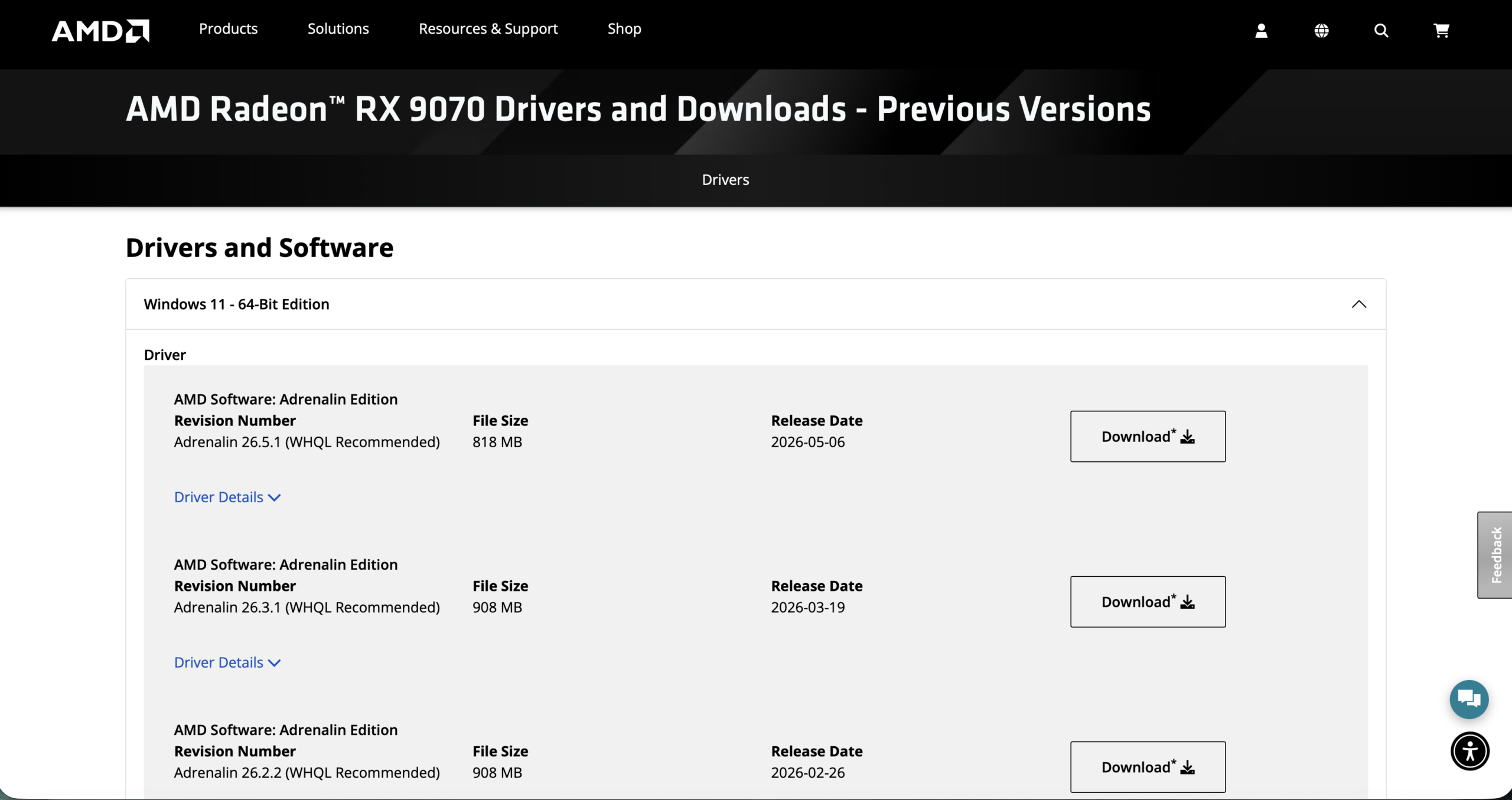
    3. Click Previous Driver and install version 26.3.1. If that option is not there, download 26.3.1 directly from the AMD website.

    1. Run AMD Cleanup Utility to fully remove the old driver files.
    2. Turn off automatic driver updates so AMD does not reinstall 26.5.1 on its own.
    3. Restart your PC.
    4. Open Subnautica 2.

    Leave automatic updates off until Unknown Worlds says a newer driver is safe to use.

    Fix 2: Make the Game Use Your Dedicated Graphics Card

    If your GPU is not AMD, or Fix 1 did not help, your PC might be running Subnautica 2 on integrated graphics by mistake. Here is how to force it onto your dedicated card.

    On Windows 11:

    1. Go to Settings → System → Display → Graphics.
    2. Click Browse and find your Subnautica 2 folder.
    3. Add Subnautica2.exe to the list.
    4. Click Options and choose High Performance.
    5. Restart the game.

    Subnautica 2 Crashing on Startup Fix

    On Windows 10:

    Follow the same steps above. Unknown Worlds also says you need to be on Windows 10 Version 22H2 Build 19045 before the game will run properly. If you are on an older version, update Windows first.

    Fix 3: Fix the DirectX 12 Error

    If you see a message saying DirectX 12 is not supported, here is what to check:

    • Follow Fix 2 to make sure the game is using your dedicated GPU.
    • If you have an NVIDIA or Intel Arc card, update your GPU driver to the latest version.
    • If you have an AMD card on version 26.5.1, do Fix 1 instead. Do not update your driver again.
    • If you are on Windows 10, make sure you are on Version 22H2 Build 19045 as Unknown Worlds requires.
    • Do not add -dx11 to your Steam launch options. Subnautica 2 does not support DirectX 11 and this will not work.

    Once you get the game running, you can check out the best 4K settings for Subnautica 2 for max FPS to get the most out of it.

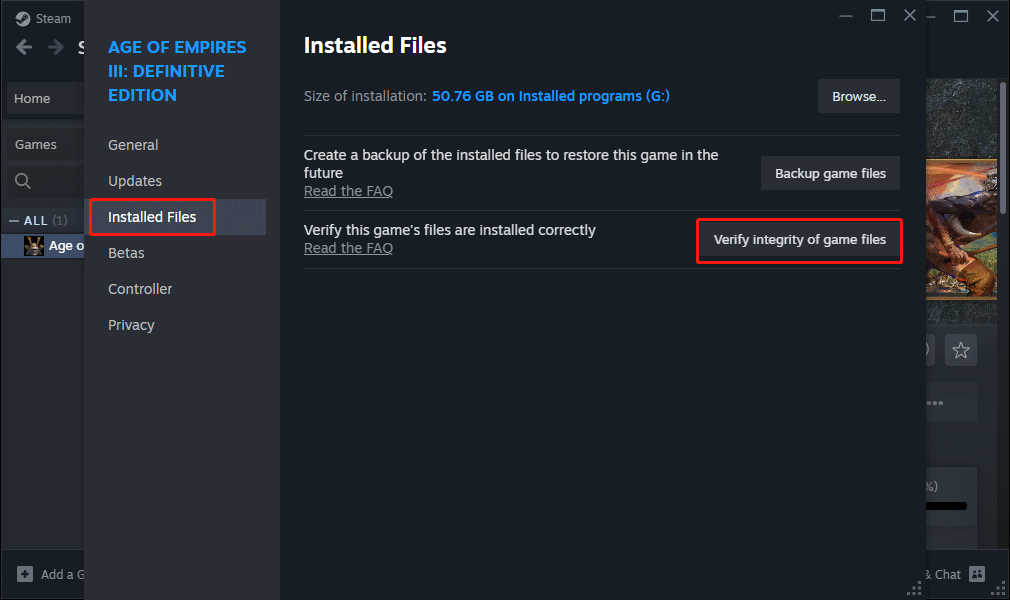
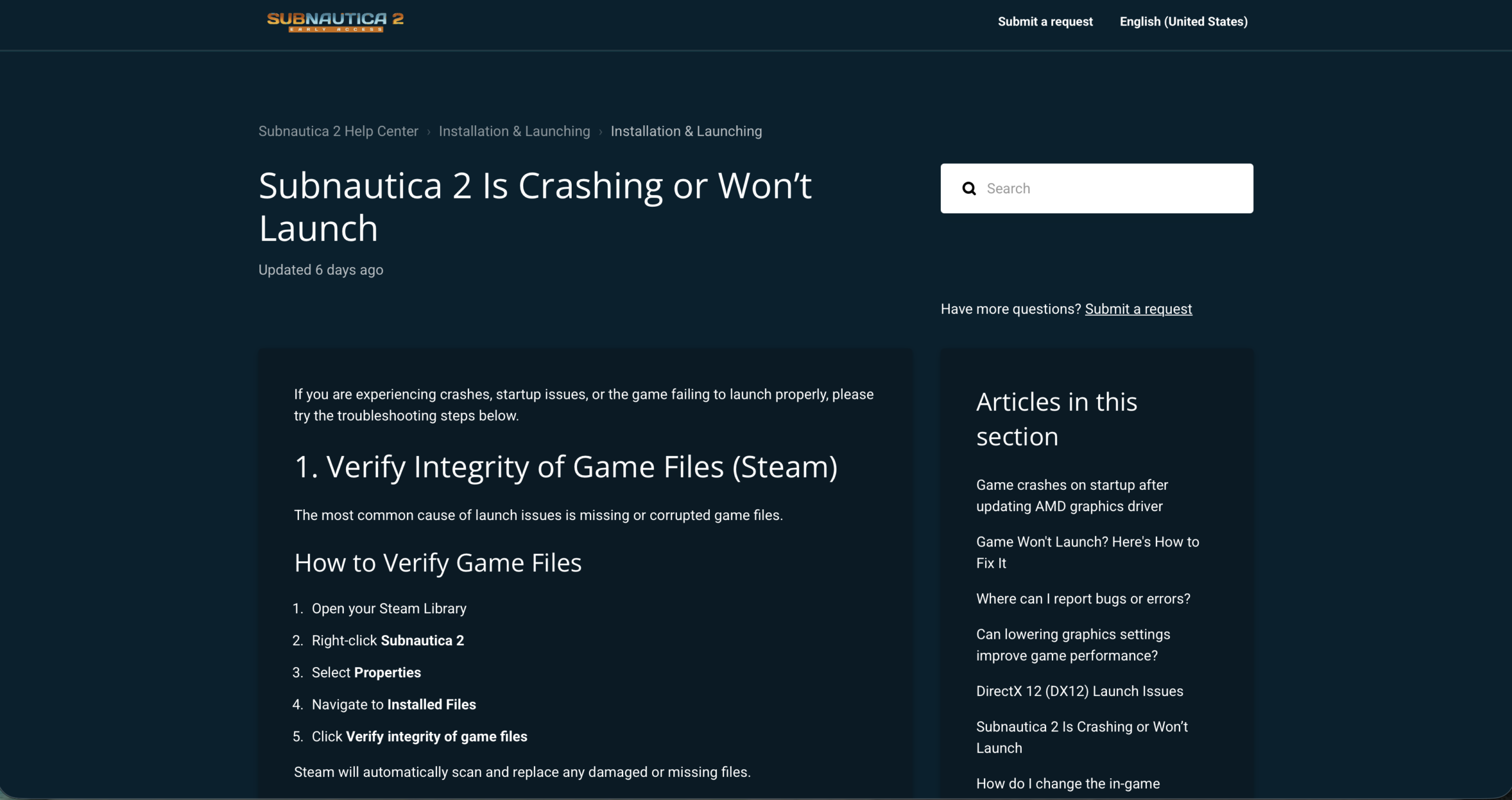
    Fix 4: Check Your Game Files on Steam

    If your download was interrupted or something went wrong during install, your game files might be broken. Steam can find and replace them without you having to reinstall the whole game.

    1. Open your Steam Library.
    2. Right-click Subnautica 2 and click Properties.
    3. Go to the Installed Files tab.
    4. Click Verify integrity of game files.
    5. Let it finish, then try launching the game again.

    Subnautica 2 Crashing on Startup Fix

    If Steam says it replaced some files, that was the problem.

    Fix 5: Clear Your Steam Download Cache

    Steam stores temporary data that can sometimes get corrupted and cause launch problems. Clearing it takes less than a minute.

    1. Open Steam → Settings → Downloads.
    2. Click Clear Download Cache.
    3. Steam will close and ask you to log in again.
    4. Try opening Subnautica 2.

    Fix 6: Turn Off Overlays and Check Your Antivirus

    Background apps that run on top of games can stop Subnautica 2 from starting. Turn these off before you launch:

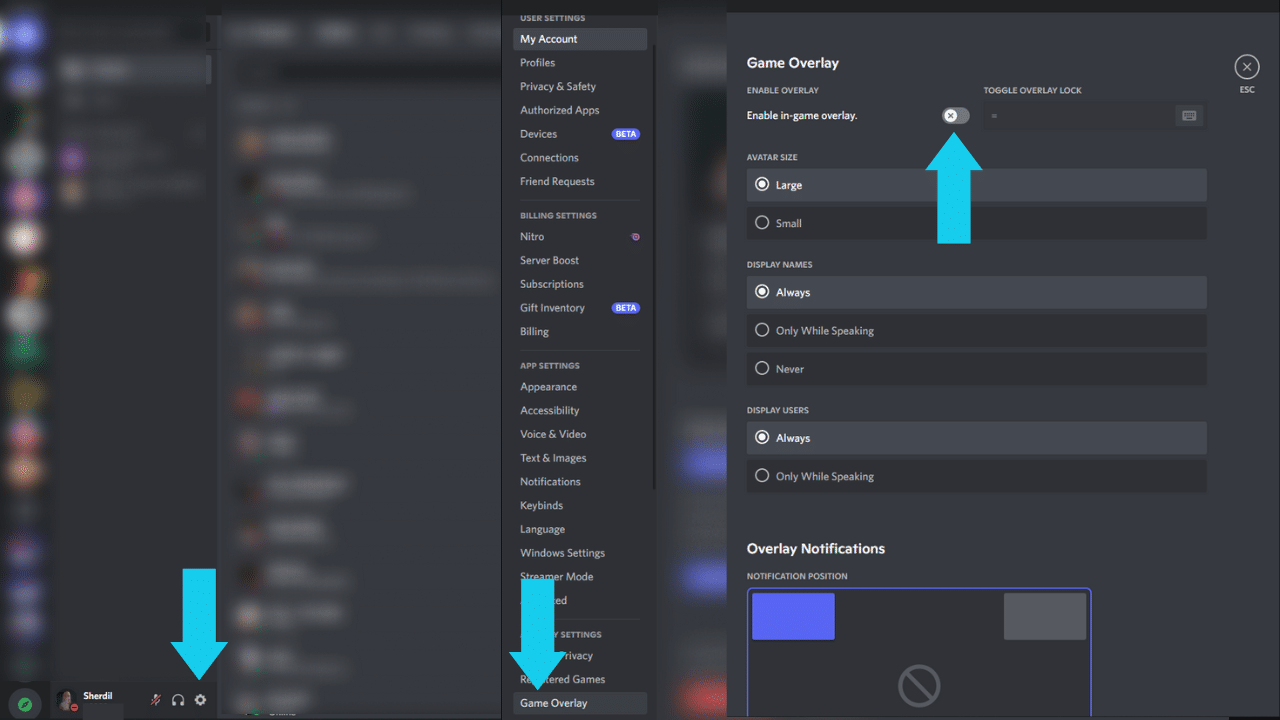
    • Discord Overlay — go to Discord Settings → Game Overlay and turn it off
    • MSI Afterburner — right-click it in the system tray and close it
    • RivaTuner Statistics Server — close it from the system tray
    • Razer Cortex or Synapse — turn off any overlay options in the app
    • Steam Overlay — go to Steam → Settings → In-Game and uncheck the overlay

    Subnautica 2 Crashing on Startup Fix

    Also add Subnautica 2 to your antivirus exclusion list so Windows Defender does not block it:

    1. Open Windows Security → Virus & Threat Protection → Manage Settings.
    2. Scroll to Exclusions and click Add or remove exclusions.
    3. Add the Subnautica 2 folder, usually found at C:\Program Files (x86)\Steam\steamapps\common\Subnautica2.

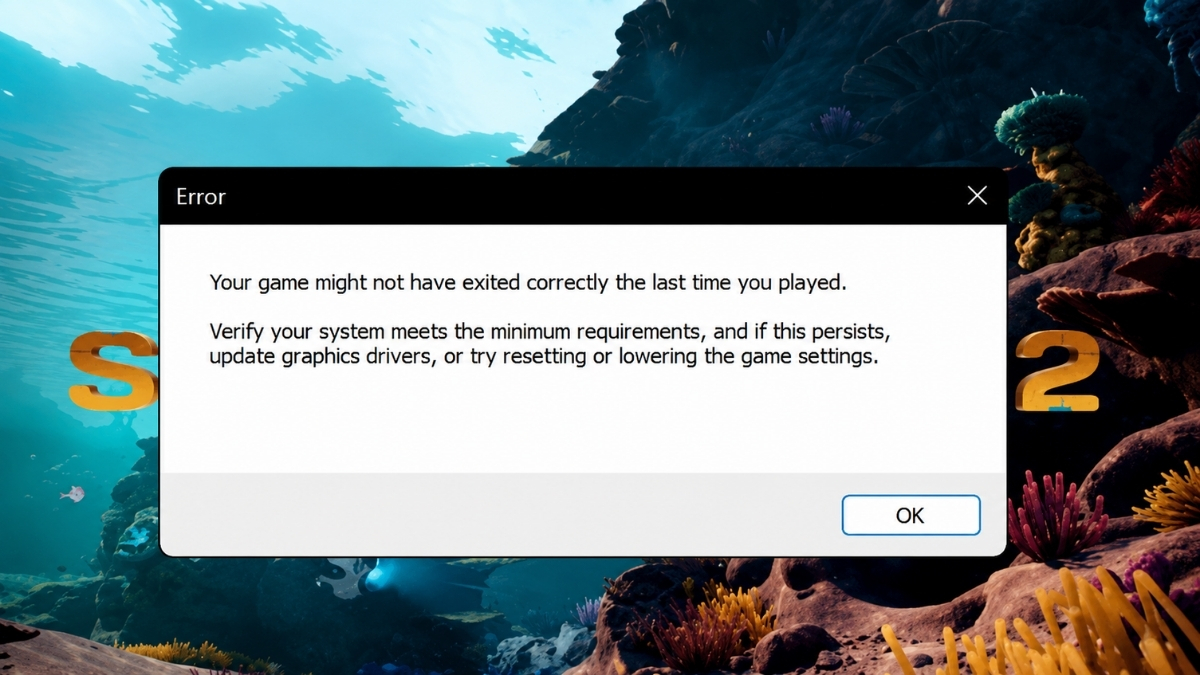
    Fix 7: Getting the “Your Game Might Not Have Exited Correctly” Popup

    If you keep seeing this message every time you try to launch, the game is crashing before it fully opens and showing you this popup on the way out. It is a symptom, not the actual problem.

    Before Subnautica 2 reportedly leaked online ahead of its Early Access launch, reports of driver and launch instability were already surfacing. This popup is one of the clearest signs of that instability.

    Work through this in order:

    1. If you have an AMD card, do Fix 1 first. It stops the loop for most people.
    2. Do Fix 2 to make sure the game uses your dedicated GPU.
    3. Do Fix 4 to check your game files.
    4. Do Fix 5 to clear your Steam cache.
    5. Do Fix 6 to turn off overlays.
    6. Restart your PC after all of that, then try again.

    If you are still stuck, take a screenshot of the error and send it to Unknown Worlds support along with your GPU model and driver version. They ask for this information to investigate the crash.

    official workaround documented by Unknown Worlds

    Shader Crash on Startup (Intel CPU Users)

    This section covers a different crash that some players on Intel 13th and 14th gen desktop CPUs are seeing. The error message mentions ShaderCodeArchive or Oodle in the crash report. This is separate from the AMD driver issue and has no official fix from Unknown Worlds yet.

    Intel has previously acknowledged problems with some of these CPUs related to voltage and microcode settings. If your crash log shows these terms and you have one of those processors, look up your motherboard maker’s latest BIOS update. Do not change any advanced BIOS settings unless you are confident you know what you are doing.

    It is also worth knowing that the legal dispute between Unknown Worlds and Krafton is ongoing, which may affect how fast the studio can push fixes during Early Access. Keep an eye on the Unknown Worlds support page and the Subnautica 2 Steam hub for updates.

    Common Questions

    Why is Subnautica 2 crashing on startup? The most common reasons are the AMD Adrenalin 26.5.1 driver conflict, the game launching on integrated graphics instead of your dedicated GPU, broken game files, overlays running in the background, or antivirus blocking the game. A smaller group of players with Intel 13th and 14th gen CPUs are hitting a shader-related crash.

    How do I fix it on an AMD graphics card? Roll back to AMD Adrenalin 26.3.1, run AMD Cleanup Utility, turn off automatic driver updates, and restart your PC. Unknown Worlds has confirmed this fixes the crash on affected systems.

    How do I fix the DirectX 12 not supported error? Go to Windows Graphics settings and set Subnautica 2 to use your dedicated GPU on High Performance. If you are on Windows 10, make sure you are on Version 22H2 Build 19045. AMD users on 26.5.1 should roll back their driver rather than update.

    Should I reinstall the game if it keeps crashing? Try verifying your game files and clearing the Steam download cache first. Both fix file corruption without a full reinstall. If you have an AMD card on 26.5.1, reinstalling the game alone will not help because the problem is the driver, not the game.

    Is Subnautica 2 on Game Pass? You can find the full answer in our guide on whether Subnautica 2 is coming to Game Pass.

  • GTA Vice City Definitive Edition Fatal Error on Steam Deck OLED: Rockstar’s Fix Explained

    GTA Vice City Definitive Edition Fatal Error on Steam Deck OLED: Rockstar’s Fix Explained

    If you’ve picked up your Steam Deck OLED to revisit Vice City and hit a “Fatal error!” before the game even loads, you’re not alone, and you’re not doing anything wrong. I’ve tracked this issue across Steam threads, Linux gaming communities, and Rockstar’s own support documentation, and the good news is there’s a working fix you can apply in under two minutes.

    If you’re on PC instead and Vice City is failing silently with no error message at all, that’s a separate set of causes, I’ve covered those in detail in GTA Vice City Not Launching on PC: Fix No Error, Black Screen, and Loading Issues.

    Here’s everything you need to know about the Steam Deck OLED fatal error specifically.

    What Is the GTA Vice City Steam Deck OLED Fatal Error?

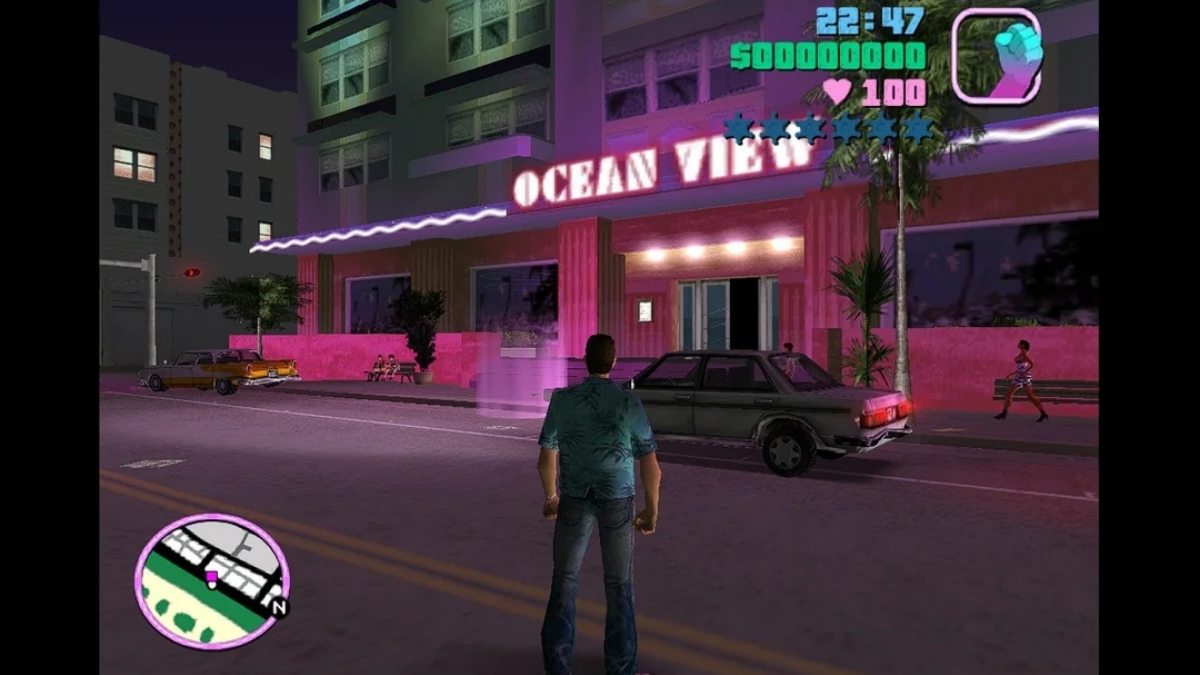
    The error blocks GTA Vice City Definitive Edition from launching entirely. You press Play, and instead of the loading screen, you get a fatal error dialog and a crash straight back to the Steam interface.

    This isn’t isolated to Vice City. Rockstar’s support page confirms the fatal error can appear when launching any of the three titles in GTA: The Trilogy – The Definitive Edition on Steam Deck OLED, GTA III, Vice City, and San Andreas are all named. Player reports on Steam trace the issue most prominently to the November 2024 update to the Trilogy. Rockstar’s live support page still lists it as under investigation, with the page last updated November 25, 2024.

    Rockstar’s documentation specifically identifies the Steam Deck OLED model, the LCD model is not named in their support article.

    Rockstar’s Official Fix For GTA Vice City Definitive Edition Fatal Error on Steam Deck OLED (Do This First)

    Fatal Error on Steam Deck OLED

    Rockstar has one officially recommended workaround, and it’s straightforward:

    Step 1: Open Steam and navigate to your GTA Vice City Definitive Edition library entry.

    Step 2: Right-click the game and select Properties.

    Step 3: Under the General tab, find the Launch Options field.

    Step 4: Enter the following exactly as written:

    %command% -dx12

    Step 5: Close Properties and launch the game.

    This forces the game to run under DirectX 12 rather than its default rendering path, which bypasses whatever is triggering the crash on OLED hardware. Rockstar’s support page names all three games and gives this same launch-option workaround. in the Trilogy, not just Vice City.

    Rockstar frames this as a temporary workaround, not a permanent patch. Keep the launch option in place until Rockstar ships a confirmed fix through a proper update.

    Why Is This Happening on Steam Deck OLED?

    Rockstar hasn’t officially stated a cause, so I’ll be precise about what’s confirmed versus what’s suspected.

    Several Linux gaming outlets and community sources reported that the fatal error appears tied to how DXVK handles HDR on the OLED display. A related issue was filed and subsequently closed on Valve’s Gamescope GitHub tracker, describing GTA San Andreas Definitive Edition crashing at startup when DXVK HDR is active, and noting that forcing DirectX 12 resolves it. That lines up exactly with what players are experiencing on Steam Deck.

    In plain terms: the game’s rendering layer appears to conflict with how DXVK processes HDR output on the OLED panel. That’s the leading technical explanation from the Linux gaming community, but it is not a confirmed statement from Rockstar. I’m flagging this because some coverage presents the HDR angle as settled fact when it remains community-level investigation.

    Alternative Fix Some Players Are Using

    If the -dx12 launch option doesn’t resolve it for you, a second workaround surfaced in Steam community threads and Linux gaming outlets:

    DXVK_HDR=0 %command%

    This disables DXVK’s HDR processing before the game launches. The writer at Steam Deck HQ personally tested both launch options on Vice City’s Definitive Edition and confirmed both fix the fatal error. One Steam user also noted this option performed better for them on Steam Deck OLED specifically.

    To use it, follow the same steps above and paste DXVK_HDR=0 %command% into the Launch Options field instead.

    Important: This is a community-reported fix, not Rockstar’s official recommendation. Try the -dx12 option first since that’s what Rockstar actually endorses.

    Does Verifying Game Files Help?

    Verifying game files is standard Steam troubleshooting and worth doing as a hygiene step, but it’s unlikely to be the solution here. The problem isn’t corrupt files; it’s a rendering and compatibility conflict specific to OLED hardware. Verifying files can still rule out local installation problems, but Rockstar’s official workaround points to a launch/rendering compatibility issue rather than missing or corrupted files.

    What About Desktop Mode?

    Earlier community discussion suggested launching in Desktop Mode behaved differently because HDR wasn’t active there. That’s no longer a safe assumption. SteamOS 3.8 moved Desktop Mode to Wayland by default and added HDR support for external displays in that environment, so the behavior has become more variable than it was when this issue first surfaced. I’d treat Desktop Mode as an unreliable test at this point rather than a recommended workaround, the launch option fixes above are cleaner and better documented.

    Does This Affect All Three Games in the Trilogy?

    Yes. Rockstar’s support page names GTA III, GTA Vice City, and GTA San Andreas, all Definitive Edition versions, as affected titles on Steam Deck OLED. The -dx12 launch option fix applies to all three.

    Is GTA Vice City Definitive Edition Playable After the Fix?

    Based on what I’ve verified across Steam threads and community outlets, a number of players have reported getting back into the game after applying the launch option. There’s no precise success rate I can put on it, but the fix has been confirmed working by multiple independent sources including players in Steam threads and outlets who tested it hands-on. Performance after launch is a separate conversation, the Definitive Edition Trilogy has had a complicated history on PC and handheld hardware regardless of this specific error, but the fatal error is officially addressed by Rockstar’s %command% -dx12 workaround, with several community reports also saying it worked.

    Quick Reference

    Fix Source How to Apply
    %command% -dx12 Rockstar Official Steam → Properties → Launch Options
    DXVK_HDR=0 %command% Community Reported Steam → Properties → Launch Options
    Verify Game Files General Steam Step Steam → Properties → Local Files

    The GTA Vice City Definitive Edition fatal error on Steam Deck OLED is a known, documented issue, Rockstar acknowledged it and provided a workaround that has helped players get back into the game. Add %command% -dx12 to your launch options and add %command% -dx12 to your launch options first, since that is Rockstar’s official workaround. If that doesn’t work, swap it for DXVK_HDR=0 %command% as a secondary attempt.

    Rockstar’s live support page still lists the issue as under investigation as of its last update in November 2024, so keep an eye on their support documentation and Trilogy patch notes for any update that removes the need for the manual launch option entirely.

  • Forza Horizon 6 PC Issues: Fix Crashes, Stuttering, Steam Errors, and Game Pass Problems

    Forza Horizon 6 PC Issues: Fix Crashes, Stuttering, Steam Errors, and Game Pass Problems

    I’ve spent the launch window of Forza Horizon 6 working through the PC issues that players are actually running into, not theoretical problems, but the specific crashes, non-launches, and stutters that are flooding Steam discussions, ResetEra threads, and Forza Support tickets right now.

    Here is what I found: most of the crash and launch issues have official fixes. Forza Support has published error code documentation, Gaming Services version requirements, and Steam-specific guidance that resolves the majority of reports. The stuttering situation, particularly on AMD systems, is more complicated, and I’m not going to pretend it isn’t.

    One thing I want to be clear about before diving in: I don’t think this is a universally broken PC port. PC Gamer’s testing found the game generally runs well across supported hardware, though it is CPU-heavy and ray tracing costs more than it delivers visually. What I’m seeing in the community is concentrated around specific hardware combinations, launch-entitlement confusion, and a Gaming Services dependency that catches Steam players completely off guard. Most of it is fixable.

    First, Check Whether Forza Horizon 6 Has Actually Unlocked for Your Account

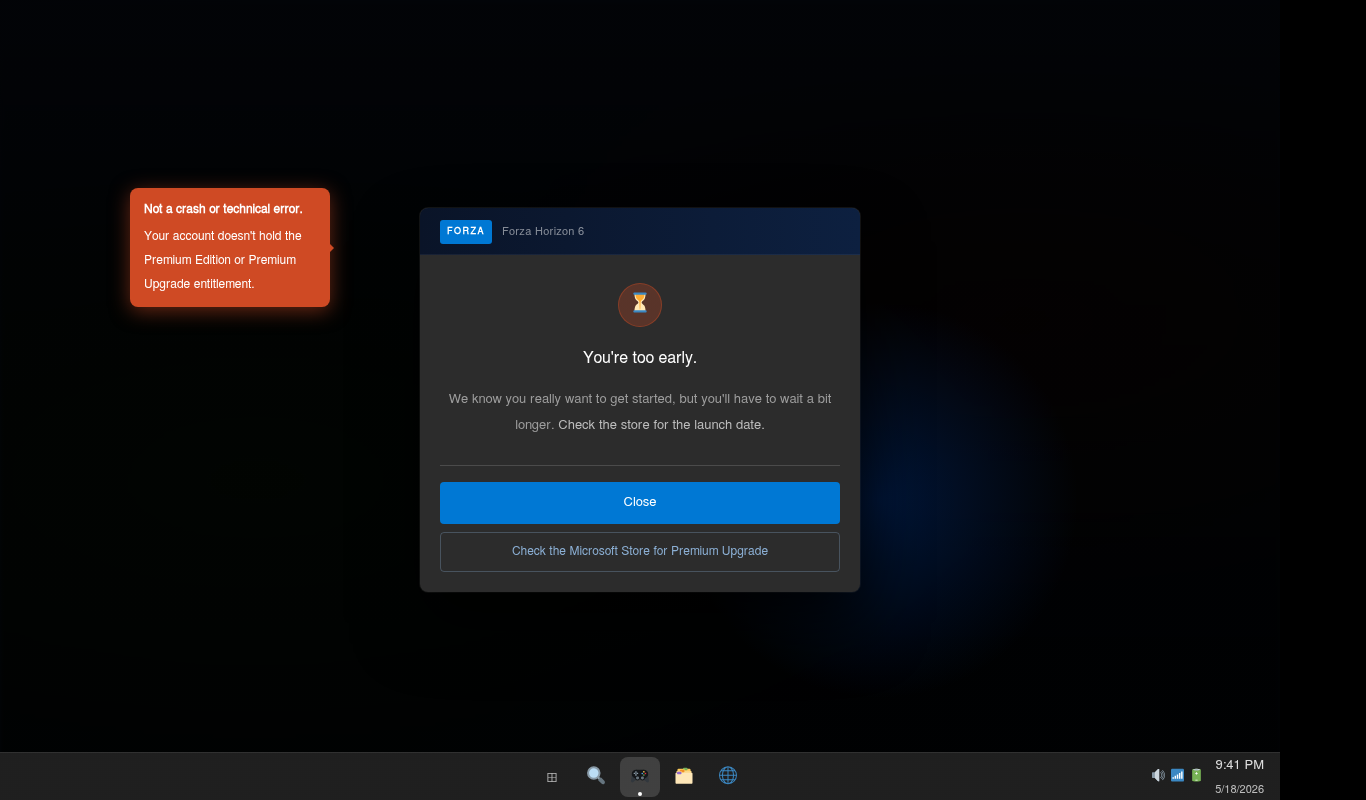
    Before I troubleshoot anything technical, I always confirm that the game is supposed to be accessible to me in the first place. Forza Support documents a specific error, sometimes shown as “You’re too early”, that is not a bug. It means the account doesn’t hold the right entitlement for early access.

    youre-too-early-error

    Here’s how the release window breaks down:

    • Premium Edition and Premium Upgrade owners: Early access started May 15, 2026.
    • Standard and Deluxe Edition buyers: Access begins at general availability, May 19, 2026.
    • Xbox Game Pass / PC Game Pass subscribers: Access begins at general availability unless the same Microsoft account also owns the Premium Upgrade.

    If I’m seeing “You’re too early,” the first thing I check is whether the Microsoft account I’m signed into on Steam or the Xbox app is the same one that owns the Premium Edition or Upgrade. That account mismatch is more common than people expect. After confirming the entitlement and the unlock window, I restart Steam or the Xbox app before trying again.

    If I’m on Standard or Deluxe and early access was never part of my purchase, I stop troubleshooting and wait for May 19. Nothing technical is wrong.

    If you want more context before diving into fixes, these cover the surrounding story: Forza Horizon 6 features, early access details, and unlock times, what the Steam leak revealed ahead of launch, and all 57 achievements and how to reach 1000 Gamerscore.

    Update Gaming Services Before Launching Forza Horizon 6

    This is the first thing I do on any PC where FH6 won’t launch, and I do it even on systems where I installed the game through Steam, which is where most people get surprised.

    Forza Horizon 6 requires Microsoft Gaming Services to run on PC regardless of where you bought it. It handles license verification, Xbox Live authentication, and cloud saves across all PC versions of the game. If Gaming Services is outdated, the game won’t open. Forza Support specifies that version 36.113.2002.0 or higher is required.

    gaming-services-store

    Here’s how I update it:

    1. Open the Microsoft Store.
    2. Click the Library icon in the bottom-left.
    3. Select Get updates or Check for updates.
    4. Find Gaming Services in the list and update it.
    5. Restart the PC, not just the game, the whole machine.

    I don’t skip the restart. Some Gaming Services updates don’t activate until the system reboots, and launching FH6 immediately after the update will produce the exact same error.

    If Gaming Services is corrupted rather than just outdated, I go to Windows Settings → Apps → Gaming Services → Advanced Options → Repair. When that fails, Forza Support’s PC crash guide documents a PowerShell reinstall method. Microsoft also offers a dedicated Gaming Services Repair Tool on the Xbox support website, which handles the most stubborn cases.

    Check PC Requirements, Windows Version, and GPU Support

    pc-spec-requirements

    I won’t waste time on settings tweaks if the system is running below the minimum spec. Here’s what the game actually requires, pulled directly from Steam’s listing.

    Minimum requirements (targets 1080p / 60fps / Low preset):

    • Windows 10 version 22H2 (build 19045) or Windows 11
    • CPU: Intel Core i5-8400 or AMD Ryzen 5 1600
    • GPU: Nvidia GeForce GTX 1650, AMD Radeon RX 6500 XT, or Intel Arc A380
    • 16 GB RAM
    • DirectX 12
    • SSD required, not a recommendation
    • 167 GB available storage

    Recommended tier (targets 1440p / 60+ fps / High preset): Intel Core i5-12400F or Ryzen 5 5600X, paired with RTX 3060 Ti / RX 6700 XT / Intel Arc A580

    GPU architectures that are not supported: The minimum supported Nvidia architecture is Turing meaning the GTX 1650 sits at the floor. Nvidia Pascal and older (GTX 1070, GTX 1080) are not guaranteed to work because they fall below that minimum. AMD Polaris and Vega architectures are listed by Forza Support as unsupported outright. If I’m running hardware in those categories, I’m not going to find a settings fix that makes the game stable. The crash fixes in the next section aren’t applicable when the GPU itself is below what the engine requires.

    If my Windows version is below 22H2, I update that before anything else. Some crashes on older Windows builds come from missing DirectX 12 feature support, not from the game.

    How to Fix Forza Horizon 6 Crashing on PC

    FHC crash error dialog

    The thing I appreciate about FH6’s crash handling is that it uses specific error codes rather than a generic “the game has crashed” message. Each code points to a specific hardware resource or system failure, which makes troubleshooting a lot faster than guessing.

    Error Code What It Means Where I Focus
    FHC Video card crash Update GPU driver; lower ray tracing and VRAM-heavy settings; check GPU stability
    FHD Out of video memory Reduce texture quality, ray tracing, and rendering resolution; switch to DLSS/FSR Quality
    FHE General game crash Disable overlays and monitoring tools; verify game files; update Windows and Gaming Services
    FHF Out of system memory Close background apps; confirm 16 GB RAM; check Windows page file
    FH301 GPU driver needs updating Install the latest Nvidia, AMD, or Intel Arc driver
    FH401 Insufficient system memory RAM is below minimum; close background apps or upgrade
    FH601 Microsoft Media Foundation issue Install missing Windows media components via Optional Features in Windows Settings

    When I see FHC or FHD, VRAM is the first thing I examine. On an 8 GB GPU running Extreme textures or high ray tracing, exceeding the VRAM budget can cause FHD crashes or instability, and since the in-game VRAM meter makes it easy to spot, it’s the fastest thing to check. I drop textures to Ultra on 8 GB cards and reduce or disable RTGI first, because it carries the heaviest VRAM cost for the least visible improvement.

    When I see FHE, I treat it as a broad crash category that needs methodical diagnosis rather than a single obvious cause. Overlays and conflicting background tools are one of the more common contributors, so that’s where I start, but FHE covers any general game crash, so if disabling overlays doesn’t resolve it, I move through the full checklist in the next section.

    Disable Overlays and Conflicting Background Tools

    Forza Support's general PC troubleshooting

    Forza Support’s general PC troubleshooting guidance lists overlays and background tools that can interfere with Forza games. I work through that list before anything else when diagnosing FHE crashes, because these tools hook into the rendering pipeline in ways the ForzaTech engine doesn’t tolerate. The general PC launch and crash guide is at support.

    Before launching, I close or disable all of the following:

    • MSI Afterburner and RivaTuner Statistics Server (RTSS)
    • Discord in-game overlay
    • Nvidia GeForce Experience overlay and ShadowPlay
    • Steam overlay, yes, even on a game I bought through Steam
    • EVGA Precision X1
    • OBS and XSplit running in the background
    • Wallpaper Engine
    • WeMod
    • Nahimic audio software
    • Logitech G Hub when it’s producing elevated CPU usage at launch
    • Any RGB, wheel, or peripheral management software with active overlays

    If I’ve cleared the obvious candidates and crashes continue, I run a clean boot through msconfig, disabling all non-Microsoft startup services, to catch whatever else might be interfering. Then I re-enable services one group at a time until the problem reappears.

    How to Fix Forza Horizon 6 Stuttering and FPS Drops

    I want to be straightforward here: not all stuttering in FH6 has a fix I can give you right now. What type of stutter I’m dealing with determines whether a setting change actually helps.

    Shader compilation stutter I treat as expected and temporary. When I first play, or after a driver update, the game compiles DirectX 12 shaders on the fly as I enter new areas. Until the cache fills in, I’ll see hitches. Running the in-game benchmark before going into the open world accelerates the process, and this stutter largely resolves within the first several hours of play.

    Open-world traversal stutter is a separate and more stubborn problem. I’m seeing it most consistently reported on AMD GPU and Ryzen X3D processor combinations, with consistent micro-stutters every few seconds in the open world that don’t appear during the benchmark at all. PC Gamer’s testing flagged the game as CPU-heavy and identified thread scheduling quirks specifically on dual-CCD Ryzen X3D chips. That doesn’t mean those setups are broken, but it explains why some players with very capable hardware are hitting frame pacing problems that simpler configs aren’t.

    The workarounds I try first:

    • Disable in-game V-Sync and instead cap the framerate through Nvidia Control Panel or AMD Adrenalin, set a few frames below the monitor’s refresh rate.
    • Turn off ray tracing, starting with RTGI, before touching anything else.
    • Drop from Extreme to Ultra or High. The visual gap is small, the performance gap is not.
    • If frame pacing feels inconsistent, switch from Frame Generation to DLSS Quality or FSR Quality. Frame Generation magnifies instability when the underlying frame times are already variable.
    • After any major settings change or driver update, I restart the game entirely and let the shader cache rebuild from a clean state.
    • I keep the in-game VRAM usage meter visible and make sure I’m comfortably within my card’s physical limit.

    If I’m on AMD and stutter persists after all of the above: AMD released driver version 26.5.2 close to launch. It adds official FH6 game support, including game profiles, shader paths, and compatibility adjustments, but it is not confirmed as a dedicated stutter fix; the release notes list no FH6-specific bug fixes. Still, installing it is the right baseline to be on before deeper troubleshooting. Some AMD users are still reporting open-world micro-stutter after driver and settings changes, so those cases may require a game-side or driver-side update rather than a guaranteed local workaround. What I do in that situation is file a support ticket, add my hardware details to the relevant threads on the Forza Feedback Hub, and give Playground the data they need to prioritize it. Pretending there’s a guaranteed workaround when there isn’t would be a waste of your time.

    How to Fix Forza Horizon 6 Steam Problems

    The 59-character path limit is the first thing I check on any Steam install. Forza Support officially documented that FH6 must be installed in a Steam library path that is 59 characters or fewer. If my Steam library is sitting inside something like C:\Users\MyUsername\Documents\PC Games\Steam\SteamLibrary\, that path is almost certainly over the limit and the game simply will not launch, with no error code and no explanation.

    My fix is to move the Steam library to a shorter path: D:\Steam\ or C:\Games\ both work. I use Steam’s built-in content move feature under Settings → Storage, then verify file integrity on FH6 after the move before launching.

    When Steam shows the game as running but nothing appears on screen, here’s my sequence:

    1. Open Task Manager and end any ForzaHorizon6.exe processes still lingering in the background.
    2. Fully quit Steam through the tray icon, because just closing the window leaves Steam running, which can hold a lock on the game process.
    3. Try clearing the DirectX shader cache at C:\Users\[My Name]\AppData\Local\D3DSCache. This is a community workaround; Forza Support’s official FH6 crash guide does not specifically list this as a fix, but some players have reported it resolving silent launch failures. Forza’s official PC crash troubleshooting is at support.
    4. Relaunch Steam and try again. The first boot after clearing the cache may take longer than usual.

    For crashes showing error code 0xc0000409 or a xinput1_3.dll error, I disconnect all controllers before launching and check whether antivirus software is blocking or interfering with the game. Forza Support has a general guide for adding Forza as an exception to antivirus software and firewalls. There’s no confirmed FH6-specific quarantine pattern during launch week, but antivirus interference is a documented general cause of Forza launch failures and worth ruling out.

    For Microsoft account sign-in loops on Steam: FH6 requires a linked Xbox Live account even on Steam. When I hit authentication loops, I sign out of both the Xbox app and Microsoft Store, then sign back in with the Microsoft account that owns the game or my Game Pass subscription. If it keeps looping, I open Windows Credential Manager, find any Xbox Live or Xbox.com credentials stored there, remove them, restart the PC, and sign in fresh. Forza Support includes this credential-clearing step in their official PC troubleshooting guide.

    How to Fix Game Pass and Xbox App Errors

    The first thing I confirm for Game Pass players is that general availability has passed for their region and that the subscription is active on the account signed into the Xbox app.

    When the game won’t open through the Xbox app, my first move is:

    1. Press Win + R, type wsreset.exe, press Enter.
    2. A blank Command Prompt appears. Leave it alone and wait for it to close automatically.
    3. Once the Microsoft Store reopens, I restart the Xbox app and try launching the game again.

    This clears the Store’s temporary cache, which can block license verification and prevent the game from opening even when the subscription is perfectly valid.

    I keep both the Xbox app and Gaming Services updated at all times for Game Pass. The Xbox app and Microsoft Store version depends on Microsoft account licensing, Gaming Services, and Xbox app components. If any of those are outdated or corrupted, FH6 may fail to launch, so updating Gaming Services, the Xbox app, and the Microsoft Store should be part of the first troubleshooting pass, before spending time on anything else (Forza Support: Update Gaming Services).

    For persistent launch errors after updating Gaming Services, I go to Windows Settings → Apps → Xbox → Advanced Options → Reset. That clears the Xbox app’s local data entirely and forces it to re-verify my account and subscription from scratch on the next launch.

    How to Fix Controller, Wheel, and Steam Controller Issues

    The current build’s official known issues list is clear on one thing: the Steam Controller is not officially supported and may crash the game. If I’m using a Steam Controller and hitting crashes, I disconnect it before launching and test with a standard wired Xbox controller first, just to confirm whether the controller is the source of the problem.

    For everything else I’ve worked through:

    • Xbox controller via wired USB is the most stable option in the current build. It’s where I always start when diagnosing controller issues.
    • DualSense controllers: I test with Steam Input both enabled and disabled, because the behavior differs by setup. Some players get better results with Steam Input off.
    • Bluetooth: I avoid it during this launch window. Bluetooth controller disconnects are showing up in reports alongside frame hitches and crashes. Wired or a 2.4 GHz dongle is consistently more stable.
    • Before launching with any controller: I disconnect everything, start the game, reach the main menu, then reconnect. This fixes the cases where the game stops recognizing a controller after the benchmark or between sessions.
    • Wheel users: I close Logitech G Hub, Fanatec Control Panel, and similar companion apps before launching, as they appear on Forza Support’s general list of software that can interfere with the game’s stability.

    When I Stop Troubleshooting and Wait for a Patch

    There are issues from this launch window where I genuinely cannot give someone a reliable fix, and I think it’s more useful to say so than to keep suggesting settings changes that won’t work.

    AMD open-world micro-stutter on setups that remain unstable after driver updates and the settings workarounds above: this one needs attention from Playground Games. The Feedback Portal has active threads on it. Adding hardware details to those threads gives Playground actionable data to work from.

    Steam Controller crashes: officially listed as an unsupported configuration right now.

    Tunnel lighting artifacts and shadow flickering below Ultra settings: Forza Support has confirmed these as known visual issues in the current build.

    Delayed relaunch after running the benchmark: the game takes longer than expected to return to playable state after the benchmark finishes. This is documented behavior in the current build, not a system-side crash.

    For these, my honest recommendation is: file a support ticket with your hardware specs, and track the Forza Feedback Hub, where Playground Games is documenting known issues and their status for FH6, rather than through traditional patch notes. As of the May 2026 launch window, there is no confirmed regular patch cadence; the Feedback Hub is the primary place to monitor progress on open bugs. If the issue is making the game unplayable, use the Steam refund window or pause Game Pass access until a fix ships.

    Looking back across everything I’ve worked through, almost every fixable PC issue in Forza Horizon 6 traces to one of three places: Gaming Services being out of date, a background tool conflicting with the rendering pipeline, or the Steam library path being longer than 59 characters. I start there every time. The error codes handle the rest of the crash troubleshooting. And for stuttering, particularly on AMD, I’m honest about the line between what a settings change can fix and what requires a patch.

  • Is 007 First Light on Game Pass? Early Access and Pre-Order Bonuses Explained

    Is 007 First Light on Game Pass? Early Access and Pre-Order Bonuses Explained

    Updated May 23, 2026 — 007 First Light launches May 27, 2026. Early access begins May 26. Pre-orders are still open.

    If you’re trying to figure out the most cost-effective way to play IO Interactive’s upcoming Bond origin story, start with our full 007 First Light guide if you want the complete breakdown of the release date, story, gameplay, cast, editions, and platforms. For buying advice, you’ve got three straightforward questions to answer: Is it on Game Pass? Can you get in early? And which edition is actually worth buying?

    Here are clear, sourced answers to all three — with any inferences flagged as such.

    Is 007 First Light on Xbox Game Pass?

    007 First Light has not been announced for Xbox Game Pass at launch on May 27, 2026.

    Neither IO Interactive nor Microsoft has made any announcement about a Game Pass deal for the game. No Game Pass badge appears on the Xbox Store listing, and Microsoft typically promotes day-one Game Pass titles well in advance of release. The absence of any announcement this close to launch is a strong signal, though not an official confirmation, that the game will not be on the service on day one.

    For context: IO Interactive is an independent studio, not a Microsoft first-party developer, and 007 First Light is a multiplatform release launching simultaneously on PlayStation 5, Xbox, and PC. Neither of those factors rules out a Game Pass deal — independent and multiplatform games can still reach the service through third-party agreements — but no such agreement has been announced.

    What about later? There is a precedent worth noting. IO Interactive’s previous titles — including Hitman: World of Assassination — did eventually appear on Game Pass after release. That doesn’t mean 007 First Light will follow the same path, but it does mean a post-launch addition isn’t out of the question. Nothing has been announced, and there is no timeline to point to. If you want to play on launch day, you’ll need to purchase the game.

    Is 007 First Light on PS Plus?

    No PlayStation Plus deal has been announced for 007 First Light, either at launch or for any future date. It is a full-price retail release on PlayStation 5.

    007 First Light Early Access: What It Is and How to Get It

    007 first light Game

    “Early access” in the context of 007 First Light means one specific thing: a 24-hour head start for digital pre-orders.

    As of May 23, 2026, pre-orders are still open. If you pre-order today, you will have access tomorrow on May 26. That’s it. This is not a Steam Early Access-style period where the game is available in partial or development form. It is a finished game, available one day early, exclusively for players who pre-order through a digital storefront.

    Which platforms get early access?

    Early access is available through the PlayStation Store, Xbox Store, Steam, and the Epic Games Store. The 24-hour window applies to pre-orders on all of these.

    Nintendo Switch 2 note: Per the official IOI pre-order communications, pre-orders on Nintendo Switch 2 are currently limited to physical editions. IOI’s campaign links for the free Deluxe upgrade and 24-hour early access point to the PlayStation Store, Xbox Store, Steam, and Epic Games Store — Switch 2 is not listed among those digital storefronts. The Switch 2 version is also delayed to Summer 2026 with no confirmed date, so early access arrangements for that platform may differ. Check the official IOI pre-order page for the most current Switch 2 details.

    Do I need a specific edition for early access?

    No. Early access applies to any digital pre-order, including the Standard Edition. You do not need to buy the Deluxe Edition specifically to unlock it. The 24-hour head start comes with any digital pre-purchase, regardless of tier.

    007 First Light Pre-Order Bonuses: What You Actually Get

    007 first light Game

    Pre-ordering 007 First Light on the PlayStation Store, Xbox Store, Steam, or Epic Games Store currently earns you a free upgrade to the Deluxe Edition. IOI’s campaign page links to these four digital storefronts for the offer. Physical editions also include Deluxe upgrade content, though early access handling may vary by retailer and platform — confirm details at the point of purchase. That makes a digital Standard Edition pre-order one of the more straightforward value propositions in gaming right now: pay Standard price, get Deluxe content, and unlock early access.

    The Deluxe Edition upgrade includes:

    • 24-hour early access (digital pre-orders only)
    • Four exclusive outfits: Day of the Dead, Desert Explorer, Silent Anchor, Gentleman Operator
    • Weapon skin: Agent’s Mark
    • Gleaming Pack: four gadget skins — Gleaming Lighter, Gleaming Earphones, Gleaming Dart Gun, and Gleaming Pen

    Note: Some physical retailer listings name the third Gleaming Pack skin as “Gleaming Phone” rather than “Gleaming Dart Gun.” The discrepancy exists between storefronts. Digital platform listings (PlayStation Store, Steam, Epic Games Store) use “Gleaming Dart Gun.”

    The free Deluxe upgrade is a pre-order offer. IOI has not published a specific cutoff date or post-launch terms beyond the pre-order period — once the game releases, verify current availability and pricing at ioi.dk/007firstlightgame.

    GeForce NOW Ultimate Bundle

    NVIDIA is including 007 First Light as a Steam redemption with the purchase or upgrade to a 12-month GeForce NOW Ultimate membership through June 10, 2026. This is not a Game Pass or PS Plus deal — it is a cloud gaming subscription bundle. Full details here.

    IOI Account Milestone Rewards

    Separately from the standard pre-order bonus, IOI has set up a community campaign tied to Steam wishlist milestones. Players who sign up for a free IOI Account unlock cosmetic rewards each time a collective milestone is reached. These are independent of which edition you purchase.

    All 007 First Light Editions Compared

    Here is a complete breakdown of every edition currently available, with confirmed pricing and contents.

    Standard Edition

    Standard Edition starts at $69.99 / €69.99 / £59.99, with physical pricing varying by platform and retailer.

    The base game with all main campaign and TacSim content. Pre-order the digital edition to receive the free Deluxe upgrade and 24-hour early access. Physical availability and exact pricing may vary by country and retailer — check your local storefront for confirmation.

    Deluxe Edition

    $79.99 / €79.99 / £69.99 (SRP) — Standalone purchase, available at launch

    The Deluxe Edition is the standalone paid version of the cosmetic upgrade pack, purchasable at launch for players who did not pre-order. Note: physical editions of the game (Specialist, Collector’s, Legacy) also include the Deluxe upgrade content — this entry refers specifically to purchasing the Deluxe Edition as a standalone product. It includes the same four outfits, Agent’s Mark weapon skin, and Gleaming Pack as the pre-order bonus — but without the 24-hour early access, since that window will have passed. Verify availability and format options at your local storefront before purchasing.

    Specialist Edition

    $69.99 — Amazon-exclusive, Physical Only

    Available for PS5, Xbox Series X|S, and Nintendo Switch 2 (game-key card). The Specialist Edition is the same price as the Standard Edition but includes:

    • Exclusive game packaging
    • Deluxe Edition upgrade content
    • Classic Tuxedo outfit — the only edition to include it

    The Classic Tuxedo is the Specialist Edition’s defining exclusive. It is not currently available in any other edition or as a separate purchase. If the tuxedo skin matters to you, this is the only route at present.

    Collector’s Edition

    007 Store Collector’s Edition Price $199.99 / €199.99 / £169.99 (SRP) — Limited, Physical Only

    Not available for Nintendo Switch 2. Includes everything in the Deluxe upgrade plus:

    • Wearable life-size gold mask replica
    • Steelbook case with magnet
    • Certificate of authenticity
    • Obsidian Gold Suit (in-game)

    Contents may vary slightly by region and retailer. Verify the exact contents on the official IOI pre-order page before purchasing.

    Legacy Edition

    Legacy Edition Price $299.99 / €299.99 / £259.99 — Limited, Physical Only

    Available for PS5, Xbox Series X, and PC (Steam only — not Epic Games Store). Not available for Nintendo Switch 2. The highest-tier edition, built around a centrepiece collectible:

    • Golden Gun figurine with display stand and secret compartment
    • Steelbook case with magnet
    • Certificate of authenticity
    • Golden Gun weapon skin (in-game)
    • Obsidian Gold Suit (in-game)
    • All Deluxe Edition upgrade content

    Stock is limited. The Classic Tuxedo outfit is not included in this edition — it is currently exclusive to the Specialist Edition.

    Which Edition Should You Buy?

    007 first light Game Pass

    This section reflects editorial recommendations based on current confirmed pricing and contents — not a guarantee of future availability or value.

    If you want the lowest entry price and plan to play digitally, a Standard Edition digital pre-order currently includes the Deluxe cosmetics for free and unlocks 24-hour early access. The free Deluxe upgrade is a pre-order offer; verify current terms before purchasing.

    If you want the Classic Tuxedo outfit and prefer physical media: the Specialist Edition is currently the only route, at the same $69.99 SRP.

    If you want a premium physical collectible: the Collector’s Edition ($199.99 SRP) includes the gold mask replica, or the Legacy Edition ($299.99 SRP) includes the Golden Gun figurine with stand and secret compartment.

    Quick Reference

    Question Answer
    Is it on Xbox Game Pass at launch? Not announced
    Is it on PS Plus at launch? Not announced
    Is there a Game Pass deal announced for later? Nothing confirmed
    What is early access? 24-hour head start for digital pre-orders
    Which platforms get early access? PS Store, Xbox Store, Steam, Epic Games Store
    Does Switch 2 get early access? Pre-orders currently limited to physical editions; check IOI’s site
    Do I need the Deluxe Edition for early access? No — any digital pre-order includes it
    Is the free Deluxe upgrade available after launch? It’s a pre-order offer; confirm terms at ioi.dk
    Is the Classic Tuxedo outfit available separately? Not currently — Specialist Edition only at present
    When does the game launch? May 27, 2026 (PS5, Xbox, PC); Summer 2026 (Switch 2)

    All details are based on officially confirmed sources at time of publication. Pre-order offers and edition availability are subject to change — verify current pricing and availability at ioi.dk/007firstlightgame before purchasing.

  • Pragmata Stuttering and Freezing Fixes

    Pragmata Stuttering and Freezing Fixes

    Pragmata is freezing. The screen stutters. Your frame rate drops out of nowhere. You crash to desktop with an error you have never seen before. Sound familiar?

    You are not alone. A lot of PC players are hitting the same problems. The good news is there are real steps you can take right now. This guide walks you through all of them — starting with what Capcom officially recommends, then moving on to fixes that players have found on their own.

    One thing to be upfront about: Capcom has not released a patch that fully fixes all stuttering and freezing on PC. So nothing here is a guaranteed cure. Most of the official steps are safe to try, but advanced workarounds like registry edits or config file changes should be used carefully — this guide flags those clearly as you go.

    If the game is freezing during boss fights specifically, check out our Pragmata Boss Guide — it covers every fight in detail. And once the game is running smoothly, our Pragmata Best Loadout Guide will help you set up the best build for your playstyle.

    Why Is Pragmata Stuttering and Freezing on PC?

    Before jumping into fixes, it helps to know what is actually going wrong. You do not need to be a tech expert — here is the short version.

    Pragmata runs on Capcom’s RE Engine, the same engine used in Monster Hunter Wilds and Resident Evil 4 Remake. On PC, the game has to run across many different hardware and driver setups, which makes troubleshooting more complicated than on other platforms.

    There are three main reasons the game struggles on PC:

    Some repeated hitches may be related to shader cache problems. This is why Capcom recommends deleting the game’s shader cache files for graphical issues and instability. Clearing and rebuilding those files is one of the most common fixes players report helping with stuttering and short freezes.

    High graphics settings can increase the load on your graphics card. Turning down texture quality, ray tracing, or path tracing is a sensible troubleshooting step — especially if the game gets worse after running for a while.

    Pragmata uses DirectX 12. This is confirmed on the Steam store page as a requirement. Because of this, driver instability, GPU overclocks, or GPU timeouts can show up as Fatal D3D or DXGI errors instead of the game recovering quietly. Keeping your drivers up to date and your system stable is the main defence against these.

    These areas explain why the fixes below focus on drivers, shader cache files, graphics settings, overlays, and system stability. Start with the official steps and work through the rest from there.

    What Kind of Problem Are You Having?

    Not all performance problems in Pragmata are the same. Finding the right fix is faster if you know what you are looking for.

    The game lurches or skips every few seconds. This is stuttering. It can be related to shader cache problems or background software getting in the way. Start with the shader cache fix (Fix 3) and the background apps fix (Fix 6).

    The game freezes completely for a second or two, over and over. This is often connected to the game building graphics on the fly. It is most common on your first playthrough. Deleting the shader cache files (Fix 3) is the first thing to try.

    The game runs fine at first, then gets worse the longer you play. This may point to graphics load, VRAM pressure, heat, or driver behaviour building up over time. Lowering your graphics settings (Fix 7) and restarting the game periodically are the main workarounds right now.

    Your frame rate suddenly drops, then comes back. Usually caused by your graphics card getting too hot, graphics settings being too high, or another program competing for resources. Check your temperatures and try lowering settings.

    The game closes suddenly with a “Fatal D3D Error.” This is a crash caused by your graphics card losing connection with the game. It sounds intimidating, but there are several troubleshooting steps worth trying. Fix 5 covers this in detail.

    Has Capcom Fixed Pragmata Stuttering and Freezing?
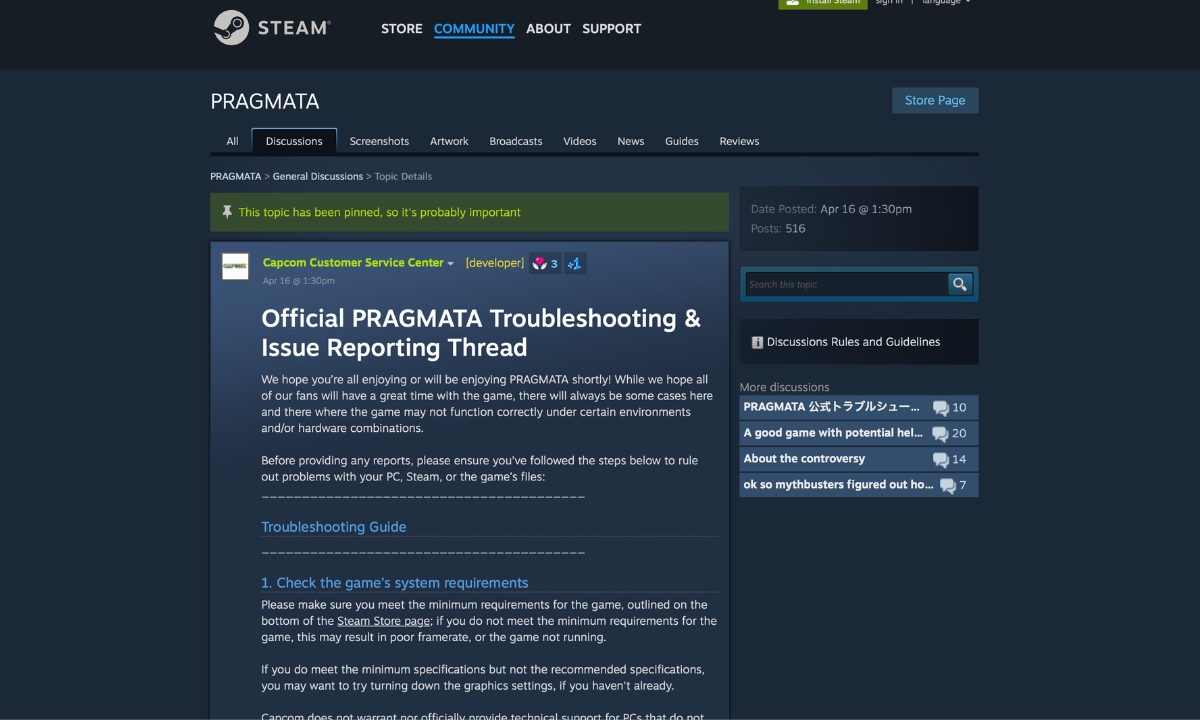
    Has Capcom Fixed Pragmata Stuttering and Freezing?

    Not yet. At the time of writing, Capcom’s update page only lists one patch for Pragmata — a PS5 Pro update from April 21, 2026. There is no PC performance patch confirmed yet.

    What Capcom does have is an official troubleshooting thread on Steam where their support team lists steps players can take to help the game run better. That thread is the foundation for many of the fixes in this guide.

    Intel also released a driver update that fixed a specific crash for players with Intel graphics cards. More on that in Fix 9.

    Players on Steam and Reddit are still reporting problems. So treat everything below as steps to try, not guaranteed fixes. Game Empress will update this guide when Capcom releases a proper patch.

    Fix 1: Update Your Graphics Drivers and Windows

    This is the first thing Capcom tells players to do — and it really does matter. Old graphics drivers are one of the most common reasons Pragmata stutters or crashes on PC.

    Think of a graphics driver like the translator between Pragmata and your graphics card. If the translator is out of date, things get lost in translation, and the game breaks.

    Here is what to do depending on your graphics card:

    NVIDIA users: Go to NVIDIA’s website and download the latest driver. While you are there — if you have something called NVIDIA Smooth Motion turned on, turn it off before launching Pragmata. Players have reported that Smooth Motion causes crashes when the game tries to use DLSS or Frame Generation. It is a quick setting to check and a low-risk thing to try.

    AMD users: Go to AMD’s website and grab the latest driver.

    Intel Arc users: There is a specific driver you need — version 32.0.101.8735, released April 21, 2026. Before this driver, Pragmata could crash while loading the game menu on some Intel graphics setups. Download it from Intel’s official site and see Fix 9 for more details.

    A cleaner way to update drivers. When you uninstall a graphics driver the normal way, it leaves bits and pieces behind that can cause problems with the new driver. A free tool called Display Driver Uninstaller (DDU) removes everything completely. Capcom’s own guide recommends a clean install if a normal update does not help. You can download DDU from Guru3D.

    Also run Windows Update and install anything that is waiting. Pragmata needs DirectX 12 to work, and old Windows versions can cause issues with it.

    Fix 2: Check Your Game Files on Steam
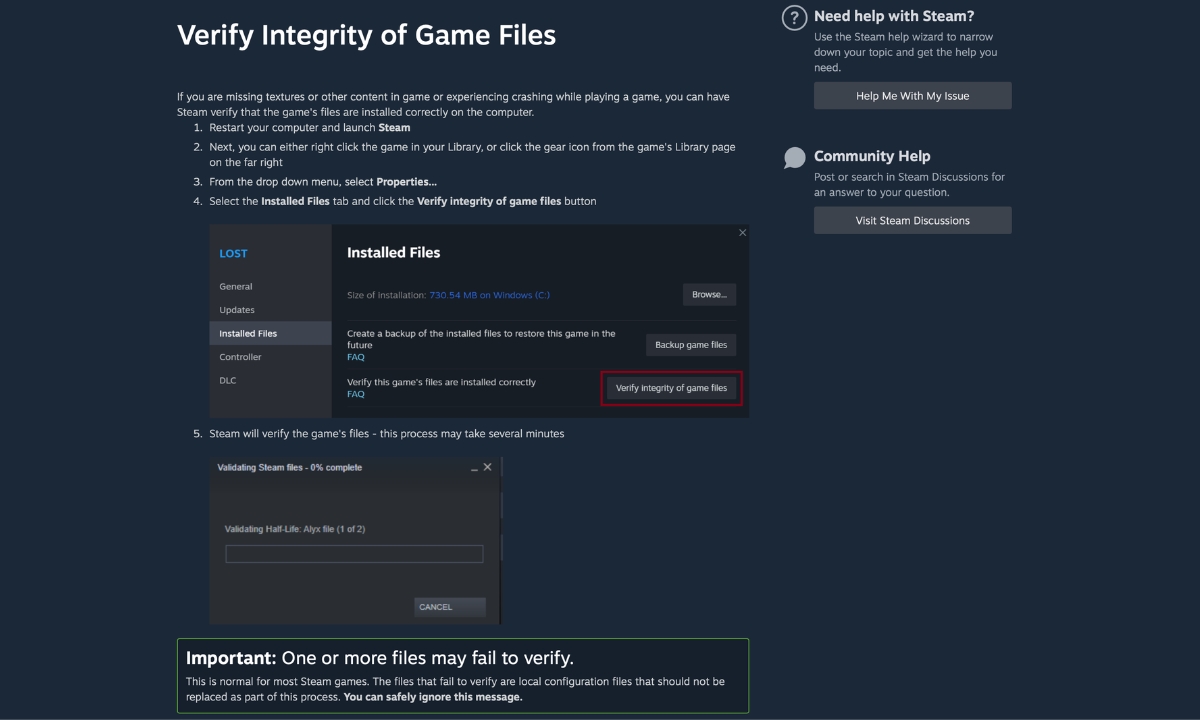
    Check Your Game Files on Steam

    Sometimes a file gets corrupted during download or after an update. One bad file can cause crashes, stuttering, and all sorts of strange behaviour — even if everything else on your PC is fine.

    Steam has a built-in tool that checks your game files and replaces anything broken. Capcom recommends this as one of the first steps to try.

    Here is how to do it:

    1. Open Steam and find PRAGMATA in your library.
    2. Right-click it and choose Properties.
    3. Click Installed Files.
    4. Click Verify integrity of game files.

    Steam compares your local files against Steam’s content server and redownloads anything that is missing or damaged. It takes a few minutes. This normally does not affect save data. Capcom’s guide notes that one or more files may fail to verify — this is normal for local configuration files and you can safely ignore that message. Let the process finish completely before relaunching the game.

    Fix 3: Delete the Shader Cache Files

    This is one of the most important fixes on this list, and it comes straight from Capcom’s official guide.

    Here is the idea: Pragmata creates special files that help it load graphics faster. Over time, these files can get damaged — especially if you changed your settings or had a crash mid-game. When that happens, the game slows down or behaves strangely because it is working from bad data.

    The fix is simple: delete the old files. The game will make fresh ones the next time you start it.

    Capcom specifically names these three files to delete:

    • shader.cache
    • shader.cache2
    • pipelinelist.bin

    You will find them inside the Pragmata game folder. The default location is:

    C:\Program Files (x86)\Steam\steamapps\common\PRAGMATA

    Just open that folder, find those three files, and delete them. The game should recreate them after launch. Players on Steam say that deleting shader.cache2 in particular made a noticeable difference in crash frequency and stuttering.

    Fix 4: The Game Freezes Every Few Seconds — Try This

    If Pragmata freezes briefly on a rhythm — about every 20 to 30 seconds — this is probably connected to the game preparing graphics as you play. It is most common on your first playthrough.

    According to community testing by GameGuidesBox, one tester tracked freezes every 25 seconds during a full first playthrough. After clearing the shader cache and letting the game rebuild it, the second playthrough had no freezes for four hours. Results will vary depending on your PC, but it is a good starting point.

    Here is the step-by-step fix:

    Step 1: Delete the three shader files from your Pragmata folder as described in Fix 3.

    Step 2: Clear the Steam shader cache too. Open Steam, go to Settings > Downloads, and click Clear Download Cache. Then open your Steam folder, go to steamapps > shadercache, find the folder named 3357650 (that is Pragmata’s ID), and delete it.

    Step 3: Launch Pragmata and wait on the main menu for a minute or two before starting the game. This gives it time to rebuild everything before you start playing.

    Step 4: If freezes are still happening after that, open Windows Disk Cleanup, select your C drive, tick DirectX Shader Cache, and click OK. This clears an extra cache your graphics driver uses, and it can help too.

    Why does this work? Multiple guides for games on the same engine describe a pattern where the game prepares graphics effects the first time they appear — pausing briefly each time it does. Once it has done the work once, those pauses stop. Capcom does not explain this directly in their guide, but their recommendation to delete shader files is consistent with it.

    Fix 5: Getting a Fatal D3D Error? Here Is What to Do

    The Fatal D3D error looks like this:

    Fatal D3D error (24, DXGI_ERROR_DEVICE_REMOVED, 0x887a0005)

    That looks intimidating but it basically means: your PC lost its connection to the graphics card and could not get it back. The game crashed instead of recovering.

    This is one crash type Pragmata players are reporting. Here is how to work through it:

    Turn off Path Tracing first. Path Tracing is a very demanding graphics setting that shows up in many of these crash reports. If you have it turned on, turn it off — either in the game settings or by editing the config file (see Fix 8). Some players found this alone stopped the crashes.

    Remove any GPU overclocking. If you have ever used software like MSI Afterburner to make your graphics card run faster, that can cause instability in Pragmata. Set everything back to default and test the game at normal speed before trying anything else.

    Do a clean driver reinstall using DDU. If the crash keeps happening even at default settings, there may be leftover data from old drivers causing the problem. Use DDU (see Fix 1) to wipe everything clean and install fresh drivers. Players who were stuck on this error said a DDU wipe fixed it when nothing else did.

    The TdrDelay registry fix — only if nothing else works. Some third-party guides suggest a Windows registry change that gives your graphics card more time to respond before Windows forces a crash. It is not something Capcom recommends, and it is a system-level change, so only try it as a last resort. If you want to try it:

    1. Press Win + R, type regedit, and press Enter.
    2. Go to HKEY_LOCAL_MACHINE\SYSTEM\CurrentControlSet\Control\GraphicsDrivers.
    3. Right-click in that folder and choose New > DWORD (32-bit) Value.
    4. Name it TdrDelay and set the value to 10.
    5. Restart your PC.

    If this causes any new problems, delete the TdrDelay entry to undo it.

    Crashed after changing Frame Generation to DLSS? Some players got stuck in a crash loop after switching that setting. The fix was deleting both the shader cache files and the config.ini file from the game folder, then letting both rebuild from scratch on the next launch.

    For a deeper look at all types of Pragmata crashes, see our Pragmata Fatal D3D Error and Crashing Fixes guide.

    Fix 6: Close Other Programs and Turn Off Overlays

    Pragmata does not always play well with other software running in the background. Capcom’s own guide calls this out — recording tools, performance overlays, and background apps can all get in the way and cause stuttering or crashes.

    Try turning these off one at a time and testing after each:

    • Steam overlay — turn it off in Steam > Settings > In-Game
    • Discord overlay
    • NVIDIA GeForce Experience overlay
    • NVIDIA Smooth Motion — found in NVIDIA App or driver settings. Players report this causes crashes with DLSS or Frame Generation
    • MSI Afterburner and RivaTuner
    • Xbox Game Bar
    • OBS, ShadowPlay, or any other recording tool
    • Browser tabs, cloud backup tools, anything updating in the background

    Also add Pragmata to your antivirus exceptions. This is something a lot of people miss. If your antivirus is scanning game files while Pragmata is loading them, it can cause hitches and mid-session crashes. Capcom specifically names these three things to exclude:

    • PRAGMATA.exe — found at C:\Program Files (x86)\Steam\steamapps\common\PRAGMATA
    • Steam.exe — found at C:\Program Files (x86)\Steam
    • Your Steam AppData folder — found at C:\Users\[your name]\AppData\Local\Steam

    Fix 7: Turn Down Your Graphics Settings

    If the game is still stuttering after the steps above, your graphics settings might simply be too high for your hardware. Capcom recommends lowering them, starting with the most demanding ones first.

    Go to Options > Graphics and switch to the Minimum preset. If the stuttering stops, you know graphics load is the issue. Then you can slowly raise individual settings until you find where the problem starts.

    Here is what to change and why:

    Ray Tracing — turn it off if your card is not powerful enough. The game requires at least an AMD Radeon RX 6700 XT with 12GB of memory, or an NVIDIA RTX 3060 with 12GB, to support ray tracing properly. If your card is below that, turning ray tracing off will help a lot.

    Path Tracing — turn this off first when troubleshooting. Path Tracing is even more demanding than ray tracing. It appears in a lot of crash reports, particularly the Fatal D3D error. Turning it off is a sensible first troubleshooting step when something goes wrong.

    Texture Quality — stick to Medium. If textures look blurry or the game feels sluggish, your graphics card may be running out of memory. Drop textures to Medium. One community tester reported that the Low preset actually made things worse — causing textures to fail loading and creating frame time spikes. Medium is the safe floor.

    Volumetric Lighting and Fog — lower these in demanding scenes. These settings affect how light moves through air and smoke effects. Lowering them can smooth out performance in busier parts of the game.

    Shadow Quality and Hair Quality — Medium is fine. These have a noticeable impact on performance with very little visible difference when set to Medium.

    Use the game’s upscaling option. In graphics settings, you can switch to a balanced upscaling mode. This makes the game run at a lower resolution internally and then sharpens the image — giving you better performance without making things look dramatically worse.

    Once everything is running smoothly, check out our Pragmata All Weapons Guide to see all 15 weapons in the game, and our Pragmata Best Loadout Guide to build the best setup.

    Fix 8: Crashes When Changing Path Tracing or Frame Generation?

    Some players find that Pragmata crashes the moment they try to turn Path Tracing or Frame Generation on or off in the settings menu. It crashes before the setting even changes.

    Wccftech reports that editing config.ini can bypass crashes caused when toggling Path Tracing or Frame Generation from the in-game menu. The workaround is to set these options before you launch the game instead of changing them inside it:

    1. Right-click PRAGMATA in Steam, choose Manage > Browse Local Files.
    2. Find the file called config.ini and open it with Notepad.
    3. Change your Path Tracing, Frame Generation, and upscaling settings directly in that file.
    4. Save and close the file, then launch the game.

    This way the game starts with the settings already set and never has to restart anything mid-session.

    Also — if you have any GPU overclock running, turn it off before changing graphics-heavy settings. The game is sensitive to that kind of instability.

    Fix 9: Intel Graphics Users — Install This Driver
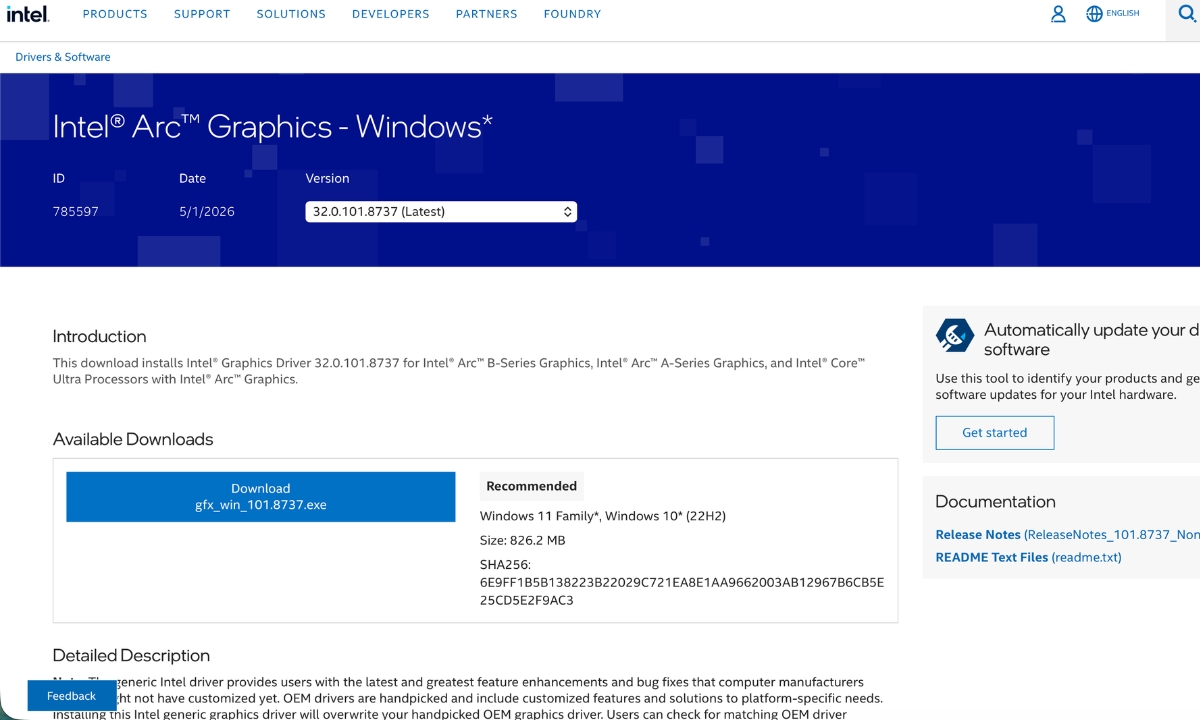
    Intel Arc graphics driver page for Pragmata crash fix

    If your PC has an Intel Arc graphics card or an Intel Core Ultra processor with built-in graphics, there is a specific driver update just for you.

    Intel released driver 32.0.101.8735 on April 21, 2026. Before this update, Pragmata could crash while loading the game menu on some Intel setups. This driver fixes that specific problem.

    It covers:

    • Intel Arc A-Series graphics cards
    • Intel Arc B-Series graphics cards
    • Intel Core Ultra Series 1, 2, and 3 with built-in Intel Arc graphics

    Download it from Intel’s official driver page.

    One important note: this fix only covers that specific menu crash. It does not fix general stuttering, freezing, or long-session slowdowns on Intel hardware. Do not expect it to solve everything.

    Fix 10: Check Your PC’s Temperature, Power Settings, and SSD

    These are easy to overlook but they matter. Capcom’s own guide mentions all of them.

    If your PC gets hot, the game will slow itself down. When your graphics card runs too hot, it automatically reduces its speed to cool down. This causes stuttering that gets worse the longer you play — and usually recovers after you restart the game. Use a free tool like HWMonitor to check your temperatures while playing. If they are running high, make sure your vents are clear and your fans are working.

    Set Windows to High Performance mode. If your PC is set to a power-saving mode, it may be limiting how fast your processor and graphics card run. Search for Power Plan in Windows and switch to High Performance or Balanced. This is especially important on laptops.

    Laptops: make sure Pragmata is using the right graphics card. Many laptops have two graphics cards — a weaker one built into the processor, and a stronger dedicated one. Pragmata should always use the dedicated one. Open your NVIDIA or AMD control panel and check that Pragmata is assigned to the dedicated card. Running it on the built-in graphics will cause serious performance problems.

    Install the game on an SSD. Capcom recommends an SSD in the system requirements. Pragmata loads a lot of data as you move through the game. If it is installed on an older hard drive, you may see loading pauses and texture delays. Moving it to an SSD is worth doing if you have the option.

    Quick Answers

    Has Capcom permanently fixed Pragmata stuttering and freezing? Not yet. As of the time of writing, there is no PC performance patch from Capcom. What exists are their official troubleshooting steps, one Intel driver fix, and workarounds players have shared.

    Why does the game freeze every few seconds? This is likely connected to the game preparing graphics effects as you play. Deleting the shader cache files — shader.cache, shader.cache2, and pipelinelist.bin — from the game folder and letting them rebuild has helped many players. It is most common on a first playthrough.

    What is the Fatal D3D error? It means your PC lost connection to the graphics card and could not get it back. Start by turning off Path Tracing and removing any GPU overclock. If it keeps happening, do a clean driver reinstall with DDU.

    Should I delete the shader cache files? Yes. Capcom’s guide specifically recommends it for graphical issues and instability. The files are safe to delete — the game rebuilds them automatically.

    Does NVIDIA Smooth Motion cause crashes in Pragmata? Players report that disabling it fixed crashes when using DLSS or Frame Generation. It is not an official Capcom statement, but it is easy to check and worth trying.

    What did the Intel driver fix? Driver 32.0.101.8735 fixed a crash that happened when loading the game menu on some Intel Arc and Core Ultra setups. It does not fix general stuttering or freezing.

    Where do I report a crash to Capcom? Go to Capcom’s pinned Steam thread. When Pragmata crashes, it saves a crash report file inside your game folder in a folder called CrashReport. Attach that zip file, along with your DxDiag.txt and config.ini, when you contact Capcom support.

    More Pragmata Guides


    Game Empress will update this guide when Capcom releases a patch for PC performance.

  • Pragmata Fatal D3D Error and Crashing Fixes on PC

    Pragmata Fatal D3D Error and Crashing Fixes on PC

    If you’re seeing a Pragmata Fatal D3D error on PC, or the game is crashing with a black screen, a crash report tool message, or freezes tied to enabling DLSS, Frame Generation, or Path Tracing, the problem usually points to one of a handful of causes: GPU driver issues, DirectX 12 instability, NVIDIA Smooth Motion conflicts, corrupted game files, shader cache problems, or VRAM pressure. This guide breaks down each crash type and the fixes most likely to match your specific situation — so you’re not working through a generic list when a targeted fix exists.

    Disclaimer: These fixes draw on official Intel driver release notes, NVIDIA’s Game Ready Driver documentation, Steam’s system requirements and support guidance, WCCFTech’s troubleshooting guide, and player-reported workarounds from Steam Discussions and ResetEra. Not every fix will work for every hardware configuration.

    Quick Fixes to Try First

    Start here if you’re troubleshooting a Pragmata Fatal D3D error before diving into the specific sections below:

    • Restart the game and your PC
    • Update your GPU driver (see sections below for version numbers)
    • Verify Pragmata’s game files on Steam
    • Disable Path Tracing and Frame Generation temporarily
    • Turn off NVIDIA Smooth Motion in the NVIDIA app if crashes happen when toggling DLSS, Frame Generation, or Path Tracing (see dedicated section below)
    • Close all overlays: Steam Overlay, Discord Overlay, NVIDIA Overlay, MSI Afterburner, RivaTuner
    • Remove any GPU overclock or undervolt
    • Lower texture quality and shadow settings if crashes are intermittent
    • Clear or rebuild the shader cache

    Update Your GPU Driver First

    GPU drivers are one of the first things to rule out when diagnosing a Pragmata Fatal D3D error, DXGI_ERROR_DEVICE_REMOVED crash, or DirectX 12 instability.

    NVIDIA: NVIDIA released GeForce Game Ready Driver 596.21 WHQL as the day-one driver for Pragmata. It specifically optimizes for the game’s Path Tracing, DLSS Multi Frame Generation, and DLSS Ray Reconstruction pipeline. If you’re running an older driver, the first step is updating to 596.21 or newer via the NVIDIA app or GeForce.com.

    AMD: AMD added official Pragmata support in Adrenalin Edition 26.5.1, released May 6, 2026. If you installed an older Adrenalin build at launch, update to 26.5.1 or newer before testing other fixes. Steam lists AMD Radeon RX 6700 XT 12 GB as the minimum GPU required for ray tracing support, so Radeon users should also lower ray tracing and other GPU-heavy settings if crashes continue. Grab the latest Adrenalin Edition from AMD’s website.

    Intel Arc: See the dedicated Intel section directly below — there is a specific driver fix documented for Pragmata crash-on-menu-load.

    Intel Arc Users: Install Driver 32.0.101.8735 or Newer — This Is Your Fix

    If you’re running any Intel Arc GPU or a laptop with Core Ultra integrated Arc graphics and getting a Pragmata Fatal D3D error or menu crash, this is the official first fix to try — Intel has formally documented it. For general gameplay help once you’re stable, see our Pragmata boss guide.

    Intel’s release notes for driver 32.0.101.8735 (non-WHQL, released April 21, 2026) explicitly list the following as a fixed issue:

    Pragmata (DX12) may experience application crash while loading into game menu.

    This fix applies across all of the following Intel GPU groups:

    • Intel Arc A-Series discrete graphics
    • Intel Arc B-Series discrete graphics
    • Intel Core Ultra Series 1 with built-in Intel Arc GPUs
    • Intel Core Ultra Series 2 with built-in Intel Arc GPUs
    • Intel Core Ultra Series 3 with built-in Intel Arc GPUs

    This driver was issued specifically to address the Pragmata DX12 menu crash — it contains no new feature additions or support for other games. If you have an Arc GPU and the game crashes on the menu screen, this driver update is your primary fix. Download it from Intel’s Arc Graphics driver page or use Intel Driver & Support Assistant to detect your hardware.

    A community workaround that existed before the driver fix involved deleting the game’s shader cache and config files. If you installed the driver and still see issues, that workaround remains worth trying (see the shader cache section below).

    How to Fix the Pragmata Fatal D3D Error

    The Pragmata Fatal D3D error typically surfaces with the DXGI_ERROR_DEVICE_REMOVED error code (0x887a0005), which means Windows lost connection to the GPU mid-session. This can happen for several reasons:

    Cause 1: GPU driver timeout. The GPU hangs, Windows kills it, and DirectX 12 throws the device-removed error. A community-reported workaround involves adjusting Windows’ TDR (Timeout Detection and Recovery) delay. This is an advanced troubleshooting step only. Microsoft’s official documentation explicitly states that end users should not manipulate TDR registry keys outside of targeted testing or driver development. Back up your registry before proceeding, understand you are making a system-level change, and consider whether other fixes in this guide are a better starting point.

    If you still want to try it:

    1. Press Win + R, type regedit, and press Enter
    2. Back up the registry first: File → Export, save a copy somewhere safe
    3. Navigate to HKEY_LOCAL_MACHINE\SYSTEM\CurrentControlSet\Control\GraphicsDrivers
    4. Right-click, select New > DWORD (32-bit) Value, and name it TdrDelay
    5. Set the value to 10 (Decimal)
    6. Restart your PC

    This tells Windows to wait up to 10 seconds before declaring the GPU unresponsive, instead of the default 2 seconds. It does not fix the underlying instability but can prevent false-positive crashes when the GPU is under heavy load.

    Cause 2: GPU overclock or undervolt. Pragmata runs on Capcom’s RE Engine, which has been reported as sensitive to GPU overclocks by both WCCFTech’s troubleshooting guide and player reports across RE Engine titles including Monster Hunter Wilds and Resident Evil Requiem. If you use an overclock or undervolt, return the GPU to stock settings while testing. Close MSI Afterburner, Precision X1, or any similar tool first.

    Cause 3: VRAM pressure. The Pragmata Fatal D3D error can also be a sign of the GPU running out of video memory. The 8 GB threshold is meaningful specifically for ray tracing: Steam’s system requirements list 12 GB GPUs as the minimum for RT support, and at 1440p with RT or Path Tracing active, 8 GB VRAM cards can exceed their headroom. Higher resolutions, ray tracing, Path Tracing, and high texture settings can all increase VRAM pressure — lower these settings and test again.

    Pragmata Crashes When Enabling DLSS or Path Tracing? Disable NVIDIA Smooth Motion First

    Some NVIDIA users report that Pragmata crashes the moment DLSS, Frame Generation, or Path Tracing is toggled in the in-game settings — a pattern that can look like a Pragmata Fatal D3D error but is triggered by a settings conflict rather than a hardware fault. Several players on Steam Discussions say turning off Smooth Motion in the NVIDIA app global settings stopped the crash. This has not been officially confirmed by NVIDIA or Capcom, but it is one of the first things worth checking if this crash pattern matches your situation.

    To disable Smooth Motion:

    1. Open the NVIDIA app
    2. Go to Graphics settings
    3. Find Smooth Motion and set it to Off
    4. Restart Pragmata

    Several Steam users reported that turning Smooth Motion off stopped the crash on RTX 3080 Ti, RTX 4090, and other NVIDIA GPUs even when running driver 596.21.

    Enabling Path Tracing or Frame Generation Crashes the Menu? Edit config.ini Directly

    Pragmata Fatal D3D Error and Crashing Fixes on PC

    If toggling Path Tracing or Frame Generation in the in-game settings menu instantly crashes Pragmata to desktop (separate from the Smooth Motion issue above), you can bypass the in-game UI entirely by editing the game’s configuration file directly.

    1. In Steam, right-click Pragmata → Manage → Browse Local Files
    2. Locate config.ini in the installation folder and make a backup copy first
    3. Open config.ini with Notepad and look for lines relating to Path Tracing, Frame Generation, and DLSS/Upscaling settings
    4. Edit only lines that match those categories — the exact label names may vary between game versions, so change only entries you can clearly identify, and do not guess
    5. Save the file and start Pragmata without changing those settings in-game

    This workaround was documented by WCCFTech based on player reports and allows the game to load with those features active without triggering the menu crash. Pair this with ensuring Smooth Motion is disabled in the NVIDIA app.

    Turn Off Frame Generation If Pragmata Keeps Crashing or Stuttering

    Frame Generation and DLSS Multi Frame Generation are high-demand features that can add extra GPU and frame-pacing workload. Beyond crash reports, some players on forums report that Frame Generation in Pragmata amplifies traversal stutter and creates microstutter during camera rotation on certain setups. Disabling Frame Generation and running the game uncapped or with VSync produces smoother frame pacing for some users, though results vary by hardware. While you troubleshoot, see all 15 weapons in Pragmata and where to find them so you’re ready when the game is stable.

    If Pragmata crashes after enabling Frame Generation:

    • Disable Frame Generation in-game or via config.ini
    • Ensure NVIDIA Smooth Motion is off (see above)
    • Test the game with only DLSS Super Resolution enabled and no Frame Generation
    • If crashes stop, Frame Generation was likely one trigger on your setup — report it to Capcom with your GPU model, driver version, and exact error

    Note: Standard DLSS Frame Generation is available on RTX 40 and 50 Series GPUs. DLSS Multi Frame Generation — which NVIDIA quotes at up to 3.1× performance multiplier — is exclusive to RTX 50 Series. RTX 40 Series users can use standard DLSS Frame Generation, but DLSS Multi Frame Generation settings are intended for RTX 50 Series hardware only.

    Disable Path Tracing If Pragmata Keeps Crashing

    NVIDIA describes Pragmata’s path-traced effects as part of the GeForce RTX PC feature set, and independent benchmark coverage confirms Radeon hardware cannot access the Path Tracing option in this title. Radeon users should treat standard ray tracing as the supported RT path unless Capcom or AMD state otherwise. Path Tracing is also the most GPU-intensive setting in the game and one reported trigger for crashes on some systems — particularly those under VRAM pressure, running an active GPU overclock, or on hardware at the lower end of the ray tracing requirement.

    Steam’s official system requirements note that ray tracing alone requires at minimum an AMD Radeon RX 6700 XT 12 GB or NVIDIA GeForce RTX 3060 12 GB — and Path Tracing demands significantly more than basic ray tracing. If you’re on a card with 8 GB or 10 GB of VRAM, Path Tracing at higher resolutions may exceed your VRAM headroom and contribute to instability.

    If Pragmata crashes after enabling Path Tracing:

    1. Disable Path Tracing in-game, or set PathTracing=OFF in config.ini
    2. Test the game in standard ray tracing mode or with ray tracing off entirely
    3. If the game becomes stable, Path Tracing was likely one of the triggers on your setup — try re-enabling it only with DLSS set to Performance mode to reduce the rendering workload

    For help building the best setup once you have the game running cleanly, see our Pragmata best loadout guide.

    AMD Radeon users: Path Tracing is not available on AMD hardware in Pragmata. AMD users have access to standard ray tracing and FSR upscaling.

    Verify Pragmata Game Files on Steam

    Corrupted installation files — from a partial download, failed update, or shader cache mismatch — can cause a Pragmata Fatal D3D error on startup or crashes during shader compilation. Steam’s file verification checks whether the game’s files are installed correctly and reacquires missing or corrupted files. Steam’s own support documentation covers the full process.

    1. Open Steam and go to your Library
    2. Right-click PRAGMATAPropertiesInstalled Files
    3. Click Verify integrity of game files
    4. Wait for the scan to complete (this may take several minutes)
    5. Restart the game after verification finishes

    Steam’s own support documentation notes that one or more files may fail to verify — this is normal for most games and refers to local configuration files that Steam intentionally skips. You can safely ignore that message.

    Clear Shader Cache or Let Shaders Rebuild

    Crashes that occur specifically during startup, on the loading screen, or during the game’s shader compilation phase often point to a corrupt shader cache rather than a driver or hardware issue. Clearing the cache forces the game to rebuild shaders from scratch.

    NVIDIA:

    1. Open NVIDIA Control Panel → Manage 3D Settings
    2. Set Shader Cache Size to Unlimited, which may help reduce cache-related stutter or rebuild issues on some systems
    3. To clear the existing cache, navigate to %LocalAppData%\NVIDIA\GLCache and delete the contents

    AMD:

    1. Open AMD Adrenalin
    2. Go to Graphics → Advanced → Reset Shader Cache

    After clearing, launch Pragmata and allow it to compile shaders fully on the first startup before loading into the game. Do not alt-tab or interrupt this process.

    One player on Steam reported that deleting both the shader cache and the config.ini file resolved crashes that occurred after switching the DLSS mode — the game had written a bad config state after the initial crash, and clearing it allowed a clean restart.

    Lower VRAM-Heavy Graphics Settings

    If Pragmata crashes intermittently — especially during intense scenes, open areas, or scenes with heavy reflections — VRAM pressure is a possible contributor. Cards with 8 GB of VRAM meet the recommended spec for standard 1080p/Balanced play, but Steam lists 12 GB GPUs as the minimum required for ray tracing support. Enabling RT or Path Tracing on an 8 GB card at 1440p can push VRAM beyond its limit and cause intermittent hitching or crashes.

    Settings to lower if VRAM pressure is suspected:

    • Texture Quality — drop one level and test again
    • Shadow Quality — High to Medium
    • Shadow Cache — Reduce if available
    • Ray Tracing — Disable or use Standard RT instead of Path Tracing
    • Resolution Scale / DLSS Mode — Switch from Quality to Balanced or Performance to lower the internal render resolution
    • DLSS Frame Generation — Disable to reduce driver overhead

    Setting the shader cache to Unlimited in NVIDIA Control Panel (or the equivalent in AMD Adrenalin) may help in some cases by reducing how often the GPU has to recompile shaders as the cache fills, though it is not a guaranteed crash fix.

    Disable Overlays and Background Tools

    Background tools that hook into DirectX 12 — or that generate their own overlays on top of the game — are a common source of crash-on-launch and mid-game crash reports for RE Engine games, and can contribute to a Pragmata Fatal D3D error even when the GPU driver itself is stable. Close all of the following before launching Pragmata if you’re experiencing crashes:

    • Steam Overlay (right-click Pragmata in Steam → Properties → uncheck “Enable the Steam Overlay while in-game”)
    • Discord Overlay
    • NVIDIA Overlay (via NVIDIA app settings)
    • MSI Afterburner and RivaTuner Statistics Server
    • OBS Studio, Streamlabs, or other recording/streaming tools
    • FPS counters and monitoring tools (HWiNFO overlay, RTSS)
    • Lossless Scaling or any third-party frame generation tool

    One Steam user confirmed that opening Discord mid-session caused both Pragmata and Streamlabs to crash simultaneously, suggesting Discord’s overlay hooking into DX12 was the trigger. Test the game with all overlays completely disabled before re-enabling them one at a time.

    Remove GPU Overclocks and Undervolts to Fix Pragmata Fatal D3D Errors

    As mentioned in the Fatal D3D section, player reports and troubleshooting guides frequently point to GPU overclocks as a crash factor in RE Engine games. Because Pragmata runs on the same engine, testing at stock clocks is a standard first step when debugging a Pragmata Fatal D3D error or device-removed crash. This applies to both overclocks (which push the GPU beyond stable limits) and undervolts (which can cause instability under high-sustained load).

    If you have an active overclock or undervolt profile:

    1. Close MSI Afterburner, Precision X1, or AMD Adrenalin’s tuning features
    2. Restore all GPU clocks to default (stock)
    3. Restart your PC and test Pragmata before re-applying any profile

    Pragmata’s GPU load under Path Tracing in particular is sustained and high — even a mild overclock that is stable in other games can fail under this kind of workload.

    What If Nothing Works?

    If you’ve worked through all of the above and Pragmata still crashes:

    • Check for patches and driver updates. Intel shipped a dedicated non-WHQL hotfix within days of launch specifically for the Pragmata menu crash on Arc hardware, and AMD added official game support in Adrenalin 26.5.1. Keep your GPU driver current and watch the Pragmata Steam community page for patch notes.
    • Report persistent crashes with full details. Include your GPU model and VRAM, CPU, RAM amount, Windows version, driver version, exact error code (such as DXGI_ERROR_DEVICE_REMOVED or E_OUTOFMEMORY), and the exact circumstances that trigger the crash (startup, enabling Path Tracing, changing Frame Generation, specific area of the game). Submit through the relevant support channels: Capcom’s Steam community, NVIDIA’s driver feedback, AMD’s support site, or Intel’s Arc driver page.
    • Use a conservative preset temporarily. Switch to the Balanced or Performance preset with Path Tracing and Frame Generation disabled. These presets are designed to run on a wider range of hardware and are less likely to hit driver or VRAM edge cases.
    • Avoid Path Tracing and Frame Generation until stability improves. Standard ray tracing with DLSS Super Resolution is substantially less demanding and is a less demanding fallback on supported RTX hardware. Once your Pragmata Fatal D3D error is resolved and the game is stable, see our guide on how to beat the Sector Guard in Pragmata to get back into the action.

    Frequently Asked Questions

    What causes the Pragmata Fatal D3D error? A Pragmata Fatal D3D error most commonly points to GPU driver instability, DirectX 12 device timeouts (DXGI_ERROR_DEVICE_REMOVED), NVIDIA Smooth Motion conflicting with DLSS, Frame Generation or Path Tracing stress, corrupted game files or shader cache, VRAM exhaustion, or GPU overclocking software interfering with the RE Engine. Intel Arc users have a specific documented driver bug that was patched in driver 32.0.101.8735.

    How do I fix Pragmata crashing on startup? Update your GPU driver, verify Steam game files, disable all overlays, clear the shader cache, and use the default graphics preset. If you’re on Intel Arc hardware, install driver 32.0.101.8735 or newer. If the crash began after switching DLSS modes, delete the config.ini file and let the game regenerate it.

    Why does Pragmata crash when I enable DLSS or Frame Generation? One reported cause on NVIDIA hardware is Smooth Motion being enabled in the NVIDIA app global settings. Several players report that Pragmata crashes the moment DLSS or Path Tracing is toggled while Smooth Motion is active globally, and that disabling it stopped the crash. This has not been officially confirmed by NVIDIA or Capcom, but it is one of the first things worth checking before other steps.

    Does Path Tracing cause Pragmata crashes? It can on some systems, particularly those under VRAM pressure or running the game with an active GPU overclock. NVIDIA describes Pragmata’s path-traced effects as part of the GeForce RTX PC feature set, and its use is paired with DLSS Ray Reconstruction to help manage the performance cost. Steam’s system requirements note that even basic ray tracing requires at least an RTX 3060 12 GB or RX 6700 XT 12 GB.

    What is the Intel Arc Pragmata crash fix? Install Intel graphics driver 32.0.101.8735 or newer. Intel’s official release notes document a fixed issue where Pragmata (DX12) crashed while loading into the game menu. The fix covers Arc A-Series, Arc B-Series, Core Ultra Series 1, Core Ultra Series 2, and Core Ultra Series 3 GPUs.

    Should I verify Pragmata files on Steam? Yes. Steam’s verify feature checks whether the game’s installed files are correct and reacquires any that are missing or corrupted. Corrupted files from a failed download or shader cache mismatch can cause startup crashes or crashes during shader compilation. Run it from Pragmata → Properties → Installed Files → Verify integrity of game files.

    Why is Frame Generation causing stuttering in Pragmata? Some players report that Frame Generation can amplify traversal stutter or camera microstutter on certain setups. Disabling Frame Generation and running with an FPS cap via VSync or an external limiter instead of NVIDIA Reflex cap has helped some users, though results vary by hardware.

    More Pragmata Guides

    Once your crashes are resolved and the game is running, these guides will help you get the most out of it:

  • Is Subnautica 2 Coming To Game Pass?

    Is Subnautica 2 Coming To Game Pass?

    Yes, Subnautica 2 is coming to Xbox Game Pass. Microsoft has confirmed that the sequel will launch into Game Preview on May 14, 2026, for Xbox Series X|S, Windows PC, supported handhelds, and Cloud through Game Pass, with day-one availability through Xbox Game Pass Ultimate and PC Game Pass. The game will not be a full 1.0 release at launch — it is entering Game Preview, meaning players should expect an in-development version that may change over time.

    Subnautica 2 Launches Day One on Game Pass

    Xbox Wire has confirmed that Subnautica 2 will be available day one through Xbox Game Pass Ultimate and PC Game Pass when it enters Game Preview on May 14, 2026. The game is also listed in Xbox’s official May 2026 Game Pass lineup, where it appears under Game Pass Ultimate and PC Game Pass for Cloud, Xbox Series X|S, handheld, and PC.

    Which Game Pass Tiers Include Subnautica 2?

    Subnautica 2 Coming Game Pass

    Xbox’s confirmed wording names two tiers: Xbox Game Pass Ultimate and PC Game Pass. The game is not confirmed for every Game Pass tier. If you are on a different tier, check your subscription level before May 14.

    It is worth noting that the Xbox Store lists a separate line stating that online multiplayer on console requires Xbox Game Pass Essential, Premium, or Ultimate — but that refers to console online multiplayer access, not which tiers include the game itself.

    Is Subnautica 2 a Full Release?

    No. Subnautica 2 is launching in Game Preview, Xbox’s early-access program. The Xbox Store notes that the game is a work in progress and may change over time. Players who jump in on May 14 will be playing an in-development build, not the finished 1.0 version.

    Can You Play Subnautica 2 With Friends?

    Yes. Subnautica 2 supports both solo play and optional co-op multiplayer with up to three friends, for four-player co-op total. Co-op is not required — players who prefer to explore alone can do so.

    Subnautica 2 Game Pass Release Date

    Subnautica 2 enters Game Preview on May 14, 2026, included with Xbox Game Pass Ultimate and PC Game Pass on day one, for Xbox Series X|S and Windows PC.

  • Best 4K Settings for Subnautica 2 for Max FPS

    Best 4K Settings for Subnautica 2 for Max FPS

    The target for Subnautica 2 at 4K is High settings at 60 FPS — not Epic. Dropping Global Illumination, Shadows, View Distance, Shading, and Effects from Epic to High produces large performance gains while keeping the game looking excellent. Use DLSS Quality on Nvidia RTX cards, TSR on AMD and Intel, and cap your frame rate at 60 until your hardware can sustain higher.

    Best 4K Settings for Subnautica 2

    Setting Best 4K Value Why
    Resolution 3840×2160 Native 4K target
    Display Mode Fullscreen or Borderless Use whichever gives better stability for your setup
    FPS Cap 60 FPS Matches the current 4K High performance target
    Graphics Preset High More stable than Epic at 4K on most hardware
    Upscaling (Nvidia RTX) DLSS Quality Best image quality with meaningful FPS headroom
    Upscaling (AMD/Intel) TSR Quality or Balanced Native FSR is not currently available; TSR is the fallback for non-Nvidia GPUs
    DLSS Frame Generation On only if base FPS is stable Do not use to mask an unstable base frame rate
    Global Illumination High One of the most expensive settings in the game
    Shadows High Large FPS gain compared to Epic with minimal visual loss
    View Distance High Drop first if you encounter stutters during exploration
    Shading High Good balance between rendering quality and cost
    Effects High Stabilises performance in heavy underwater scenes
    Textures High or Epic if VRAM allows Try Epic only if you have plenty of VRAM, ideally 16 GB for 4K; lower to High if hitching occurs
    Motion Blur Off Cleaner image at 4K; no meaningful quality trade-off
    V-Sync Off with VRR/G-Sync/FreeSync; On if tearing appears Depends on monitor

    Subnautica 2 official PC system requirements for 4K Settings for Subnautica 2

    Best 4K Settings for Nvidia RTX GPUs

    Nvidia users currently have the most complete in-game upscaling path because Subnautica 2 supports DLSS and DLSS Frame Generation, while FSR is not available yet. DLSS Quality is the recommended starting point at 4K — it renders at roughly 67% of native resolution and upscales to 4K, recovering substantial FPS while keeping the image sharp enough that the difference from native is difficult to spot during gameplay.

    If your base frame rate is stable above 45 FPS, DLSS Frame Generation is worth enabling. It inserts AI-generated frames between rendered frames to boost perceived smoothness. The important caveat is that Frame Generation adds latency and works best when the underlying frame rate is already solid — if you are struggling to hold 40 FPS, fix that first by lowering Global Illumination and Shadows before enabling it.

    If DLSS Quality still leaves you short of 60 FPS, move to DLSS Balanced. DLSS Performance should be treated as a last resort at 4K. It can help weaker GPUs reach playable frame rates, but it will soften the image more than Quality or Balanced. Avoid using Performance at 1440p unless you have no other option.

    Nvidia GPU targets at 4K:

    GPU Realistic 4K Target
    RTX 3070 1440p High; 4K only with DLSS Performance and heavy setting reductions
    RTX 4070 1440p High/60 FPS; 4K possible with upscaling and reduced settings, not guaranteed
    RTX 5070 Ti 4K High / 60 FPS — the official Ultra++ target
    RTX 5080 / 5090 4K High/Epic mix, DLSS Quality, higher FPS target possible

    Best 4K Settings for AMD and Intel GPUs

    AMD and Intel users are currently working with fewer upscaling options. Native FSR is not currently available in Subnautica 2 at this stage of Early Access — FSR is confirmed to be coming later. Until then, TSR (Temporal Super Resolution) is the safest fallback recommendation for AMD and Intel users.

    TSR Quality is the recommended starting mode for AMD and Intel users. It renders below native 4K and upscales back to the target resolution, giving extra FPS while keeping image quality reasonably close to native. TSR Balanced is the next step down if you still need more FPS headroom.

    AMD and Intel users should also pay closer attention to the settings that stress VRAM, particularly Textures and View Distance, as TSR does not recover performance as efficiently as DLSS on Nvidia hardware.

    AMD GPU targets at 4K:

    GPU Realistic 4K Target
    RX 6700 XT 1440p High; 4K not practical at this stage
    RX 6900 XT 1440p High/60 FPS; 4K may require TSR Balanced and reduced settings
    RX 7900 XTX 4K High / 60 FPS — the official Ultra++ target

    Settings to Lower First for Better FPS

    Subnautica 2 in-game environment at 4K

    When performance drops at 4K, these five settings give the largest gains when reduced from Epic to High. Work through them in this order:

    Global Illumination is one of the highest-cost settings in Subnautica 2. It controls how light bounces through environments — the underwater lighting in the game is particularly demanding. Dropping this from Epic to High alone recovers significant frame rate.

    Shadows at Epic can be expensive in Unreal Engine 5 games, and Subnautica 2 is no exception based on current testing. The difference between Epic and High shadows is noticeable in still screenshots but much harder to spot during active gameplay. Drop this early.

    View Distance directly affects how much geometry and detail the game renders in the distance. In Subnautica 2’s open underwater environments, this is a major driver of frame rate variance. If you notice stutters specifically while swimming through open water or large biomes, this is the first setting to pull back.

    Shading controls surface rendering complexity. It sits in the mid-range of cost but adds up alongside the other heavy settings. High is a reliable stopping point.

    Effects covers particle systems and post-process effects — things like bioluminescent particles, water distortion, and explosion aftermath. These become particularly expensive in dense underwater scenes. High is the practical ceiling for most 4K rigs.

    Can Subnautica 2 Run at 4K 60 FPS?

    Can Subnautica 2 Run at 4K 60 FPS

    Yes, but the hardware requirement is high. Unknown Worlds’ system-requirements recommendations list the Ultra++ target at 4K/High/60 FPS, requiring an RTX 5070 Ti or RX 7900 XTX-class GPU, 32 GB of system RAM, and 16 GB of VRAM.

    Cards below that tier — including the RTX 4070 and RX 6900 XT — are better treated as 1440p High/60 FPS cards based on the published spec targets. They may be able to run 4K with upscaling and reduced settings, but consistent 4K/60 should not be promised. The RTX 3070 and RX 6700 XT, which are Subnautica 2’s official recommended specs, are not suited for native 4K. Those cards are the target for 1440p Medium/High.

    Subnautica 2 is in Early Access, which means optimization is ongoing. Performance will likely improve in future updates, and FSR support for AMD users is coming. The settings and targets in this guide reflect the game’s current state — for context on the lead-up to its launch, see our coverage. If you are playing through Xbox Game Pass, the same PC settings apply via the Windows version.

    Best Settings for Smooth 4K Without Losing Visual Quality

    Best Settings for Smooth 4K Without Losing Visual Quality

    If your goal is the best possible image at 4K without frame rate drops, this is the balanced profile that keeps the most visually important settings high while cutting the heaviest costs:

    • Graphics Preset: High as the base
    • Global Illumination: High
    • Shadows: High
    • View Distance: High
    • Shading: High
    • Effects: High
    • Textures: Epic (if you have plenty of VRAM, ideally 16 GB) or High; drop to High if texture streaming issues appear
    • Motion Blur: Off
    • Upscaling: DLSS Quality (Nvidia) or TSR Quality (AMD/Intel)
    • FPS Cap: 60

    For many players, the visual gap between this profile and a full Epic preset should be small enough during normal play to justify the performance gain. The underwater environments in Subnautica 2 are lit and detailed enough that High settings read as high quality during actual play. The settings where Epic makes a perceptible difference — Global Illumination and Shadows — are precisely the ones that cost the most FPS.

    Frequently Asked Questions

    Does Subnautica 2 support DLSS? Yes. Nvidia RTX users can use DLSS Quality, Balanced, or Performance upscaling, as well as DLSS Frame Generation on supported cards.

    Does Subnautica 2 support FSR? Not currently. AMD FSR support is planned but not yet available in Early Access. AMD and Intel users should use TSR as the fallback upscaling option.

    Is Epic better than High at 4K? For most hardware, no. The FPS cost of Epic settings at 4K — particularly Global Illumination, Shadows, and Effects — is high enough that 60 FPS becomes difficult to sustain. High is the better 4K target.

    What GPU do you need for 4K 60 FPS in Subnautica 2? The RTX 5070 Ti or RX 7900 XTX are the current 4K High / 60 FPS targets. Cards below that tier will need upscaling and reduced settings to hit 60 FPS at 4K.

    Should I use DLSS Frame Generation? Only if your base frame rate is already stable. Frame Generation works by inserting frames between rendered ones, which adds latency and is less effective when the underlying FPS is low. Aim for a stable base above 45 FPS before enabling it.

  • How to Get Pikachu & Raichu in Pokémon LeafGreen

    How to Get Pikachu & Raichu in Pokémon LeafGreen

    In Pokémon LeafGreen, you can catch Pikachu in two locations: Viridian Forest early in the game, or the Power Plant later on. To get Raichu, use a Thunder Stone on Pikachu — Raichu cannot be caught in the wild in LeafGreen.

    Where to Find Pikachu in Pokémon LeafGreen

    Pikachu appears in two locations, each suited to a different point in the game.

    Location When available Level Encounter rate Best for
    Viridian Forest Early game 3–5 ~5% Getting Pikachu before Brock
    Power Plant Later game (requires Surf) 22–26 ~25% Faster, easier Pikachu farming

    If you want Pikachu as early as possible, Viridian Forest is your only option. If you just want to catch one quickly and don’t mind waiting, the Power Plant is significantly better. These same locations apply to Pokémon FireRed — see our FireRed Pikachu location guide if you are playing that version.

    How to Catch Pikachu in Viridian Forest

    Viridian Forest location preview in Pokémon FireRed and LeafGreen

    Viridian Forest sits between Viridian City and Pewter City along Route 2. It is the first area where Pikachu appears, and you can reach it before fighting Brock, the first Gym Leader.

    The encounter rate here is low — around 5% — which means you may spend a while in the tall grass before one appears. A few tips to improve your odds:

    • Repels do not target specific Pokémon, but they can reduce lower-level encounters if your lead Pokémon is set at the right level. For most players, the simpler method is to keep walking in the grass and expect several encounters before Pikachu appears.
    • In Generation III, Static gives roughly a one-in-three chance of paralyzing a Pokémon that hits Pikachu with a contact move, so be careful using contact moves when weakening it.
    • Have Poké Balls ready before entering — there is no shop inside the forest.

    The Pikachu you find here will be between Level 3 and 5, which makes it easy to catch but means you will be raising it from scratch.

    How to Catch Pikachu at the Power Plant

    The Power Plant is reached from Route 10 by using Surf. This means it is a mid-to-late game location, only accessible after you have HM03 Surf and have progressed far enough to use it outside of battle.

    The encounter rate here is around 25%, which makes finding Pikachu considerably faster than in Viridian Forest. Pikachu appear between Level 22 and 26, so they will already have several moves and will put up more of a fight. Bring a Pokémon that can inflict sleep or paralysis to make catching easier.

    The Power Plant is also where you find Zapdos, the Legendary Electric-type, but for this guide, Pikachu is the target.

    How to Evolve Pikachu into Raichu

    To get Raichu in a normal LeafGreen playthrough, use a Thunder Stone on Pikachu. Raichu does not evolve from leveling up, and it does not appear as a wild encounter in LeafGreen.

    Using the Thunder Stone works at any level. The evolution is permanent and cannot be reversed, so read the next section before you use it.

    Where to Get a Thunder Stone in Pokémon LeafGreen

    The easiest and most reliable source is the Celadon Department Store, located in Celadon City. Go to the fourth floor and buy a Thunder Stone for $2,100. This source is repeatable, meaning you can buy as many as you need.

    You can also find a Thunder Stone as an item pickup inside the Power Plant, which is convenient if you are already there catching Pikachu.

    Should You Evolve Pikachu Right Away?

    This depends on what you want from Raichu.

    Raichu has better base stats than Pikachu across the board — higher Attack, Special Attack, Defense, and HP — so evolving gives you a stronger Pokémon immediately in battle.

    However, Pikachu learns moves by leveling up that Raichu does not learn naturally. If you evolve too early, you may miss moves like Thunderbolt, which Pikachu learns at Level 26. The safest approach is to wait until Pikachu has learned the moves you want, then use the Thunder Stone.

    If you are catching a high-level Pikachu at the Power Plant, it will already know several useful moves, so you can evolve it sooner without much concern.

    Can You Catch Raichu in Pokémon LeafGreen?

    No. Raichu does not appear in the wild in Pokémon LeafGreen. In a normal LeafGreen playthrough without trading, the way to obtain Raichu is to catch Pikachu and evolve it with a Thunder Stone.

    Frequently Asked Questions

    Can you get Pikachu before Brock? Yes. Viridian Forest is accessible before Pewter City Gym, so you can catch Pikachu before your first Gym battle. The encounter rate is low at around 5%, so be patient.

    Is Pikachu rare in Viridian Forest? Yes. With a roughly 5% encounter rate, Pikachu is one of the rarer Pokémon in the forest. Caterpie and Weedle make up the majority of encounters.

    Where is the best place to catch Pikachu in LeafGreen? The Power Plant. The encounter rate is around 25% compared to 5% in Viridian Forest, making it much faster to find one. The trade-off is that it requires Surf and is a later-game area.

    How do you get Raichu in Pokémon LeafGreen? Catch a Pikachu anywhere and use a Thunder Stone on it. Raichu cannot be caught in the wild.

    Where do I get a Thunder Stone? The easiest source is the Celadon Department Store, fourth floor, for $2,100. You can also find one as a pickup item in the Power Plant.

    Should I evolve Pikachu into Raichu immediately? Wait until Pikachu knows the moves you want — particularly Thunderbolt at Level 26 — before evolving. Once you use the Thunder Stone, the evolution cannot be undone.

  • How to Beat the Sector Guard in Pragmata

    How to Beat the Sector Guard in Pragmata

    If you need to beat the Sector Guard in Pragmata, the most important thing to know is that this fight is not a normal shooter boss. It is the first encounter that forces you to play the game the way it actually wants to be played: hack first, expose the weak point, then spend your damage during the opening. Once that clicks, the fight gets much simpler.

    The Sector Guard is waiting at the end of Sector 1: Solar Power Plant, and it is a mandatory story boss. It is also the first real systems check in the game, because it introduces the rhythm that later bosses keep building on. If you walk in treating it like a pure dodge-and-shoot fight, you will waste ammo and drag the encounter out.

    Before you walk through that airlock

    Right before the arena, stop thinking about raw damage and think about control. The safest setup is your Grip Gun as the reliable fallback, Shockwave Gun as your main punish weapon, and Stasis Net as the control tool that makes your best openings easier to convert. PlayStation’s combat overview explains why that kind of loadout works in Pragmata: the Primary weapon stays with you, while the stronger tools are limited-use and need to be spent carefully.

    If you have a Decode node ready, hold onto it for a real opening. This is not the kind of fight where you want to burn resources the moment the health bar appears. The Sector Guard is much easier when you save your better tools for the moments that actually matter.

    How to beat the Sector Guard in Pragmata without wasting ammo

    Pragmata Sector Guard boss fight guide

    The clean way to beat the Sector Guard in Pragmata is to stop trying to force damage whenever the boss is on screen. The loop is simple: survive the attack pattern, hack the boss, get behind it, hit the weak point, then reset before the next sequence starts. The fight is much stricter than it is random.

    The most important targeting detail is the weak point. It is the large orange tank on its back, not the front of the boss. That is where your real damage comes from. If you keep pumping shots into the face or center mass, the fight drags and gets harder for no reason.

    The attacks you need to read early

    For most of the fight, the Sector Guard leans on two attacks.

    The first is its charge. When it crouches and commits, be ready to move laterally and keep it in view. One of the easiest ways to get clipped is to focus too hard on hacking or aiming and lose track of the boss for a second.

    The second is its missile volley. The safest answer here is usually steady movement rather than panic-dodging. Keep sprinting, keep spacing, and only dodge when you genuinely need to. If you overreact to the missiles, you usually ruin your own positioning for the next real opening.

    Where the real damage comes from

    To beat the Sector Guard in Pragmata, you have to respect the hack-and-punish cycle. PlayStation’s preview makes clear that hacking is what compromises armor and exposes weak points, and that is exactly what this boss is teaching. If you are not hacking often enough, you are not really fighting it properly.

    This is where Shockwave Gun earns its place. Use it when the boss is properly opened up and you have a clean angle on the back tank. That is the weapon you use to cash in. Your Grip Gun is there for the quieter moments in between, not as the main answer to the whole fight.

    If you have Decode, apply it before a clean punish window rather than spending it casually. Good openings are what matter in this fight, not constant low-value fire.

    What changes once Overdrive comes online

    Pragmata Grip sector guard

    The fight becomes more aggressive once the Sector Guard drops deeper into its health bar. PC Gamer says this is where the boss starts launching rockets telegraphed by red circles on the ground, and it is also the point where Diana’s Overdrive Protocol enters the loop. Overdrive fills through hacking, then briefly immobilizes the boss, opens weak points, and creates the best damage window in the encounter.
    This is the moment where a lot of attempts are won or thrown away. If you trigger Overdrive Protocol from a bad angle and spend the whole stun window trying to get behind the boss, you waste the best opening the fight gives you. If you use it while you are already ready to reach the back tank, you can take a huge chunk off the Sector Guard quickly.

    The control tool that makes the fight easier

    If you are still struggling to beat the Sector Guard in Pragmata, save Stasis Net for the moments when the fight starts slipping away from you. It is much stronger as a stabilizer than as an early comfort tool. Games.gg specifically recommends not wasting it too early and points out that aiming at the legs can also create stasis traps.

    That is a good example of how this fight works in general. It is not asking for a flashy solution. It is asking whether you can use a few strong tools at the right time instead of mashing everything as soon as the pressure rises.

    The mistakes that make the boss feel worse than it is

    Most failed attempts come down to the same bad habits:

    • shooting the front instead of the back tank
    • wasting Shockwave Gun ammo outside real openings
    • burning Stasis Net too early
    • panicking during missile pressure
    • treating hacking like a side mechanic instead of the core of the fight

    That is why the Sector Guard feels much harder before it clicks. The fight looks chaotic, but the solution is very strict and very repeatable.

    What you get for beating the Sector Guard

    When you finally beat the Sector Guard in Pragmata, you get your first Shelter License Key. That reward matters because it opens more features at the Shelter, including additional progression systems and upgrades. So this is not just the first boss. It is also the point where the game starts expanding the systems around you.

    The cleanest way to finish the fight

    If you want the shortest version, this is it: to beat the Sector Guard in Pragmata, hack first, get behind the boss, hit the orange tank, save Shockwave Gun for real punish windows, keep Stasis Net for pressure moments, and use Overdrive Protocol only when you can actually turn it into back damage. Once you stop brute-forcing the front of the boss and start respecting the loop, the fight becomes much more manageable.

  • Pragmata Boss Guide: How to Beat Every Main Boss

    Pragmata Boss Guide: How to Beat Every Main Boss

    If you’re looking for a Pragmata boss guide, the most important thing to know is that these fights are built around hacking first and damage second. Hugh’s weapons matter, but Diana’s hacks are what expose weak points, open real damage windows, and turn bosses from bullet sponges into readable encounters. That is true from SectorGuard all the way to the final boss. Official PlayStation coverage describes the game’s combat in those exact terms, and the current Pragmata boss guides all point in the same direction.

    The main story boss lineup that is currently well supported by walkthroughs, trophy coverage, and ending guides is SectorGuard, Creator, Garden Keeper, Luna Digger, Sentinel, and Eight. Some of those fights have much better public phase-by-phase coverage than others, so the early bosses are easier to break down precisely than the late-game ones. I’m not going to fake detail where the available reputable guides are thinner.

    How Pragmata Boss Fights Guide Work in Pragmata

    Bosses in Pragmata follow the same core rule as ordinary combat, just under more pressure. Hacking is what makes enemies truly vulnerable, opens weak spots, and creates the short windows where your strongest weapons actually matter. PC Gamer’s general guide says hacking massively increases damage and becomes even more important in boss fights, especially once Diana’s Overdrive Protocol enters the loop after the first main boss.

    The Shelter matters just as much as the fight itself. PlayStation’s Shelter overview says it is where you unlock and equip discovered weapons, improve Hugh and Diana, and use long-term systems like Cabin’s Stamp Club. In practical terms, that means boss fights are partly loadout checks. If you keep bringing generic gear into specific encounters, the game will punish you for it.

    What to do before any boss attempt

    Before any boss, make sure your Primary weapon is reliable, your Attack weapon fits the kind of opening the fight gives you, and your Tactical choice either helps hacking or buys breathing room. Current post-launch advice consistently leans toward Shockwave Gun as one of the safest early offensive investments, while hacking support stays central across the whole game.

    The other simple rule is resource discipline. Don’t blow good hacking support or limited-ammo burst on weak enemies right before a boss and then wonder why the fight feels impossible. The game is built around short, meaningful damage windows, not constant firing.

    Pragmata Boss Guide: SectorGuard

    Pragmata Grip sector guard

    SectorGuard is the first boss and the one that teaches the real shape of Pragmata’s combat. PC Gamer’s guide calls it a tutorial for Overdrive and the boss loop in general, and that’s exactly right. You need to keep hacking the boss to expose the canister on its back, then dump damage into that weak point instead of wasting ammo on low-value body shots.

    The best tools here are the ones that make those windows easier to exploit. Stasis Net helps pin the boss down, while Shockwave Gun is a clean way to cash in during close-range openings. Once SectorGuard reaches about half health, the fight gets more aggressive and introduces rockets telegraphed by red floor circles, while Diana’s Overdrive gives you the clearest damage window in the fight. If you are stuck, the fix is usually not more aggression. It is more disciplined hacking and better timing on your burst.

    Pragmata Boss Guide: Creator

    Pragmata boss creator

    Creator is the second major boss and the point where the game stops being forgiving. Current walkthrough coverage places it at the end of Mass Production Array, and the fight is built around layered attacks, disrupted hacking access, and stronger punishment for bad dodges.

    The important detail in the currently available strategy coverage is that dodging into certain attacks is often safer than backing away, because Hugh’s dodge invulnerability frames do more work than distance alone. Creator’s face is a consistent target for much of the fight, while stronger underside damage windows appear when the boss opens up. The fight also blocks off hacking access as it goes on, forcing you to destroy glowing sections to restore control. That makes Creator less about raw offense and more about protecting the hack cycle under pressure.

    Pragmata Boss Guide: Garden Keeper

    Garden Keeper

    Garden Keeper is the boss at the end of Terra Dome’s Terrarium section, and it is where Pragmata becomes much more hectic. TheGamer’s Terra Dome walkthrough identifies the encounter there, while Polygon’s Terra Dome walkthrough describes it as a large scorpion-like machine and one of the busiest fights in the game up to that point.

    Public strategy coverage on Garden Keeper is thinner than it is for SectorGuard or Luna Digger, but the consistent theme is patience. The boss becomes punishable when it commits, especially after late dodges around its grab-style pressure. So this is not a fight where you should force openings or burn ammo out of frustration. Wait for the reveal, dodge late, and punish only when the boss clearly gives you the room to do it.

    Pragmata Boss Guide: Luna Digger

    Pragmata boss Luna Digger

    Luna Digger is one of the best-documented fights so far and it behaves very differently from the earlier bosses. PC Gamer describes it as a giant mechanical worm that spends most of the encounter underground and gives you only brief, awkward punish windows. That changes what a best loadout looks like. Area comfort picks matter less. Short-window damage matters more.

    PC Gamer recommends Charge Piercer, Photon Laser, Sticky Bombs, Homing Missile, and useful hacking nodes like Heat or Drain, plus better Auto Hack support for Diana. In phase one, the mouth is the most practical damage target when the boss surfaces or charges. In phase two, the body opens up to damage as well, missiles start filling the arena, and mini-drones become both a threat and an opportunity because you can hack them and turn them back for major damage. Luna Digger is much easier once you stop trying to maximize every early opening and save your best output for the later phase.

    Pragmata Boss Guide: Sentinel

    Pragmata boss Sentinel

    Sentinel is the late-game boss tied to Central Port. PowerPyx’s trophy roadmap confirms defeating the Sentinel as an automatic story milestone, and Polygon’s Central Port walkthrough indicates that you must cleanse the Sentinel twice before you can hack it. That already tells you what kind of fight it is: a faster, more disruptive late-game boss that makes you earn hacking access instead of simply taking it.

    Public phase-by-phase coverage for Sentinel is thinner than it is for the earlier bosses, so the honest advice has to stay close to what is actually supported. The fight appears to revolve around repeated cleansing, then hacking, then punishing in a tighter late-game arena context. So the right prep is the same, just more demanding: bring dependable hacking support, don’t waste burst too early, and expect less room for sloppy movement.

    Pragmata Boss Guide: Eight

    Pragmata boss eight

    Eight is the final boss tied to the game’s ending route. TheGamer’s ending coverage identifies Eight as the last major confrontation before the normal ending, and its true-ending guide makes clear that cleared saves return you to the pre-final-boss state rather than treating that encounter like a one-and-done cutscene.

    The problem is that detailed public phase coverage for Eight is still thin compared with SectorGuard or Luna Digger. So the useful advice here is strategic, not fake-specific: bring the late-game tools that already proved themselves, prioritize hacking support that shortens exposure, and build around reliable burst for short windows instead of carrying a lazy all-purpose kit into the finale. If a site claims precise frame-perfect Eight tech right now without a good source trail, it is probably padding.

    What changes after the credits

    The boss guide does not really end at Eight if you care about completion. PC Gamer says finishing the main story unlocks Unknown Signal, while PowerPyx’s roadmap says full completion in that mode involves stronger versions of earlier bosses and then another endgame push. So post-game bossing is more about tougher rematches than an entirely separate story-boss chain.

    What every Pragmata boss is really testing

    The pattern is simple once you stop looking at the bosses as isolated set pieces. SectorGuard teaches the loop. Creatorstresses the loop. Garden Keeper punishes impatience. Luna Digger rewards timing. Sentinel asks whether you can still cleanse, hack, and punish under late-game pressure. Eight is the final check on everything the game has been teaching you. The bosses look different, but the underlying rule never changes: if you do not respect Diana’s side of the combat system, Hugh’s firepower will never be enough.